


- Posts: 4
- Thank you received: 0
3 Post Moderation Rule for New Boarders (25 Jan 2021)
New boarders will have their posts moderated - Don't worry if you cannot see your post immediately.
How to increase "canvas size" to intentionally get a floating frame for motion-stabilized video?
17 Feb 2014 00:00 #41259
by fcp2bruin
How to increase "canvas size" to intentionally get a floating frame for motion-stabilized video? was created by fcp2bruin
I juts got FCPX and the motion stabilization is pretty good (well, it works and it was easy for me, an ultra beginner). Unfortunately FCPX seems to "zoom in," where I'd prefer it to do the reverse: add empty space on the opposite side of a frame so there's a "floating frame" of white/black/whatever pixels. I've read about some people "upscaling" an image, but I can't figure out how they did that. I'm basically looking for the exact equivalent to "increase canvas size."
There are two ways this could work. First, I could do it manually and just guess how big I want things, for example I could scale a 720p video to 4k and then run the stabilizer, which in most of my cases would thus have plenty of border. Here's an example of using the Kennedy Assassination (I think this is Zapruder's film): i.imgur.com/uVkzMro.gif
Even better, I could tell FCPX, "automatically add pixels on the opposite side, instead of zooming in" and I'd almost certainly end up with some crazy size videos. That's fine by me. Here's an extremely well done stabilization from some the infamous bigfoot video: i.imgur.com/wHJRTVe.gif
There are two ways this could work. First, I could do it manually and just guess how big I want things, for example I could scale a 720p video to 4k and then run the stabilizer, which in most of my cases would thus have plenty of border. Here's an example of using the Kennedy Assassination (I think this is Zapruder's film): i.imgur.com/uVkzMro.gif
Even better, I could tell FCPX, "automatically add pixels on the opposite side, instead of zooming in" and I'd almost certainly end up with some crazy size videos. That's fine by me. Here's an extremely well done stabilization from some the infamous bigfoot video: i.imgur.com/wHJRTVe.gif
Please Log in to join the conversation.

17 Feb 2014 07:23 #41266
by Seanus
Sean Lander - Editing since 1982 - AVID 1991 - FCP 1999 - FCPX 2011
Replied by Seanus on topic How to increase "canvas size" to intentionally get a floating frame for motion-stabilized video?
Why don't you just apply the stabilisation and then use the transform controls to scale it back?
Then you'll have what you want' a frame dancing around on the screen.
Then you'll have what you want' a frame dancing around on the screen.
Sean Lander - Editing since 1982 - AVID 1991 - FCP 1999 - FCPX 2011
Please Log in to join the conversation.
- ronny courtens
-

- Offline
- Moderator
-

Less
More
- Posts: 4455
- Thank you received: 962
17 Feb 2014 10:51 - 17 Feb 2014 10:53 #41277
by ronny courtens
Replied by ronny courtens on topic How to increase "canvas size" to intentionally get a floating frame for motion-stabilized video?
Sean,
That's what I thought as well, but I'm afraid that won't work. The FCPX stabilizer always fits the stabilized video inside its own frame, even when you scale the frame up or down or if you put the stabilized clip inside a CC.
@fcp2bruin
When you stabilize unstable video the stabilizing app puts an anchor point in the centre of you video and it animates the position of your clip around this fixed anchor point to compensate for the unwanted movement.
When the position of your clip moves inside your project frame this inevitably creates black borders. To compensate for these unwanted borders most stabilizing applications zoom in on the clip so the stabilized picture always fills the entire frame. That's also how the stabilizing feature in FCPX works.
These tricks you have shown in your examples were used in the old days because video quality was so bad that any zooming-in made it unwatchable.
If you want to reproduce the effects shown in the examples you have posted you have two choices:
1. Use a third-party stabilizer such as Lock&Load from CoreMelt. This stabilizer has an option (Fixed Scaling) that will animate the position of your video around a fixed centre anchor point, but when you scale the video down using the Fixed Scaling slider you will see the entire frame animating around this center point, just like in your examples.
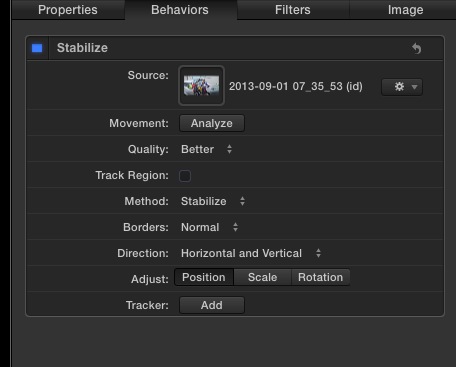
2. If you have Motion 5 you can use the Motion Tracking > Stabilize behavior to stabilize your video. The Motion stabilizer also has the option to not zoom in on the video and to show the stabilized clip floating around in your project frame. To achieve this, use the settings you see in the screenshot:
Finally, the effect shown in your second example is a mix of effects. First they have left the stabilized clip un-zoomed and floating inside a wide project frame, then they have animated the path of the clip while applying a freeze-frame motion trail, producing this animation. In the old days you could do this with an ADO. You could achieve the same effect in Motion 5 by using a Replicator and animating the replicator using the Motion Camera. But that's way beyond the scope of this thread.
- Ronny
That's what I thought as well, but I'm afraid that won't work. The FCPX stabilizer always fits the stabilized video inside its own frame, even when you scale the frame up or down or if you put the stabilized clip inside a CC.
@fcp2bruin
When you stabilize unstable video the stabilizing app puts an anchor point in the centre of you video and it animates the position of your clip around this fixed anchor point to compensate for the unwanted movement.
When the position of your clip moves inside your project frame this inevitably creates black borders. To compensate for these unwanted borders most stabilizing applications zoom in on the clip so the stabilized picture always fills the entire frame. That's also how the stabilizing feature in FCPX works.
These tricks you have shown in your examples were used in the old days because video quality was so bad that any zooming-in made it unwatchable.
If you want to reproduce the effects shown in the examples you have posted you have two choices:
1. Use a third-party stabilizer such as Lock&Load from CoreMelt. This stabilizer has an option (Fixed Scaling) that will animate the position of your video around a fixed centre anchor point, but when you scale the video down using the Fixed Scaling slider you will see the entire frame animating around this center point, just like in your examples.
2. If you have Motion 5 you can use the Motion Tracking > Stabilize behavior to stabilize your video. The Motion stabilizer also has the option to not zoom in on the video and to show the stabilized clip floating around in your project frame. To achieve this, use the settings you see in the screenshot:
Finally, the effect shown in your second example is a mix of effects. First they have left the stabilized clip un-zoomed and floating inside a wide project frame, then they have animated the path of the clip while applying a freeze-frame motion trail, producing this animation. In the old days you could do this with an ADO. You could achieve the same effect in Motion 5 by using a Replicator and animating the replicator using the Motion Camera. But that's way beyond the scope of this thread.
- Ronny
Last edit: 17 Feb 2014 10:53 by ronny courtens.
Please Log in to join the conversation.
17 Feb 2014 15:49 #41283
by lichinho
Replied by lichinho on topic How to increase "canvas size" to intentionally get a floating frame for motion-stabilized video?
While I haven't tried, I bet that you "trick" FCP X into doing what you want.
The trick? Compound clips. Apply stabilisation to your clip (which results in it being zoomed in, of course).
Now make it into a compound clip. Apply the transformation to the compound, not the original clip.
The trick? Compound clips. Apply stabilisation to your clip (which results in it being zoomed in, of course).
Now make it into a compound clip. Apply the transformation to the compound, not the original clip.
Please Log in to join the conversation.
- ronny courtens
-
- Offline
- Moderator
-
Less
More
- Posts: 4455
- Thank you received: 962
17 Feb 2014 16:06 #41285
by ronny courtens
Replied by ronny courtens on topic How to increase "canvas size" to intentionally get a floating frame for motion-stabilized video?
Good idea, but I have tried this and it doesn't work. The clip stays zoomed into its own frame in the CC.
- Ronny
- Ronny
Please Log in to join the conversation.
17 Feb 2014 19:09 #41300
by fcp2bruin
Replied by fcp2bruin on topic How to increase "canvas size" to intentionally get a floating frame for motion-stabilized video?
Thanks for all the ideas! I'll try as much as I can today and post back with results.
Please Log in to join the conversation.
17 Feb 2014 20:35 #41312
by Seanus
Sean Lander - Editing since 1982 - AVID 1991 - FCP 1999 - FCPX 2011
Replied by Seanus on topic How to increase "canvas size" to intentionally get a floating frame for motion-stabilized video?
@Ronny thanks for the info I wasn't at my computer at the time and was just guessing.
That is weird that you can't do it with compound clips.
Anyway then another solution is to do it in Motion. I know for certain this will work.
That is weird that you can't do it with compound clips.
Anyway then another solution is to do it in Motion. I know for certain this will work.
Sean Lander - Editing since 1982 - AVID 1991 - FCP 1999 - FCPX 2011
Please Log in to join the conversation.
- ronny courtens
-
- Offline
- Moderator
-
Less
More
- Posts: 4455
- Thank you received: 962
17 Feb 2014 20:47 #41315
by ronny courtens
Replied by ronny courtens on topic How to increase "canvas size" to intentionally get a floating frame for motion-stabilized video?
Hi Sean,
Compound clip was also my first thought. But then I tried this and no, it doesn't work as I expected.
But I agree this is perfectly doable on Motion 5.
- Ronny
Compound clip was also my first thought. But then I tried this and no, it doesn't work as I expected.
But I agree this is perfectly doable on Motion 5.
- Ronny
Please Log in to join the conversation.
18 Feb 2014 05:35 #41350
by fcp2bruin
Replied by fcp2bruin on topic How to increase "canvas size" to intentionally get a floating frame for motion-stabilized video?
It turns out the best solution for a beginner like me doesn't actually involve FCP at all; instead it uses Motion.app and Compressor.app. There are some obvious limitations, but this works for my current needs AND is simple enough for me to do.
(Note) I'm starting with iPhone 4S video, which really just means 1920x1080@30fps
(1) Start Motion.app (in my case v5.1) and create a new project at a super high resolution. I chose "4k Ultra HD," which is 3840x2160, but I forced that down to 30fps since I don't need the 59.94fps 4kUHD defaults with. I also measured the total number of frames in my input video (I'm interested in the whole clip) and I set my new project to exactly that number of frames.
(2) [Now inside my new project] I used the File Browser in Motion.app to find my input video and I hit the Import button.
(3) I then had to click on the video on the timeline in the lower right (I'm not sure what that window is called) just to select it. Once selected I clicked the nearby gear-icon to "add a behavior" and I chose Motion Tracking -> Stabilize. By default this puts a purple stabilization timeline across my entire project, which is fine for this example.
(4) Next I clicked on the Inspector tab in the upper right. The newly added stabilization is the default and only behavior there, but I had to click the "Add" button down by "Tracker" in order to manually choose a point I wanted to stabilize around.
(5) This brought up a crosshair on my video preview and I click-dragged that over to a nice easy to follow spot in my video. Unfortunately the default stabilization config isn't quite smart enough to track that point all the way, so I clicked the expansion arrow on the left of "Anchor" to increase the Search Size to 200% and decrease the "Fail Tolerance" to 50%.
(6) With the anchor configured I clicked Movement: Analyze in the upper section of the Inspector. In my short clip this took about 2 minutes and I was able to watch the frame by frame progress. It was easy to determine that the Anchor was working just fine.
(7) Use Share -> Export Movie to render this to an actual file. I chose H.264 encoding.
( Sit back and let the encoding run. ~45 seconds in my case. The video automatically opened in VLC.app and I saw a gigantic black frame around my centered original, but now stabilized, video.
(9) Close Motion.app. I didn't bother to save my project.
(10) Open Compressor.app (v4.1)
(11) File -> Add File and choose the newly generated 4kUHD file.
(12) Click the Add Outputs button and choose Apple Devices -> Apple Devices HD (Best Quality)
(13) On the right side click the Video tab and under Cropping & Padding choose Cropping: Letterbox Area of Source. This secretly locked the app for about 5 seconds while, presumably, Compressor scanned the video in the background analyzing where to trim/crop the video. Once done it was obvious the bounding box in the preview had shrunk down to about where I'd expect it.
(14) Click "Start Batch" to begin the new encoding. This took maybe 10 second (damn Compressor is fast!).
(15) Close Compressor.app and go check out my new file. It is awesome!
Limitations I can think of:
- 4k has plenty of border around a 1080p video AND I didn't have much shake. If I were shooting 4k and or I shoot my camera a bunch, I would have overrun the natural padding difference between 1080 -> 4k. Maybe Motion.app has custom size formats so you can just name 10,000 x 10,000 to get around that...?
- I tried a few very shakey videos and the automatic tracking/anchoring in Motion is pretty easy to fool. It sometimes stops and sometimes places the anchor in the wrong spot. It is extremely tedious to correct this manually. I suspect I just don't know about some ways to move the anchor inside individual frames.
- To stretch/skew in a rectilinear fashion, which would work much better for the natural kind of shake a handheld video contains, you need more than one motion tracker. I didn't try two, but I bet that works. I guess this point isn't really a limitation in my workflow so much as a note about, "if you moved in the Z axis, changed pitch, or changed yaw, you'll need at least 2 anchor points." I assume Motion can do this.
(Note) I'm starting with iPhone 4S video, which really just means 1920x1080@30fps
(1) Start Motion.app (in my case v5.1) and create a new project at a super high resolution. I chose "4k Ultra HD," which is 3840x2160, but I forced that down to 30fps since I don't need the 59.94fps 4kUHD defaults with. I also measured the total number of frames in my input video (I'm interested in the whole clip) and I set my new project to exactly that number of frames.
(2) [Now inside my new project] I used the File Browser in Motion.app to find my input video and I hit the Import button.
(3) I then had to click on the video on the timeline in the lower right (I'm not sure what that window is called) just to select it. Once selected I clicked the nearby gear-icon to "add a behavior" and I chose Motion Tracking -> Stabilize. By default this puts a purple stabilization timeline across my entire project, which is fine for this example.
(4) Next I clicked on the Inspector tab in the upper right. The newly added stabilization is the default and only behavior there, but I had to click the "Add" button down by "Tracker" in order to manually choose a point I wanted to stabilize around.
(5) This brought up a crosshair on my video preview and I click-dragged that over to a nice easy to follow spot in my video. Unfortunately the default stabilization config isn't quite smart enough to track that point all the way, so I clicked the expansion arrow on the left of "Anchor" to increase the Search Size to 200% and decrease the "Fail Tolerance" to 50%.
(6) With the anchor configured I clicked Movement: Analyze in the upper section of the Inspector. In my short clip this took about 2 minutes and I was able to watch the frame by frame progress. It was easy to determine that the Anchor was working just fine.
(7) Use Share -> Export Movie to render this to an actual file. I chose H.264 encoding.
(
Sit back and let the encoding run. ~45 seconds in my case. The video automatically opened in VLC.app and I saw a gigantic black frame around my centered original, but now stabilized, video.(9) Close Motion.app. I didn't bother to save my project.
(10) Open Compressor.app (v4.1)
(11) File -> Add File and choose the newly generated 4kUHD file.
(12) Click the Add Outputs button and choose Apple Devices -> Apple Devices HD (Best Quality)
(13) On the right side click the Video tab and under Cropping & Padding choose Cropping: Letterbox Area of Source. This secretly locked the app for about 5 seconds while, presumably, Compressor scanned the video in the background analyzing where to trim/crop the video. Once done it was obvious the bounding box in the preview had shrunk down to about where I'd expect it.
(14) Click "Start Batch" to begin the new encoding. This took maybe 10 second (damn Compressor is fast!).
(15) Close Compressor.app and go check out my new file. It is awesome!
Limitations I can think of:
- 4k has plenty of border around a 1080p video AND I didn't have much shake. If I were shooting 4k and or I shoot my camera a bunch, I would have overrun the natural padding difference between 1080 -> 4k. Maybe Motion.app has custom size formats so you can just name 10,000 x 10,000 to get around that...?
- I tried a few very shakey videos and the automatic tracking/anchoring in Motion is pretty easy to fool. It sometimes stops and sometimes places the anchor in the wrong spot. It is extremely tedious to correct this manually. I suspect I just don't know about some ways to move the anchor inside individual frames.
- To stretch/skew in a rectilinear fashion, which would work much better for the natural kind of shake a handheld video contains, you need more than one motion tracker. I didn't try two, but I bet that works. I guess this point isn't really a limitation in my workflow so much as a note about, "if you moved in the Z axis, changed pitch, or changed yaw, you'll need at least 2 anchor points." I assume Motion can do this.
Please Log in to join the conversation.

18 Feb 2014 09:09 #41357
by BenB
Replied by BenB on topic How to increase "canvas size" to intentionally get a floating frame for motion-stabilized video?
If I could get a sample clip to work with, I could probably trim this process down quite a bit.
Please Log in to join the conversation.
18 Feb 2014 19:01 #41386
by fcp2bruin
Replied by fcp2bruin on topic How to increase "canvas size" to intentionally get a floating frame for motion-stabilized video?
What's the best way to attach some files here? I've got three files, the before, mid process, and final, that I'd love to post as samples. They are 14.8MByte (orig), 26.1MByte (4k), and 9.2MByte (final).
I'm happy to use Dropbox or host myself, but I'm new to this forum and I always prefer to use the locally preferred method so this is my asking, "what does this community prefer?"
I'm happy to use Dropbox or host myself, but I'm new to this forum and I always prefer to use the locally preferred method so this is my asking, "what does this community prefer?"
Please Log in to join the conversation.
