


- Posts: 2
- Thank you received: 0
3 Post Moderation Rule for New Boarders (25 Jan 2021)
New boarders will have their posts moderated - Don't worry if you cannot see your post immediately.
Library archiving/transfer issue
10 Feb 2014 15:20 #40865
by Barry723
Library archiving/transfer issue was created by Barry723
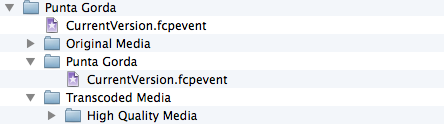
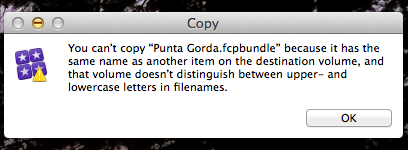
When attempting to offload a FCX 10.1.1 library to an external drive. I receive the error message shown in the screenshot. The issue is there is no other file on the external drive with the same filename. In the second screenshot, the file structure of the partially transferred library is shown. What am I doing wrong? The transfer process shuts down with approximately 30 meg left to transfer.
Please Log in to join the conversation.
- ronny courtens
-

- Offline
- Moderator
-

Less
More
- Posts: 4455
- Thank you received: 962
10 Feb 2014 16:58 #40875
by ronny courtens
Replied by ronny courtens on topic Library archiving/transfer issue
Give your Library a different name. If it copies over you can always rename the copy back to its original name when it's done.
If that doesn't help: how are you copying your Library? From within FCPX or dragging in the Finder?
- Ronny
If that doesn't help: how are you copying your Library? From within FCPX or dragging in the Finder?
- Ronny
Please Log in to join the conversation.

10 Feb 2014 17:02 - 10 Feb 2014 17:03 #40879
by BenB
Replied by BenB on topic Library archiving/transfer issue
The first screen shot has nothing to do with anything. That is simply the guts of an FCPX Library package. Copying a "Library" from one drive to another is done in the Finder, as one file, one Library package.
You have some issue with the drive's formatting. Select it in the Finder, use Command-i to get the information window about it, and be sure Format states "Mac OS Extended (Journaled)". IF not, you need to reformat that drive properly. That is similar, but not the actual error message you should be seeing.
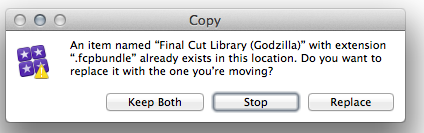
When you do copy a file (even an FCPX Library) of the same type and name, this is what you should see.
You have some issue with the drive's formatting. Select it in the Finder, use Command-i to get the information window about it, and be sure Format states "Mac OS Extended (Journaled)". IF not, you need to reformat that drive properly. That is similar, but not the actual error message you should be seeing.
When you do copy a file (even an FCPX Library) of the same type and name, this is what you should see.
Last edit: 10 Feb 2014 17:03 by BenB.
Please Log in to join the conversation.
- ronny courtens
-
- Offline
- Moderator
-
Less
More
- Posts: 4455
- Thank you received: 962
10 Feb 2014 17:22 #40885
by ronny courtens
Replied by ronny courtens on topic Library archiving/transfer issue
Ben is correct, I didn't notice this. What you have is not a duplicate file name issue.
- Ronny
- Ronny
Please Log in to join the conversation.
10 Feb 2014 18:18 #40890
by Barry723
Replied by Barry723 on topic Library archiving/transfer issue
The drive is formatted as Mac OS Extended (Journaled). I am dragging the library using the Finder.
Please Log in to join the conversation.
- ronny courtens
-
- Offline
- Moderator
-
Less
More
- Posts: 4455
- Thank you received: 962
10 Feb 2014 19:35 #40893
by ronny courtens
Replied by ronny courtens on topic Library archiving/transfer issue
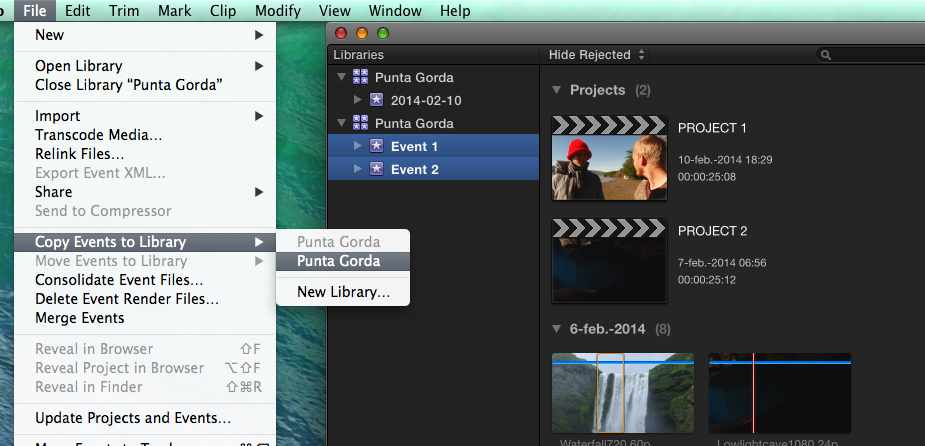
In FCPX create a new "Punta Gorda" Library and store it onto your external drive. You can name it "Punta Gorda" or "Punta Gorda Copy", it doesn't matter.
When the Library is created it will appear in your FCPX Library Browser.
Then group-select the Events in the original Punta Gorda Library and choose File > Copy Event to Library > "Punta Gorda" (or "Punta Gorda copy").
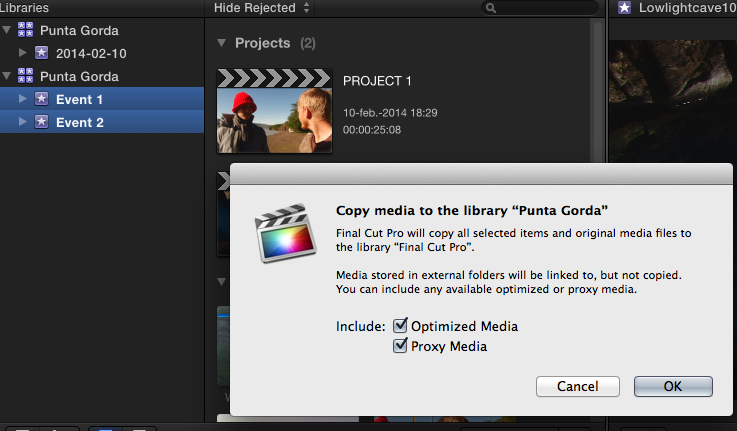
You will get a message asking you if you want to copy over the Optimized and/or Proxy files. Choose what you want to copy over, then press OK.
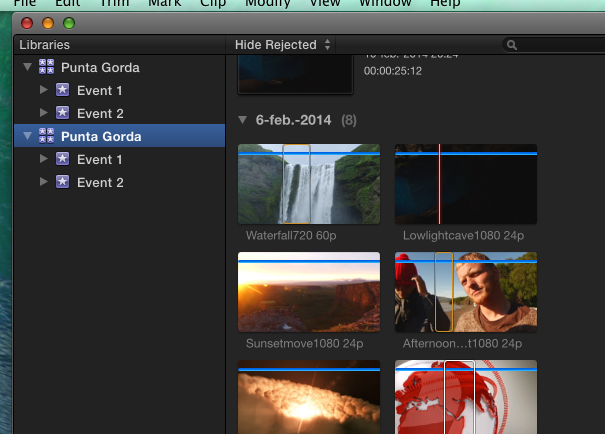
In FCPX you wil see that the Events are copied from one Library into the other.
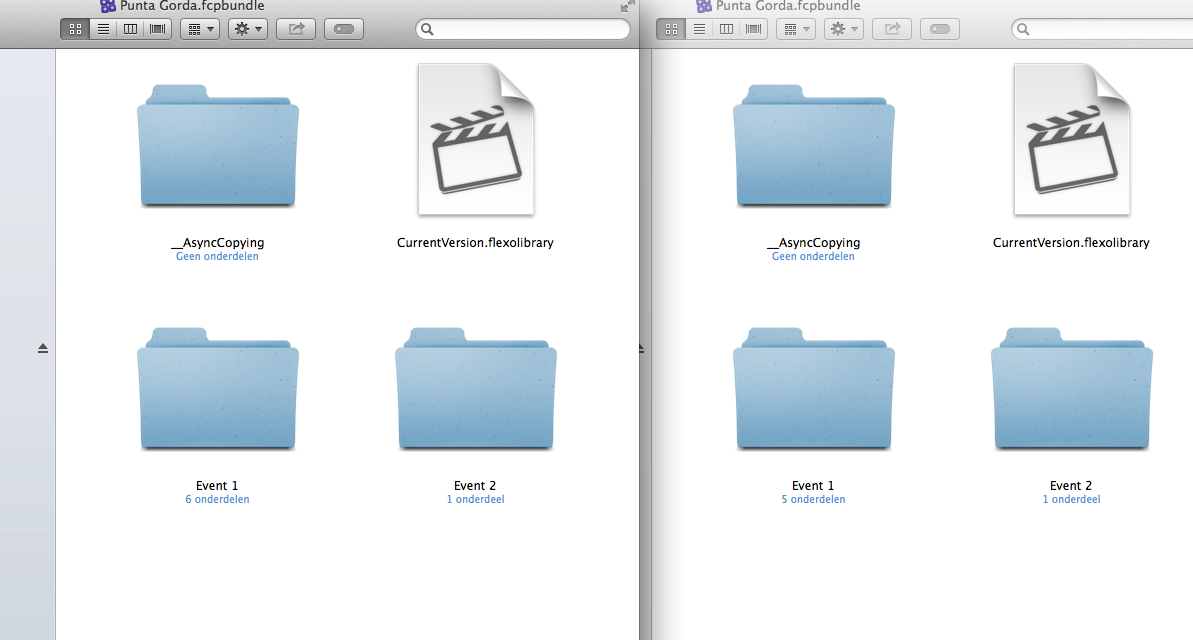
When everything is copied over you will have two identical Libraries on your original drive and on your external one.
- Ronny
When the Library is created it will appear in your FCPX Library Browser.
Then group-select the Events in the original Punta Gorda Library and choose File > Copy Event to Library > "Punta Gorda" (or "Punta Gorda copy").
You will get a message asking you if you want to copy over the Optimized and/or Proxy files. Choose what you want to copy over, then press OK.
In FCPX you wil see that the Events are copied from one Library into the other.
When everything is copied over you will have two identical Libraries on your original drive and on your external one.
- Ronny
Please Log in to join the conversation.
