


- Posts: 929
- Thank you received: 131
3 Post Moderation Rule for New Boarders (25 Jan 2021)
New boarders will have their posts moderated - Don't worry if you cannot see your post immediately.
Tip: FCP X replace edit techniques
31 Oct 2011 21:27 - 31 Oct 2011 21:28 #1921
by tpayton
Tip: FCP X replace edit techniques was created by tpayton
If case you didn't know you can't do replace edits in FCP X like you would in FCP 7. Hopefully Apple will improve upon the replace function soon, but for now here are a few techniques I have used that might prove useful:
Last edit: 31 Oct 2011 21:28 by tpayton. Reason: Fix video embed
Please Log in to join the conversation.
- ronny courtens
-

- Offline
- Moderator
-

Less
More
- Posts: 4455
- Thank you received: 962
01 Nov 2011 02:23 #1924
by ronny courtens
Replied by ronny courtens on topic Re: Tip: FCP X replace edit techniques
Interesting technique. Thank you for posting this.
Please Log in to join the conversation.
- Mikeybouchereau
-

- Offline
- Elite Member
-

Less
More
- Posts: 201
- Thank you received: 81
01 Nov 2011 04:06 #1926
by Mikeybouchereau
Replied by Mikeybouchereau on topic Re: Tip: FCP X replace edit techniques
Detach Audio would be useful for the second technique if you wanted to keep the audio.
Please Log in to join the conversation.

01 Nov 2011 06:47 - 01 Nov 2011 06:59 #1928
by BenB
Replied by BenB on topic Re: Tip: FCP X replace edit techniques
Couple things that may help that out. Place your playhead in the Timeline, Shift+F will do a Match Frame like in v.7. It will make the Master Clip active in the Browser, with the playhead on the same frame. Must easier than guessing.
Also, if you Opt+Cmd+click on the Connected Clip somewhere, it changes the Stem (connecting line) location so that it's not connected in a troubling location any more.
And if you have matching In points, you can do a Replace From Start, and it won't change the Timeline duration (unless the new clip is too short).
Also, if you Opt+Cmd+click on the Connected Clip somewhere, it changes the Stem (connecting line) location so that it's not connected in a troubling location any more.
And if you have matching In points, you can do a Replace From Start, and it won't change the Timeline duration (unless the new clip is too short).
Last edit: 01 Nov 2011 06:59 by BenB.
Please Log in to join the conversation.
01 Nov 2011 20:45 - 01 Nov 2011 20:48 #1936
by tpayton
Replied by tpayton on topic Re: Tip: FCP X replace edit techniques
Thanks for the feedback here and on the cow. I addressed detaching audio, replacing from start or end, and another new technique that I think is far superior to the rest.
Last edit: 01 Nov 2011 20:48 by tpayton.
Please Log in to join the conversation.
01 Nov 2011 22:22 #1939
by BenB
Replied by BenB on topic Re: Tip: FCP X replace edit techniques
Great job! People don't get that FCP X is about "Timelines", not "Projects". Three types of Timelines: Clip, Compound Clip, Project. Use them all.
Another thing is if you do effects work like this, is put both versions of the clip into a Compound or Audition in the Event Browser before even going to the Project.
The more folks learn about what FCP X will do, the more it will catch on. I think in the next update or two naysayers will be eating crow.
Another thing is if you do effects work like this, is put both versions of the clip into a Compound or Audition in the Event Browser before even going to the Project.
The more folks learn about what FCP X will do, the more it will catch on. I think in the next update or two naysayers will be eating crow.
Please Log in to join the conversation.
- ronny courtens
-
- Offline
- Moderator
-
Less
More
- Posts: 4455
- Thank you received: 962
02 Nov 2011 00:19 - 02 Nov 2011 00:26 #1940
by ronny courtens
Replied by ronny courtens on topic Re: Tip: FCP X replace edit techniques
I have followed your technique with much interest. As most of our editors are die-hard Avid and FCP users relying on their traditional keyboard layouts I have remapped our FCPX keyboards to accomodate for their accustomed shortcuts. Let me give you an example.
F12 is our traditional Overwrite shortcut. In FCPX this corresponds with "Connect to Primary Storyline". So for this function in FCPX we have:
F12 = Connect to Primary Storyline
CTRL F12 = Connect to Primary Storyline Backtimed
SHIFT F12 = Connect... Video Only
CTRL SHIFT F12 = Connect... Video Only Backtimed
ALT F12 = Connect... Audio Only
CTRL ALT F12 = Connect... Audio Only Backtimed
I have tried your example using our shortcuts and it is very easy to do.
Find a synch point anywhere on the primary storyline and set an Out point. Find the corresponding synch frame in the new clip in the Browser, set an Out pint and and press CTRL F12. Done. The new video will appear perfectly synched on top of the old video. If the synch point was somewhere in the middle of the clip all you have to do is extend the new video and that's it. Great job.
F12 is our traditional Overwrite shortcut. In FCPX this corresponds with "Connect to Primary Storyline". So for this function in FCPX we have:
F12 = Connect to Primary Storyline
CTRL F12 = Connect to Primary Storyline Backtimed
SHIFT F12 = Connect... Video Only
CTRL SHIFT F12 = Connect... Video Only Backtimed
ALT F12 = Connect... Audio Only
CTRL ALT F12 = Connect... Audio Only Backtimed
I have tried your example using our shortcuts and it is very easy to do.
Find a synch point anywhere on the primary storyline and set an Out point. Find the corresponding synch frame in the new clip in the Browser, set an Out pint and and press CTRL F12. Done. The new video will appear perfectly synched on top of the old video. If the synch point was somewhere in the middle of the clip all you have to do is extend the new video and that's it. Great job.
Last edit: 02 Nov 2011 00:26 by ronny courtens. Reason: typo
Please Log in to join the conversation.
02 Nov 2011 00:40 - 02 Nov 2011 00:42 #1941
by BenB
Replied by BenB on topic Re: Tip: FCP X replace edit techniques
As a trainer and consultant, from my experience over the years, letting editors remap keyboard shortcuts gets dicey in the long run. We've always found it better to make them learn the new shortcuts. It's not that difficult, and avoids problems in the long run. It's a new universe, make them learn it, they're big boys and girls and can learn new keyboard shortcuts very easily.
FCP X keyboard shortcuts are actually laid out in a logical fashion. It's a growing app and some of those you're assigning may show up as different functions in future updates. Not to mention the default built-in shortcuts are much faster once learned (which only takes a few minutes).
Actually, a Connected Clip is NOT an Overwrite. Overwrite still exists in FCP X. It's the D key, and actually Overwites just like in FCP 7. Be careful with that stuff.
I'm just saying.
FCP X keyboard shortcuts are actually laid out in a logical fashion. It's a growing app and some of those you're assigning may show up as different functions in future updates. Not to mention the default built-in shortcuts are much faster once learned (which only takes a few minutes).
Actually, a Connected Clip is NOT an Overwrite. Overwrite still exists in FCP X. It's the D key, and actually Overwites just like in FCP 7. Be careful with that stuff.
I'm just saying.
Last edit: 02 Nov 2011 00:42 by BenB.
Please Log in to join the conversation.
- ronny courtens
-
- Offline
- Moderator
-
Less
More
- Posts: 4455
- Thank you received: 962
02 Nov 2011 02:41 #1943
by ronny courtens
Replied by ronny courtens on topic Re: Tip: FCP X replace edit techniques
Hi Ben,
You are correct. What I meant was Superimpose, my mistake.
As to the keyboard shortcuts:
There is a huge difference between teaching people how to work with an application and actually doing it yourself 10 to 16 hours a day against fierce deadlines in a high-end environment. Our core editors rely on their vast experience and their creativity to get their jobs done and I frankly don't care what buttons they prefer to press to achieve this. As you say: they can adapt fairly fast to new shortcuts if and when they feel the need for this. But you have to let them make any transition themselves. Some will do it immediately, for others it will take time to adapt. What counts is that they feel comfortable with any new workflow. I have been in this business for way too long not to respect the individual wishes of the people who work with us. Our people are the single most important asset in our company, and that's why we are still around and growing after more than 30 years in the film and television industry. And that's also what our clients come for: the people, not the machines or the applications they work with.
For us FCPX is just a nice addition to our workflow, it's certainly not our core editing application. Our editors often switch between applications and I let them decide for themselves how they work with them, as long as the job gets done and the client is satisfied. If and when FCPX becomes a truly viable editing solution in our workflow I will certainly consider getting specialized training sessions for this specific app. In the meantime we give it all the credit it deserves and I must say I am fairly happy with its innovative approach to editing. That's why I have joined this forum to learn from people who teach it or experiment with it on a daily basis. And so far I don't regret spending some of my time here. Thank you for all the expert advice, it's much appreciated.
You are correct. What I meant was Superimpose, my mistake.
As to the keyboard shortcuts:
There is a huge difference between teaching people how to work with an application and actually doing it yourself 10 to 16 hours a day against fierce deadlines in a high-end environment. Our core editors rely on their vast experience and their creativity to get their jobs done and I frankly don't care what buttons they prefer to press to achieve this. As you say: they can adapt fairly fast to new shortcuts if and when they feel the need for this. But you have to let them make any transition themselves. Some will do it immediately, for others it will take time to adapt. What counts is that they feel comfortable with any new workflow. I have been in this business for way too long not to respect the individual wishes of the people who work with us. Our people are the single most important asset in our company, and that's why we are still around and growing after more than 30 years in the film and television industry. And that's also what our clients come for: the people, not the machines or the applications they work with.
For us FCPX is just a nice addition to our workflow, it's certainly not our core editing application. Our editors often switch between applications and I let them decide for themselves how they work with them, as long as the job gets done and the client is satisfied. If and when FCPX becomes a truly viable editing solution in our workflow I will certainly consider getting specialized training sessions for this specific app. In the meantime we give it all the credit it deserves and I must say I am fairly happy with its innovative approach to editing. That's why I have joined this forum to learn from people who teach it or experiment with it on a daily basis. And so far I don't regret spending some of my time here. Thank you for all the expert advice, it's much appreciated.
Please Log in to join the conversation.
02 Nov 2011 04:31 #1944
by BenB
Replied by BenB on topic Re: Tip: FCP X replace edit techniques
You seem to have a much more relaxed and open production environment than most of the places I work with around the country. Nice to see for a change.
Please Log in to join the conversation.
02 Nov 2011 09:11 - 02 Nov 2011 09:13 #1949
by tpayton
Replied by tpayton on topic Re: Tip: FCP X replace edit techniques
One other extra, if you are using the last technique, that is using the "open timeline" and then the replace edit to swap out footage, you can "restore" the original clip name in your timeline and therefore the "Reveal in Finder" and "Reveal in Event Browser".
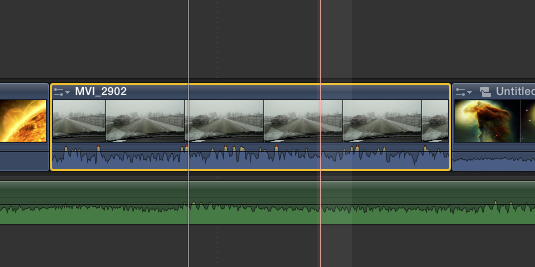
Do this by first finalizing your audition (if you have one) and then choose "Break Apart Clip Items." Don't worry it won't actually break apart your audio from your video clip, it will just remove the compound clip that was created and bring in your replaced clip.
Here is a little walkthrough:
Here is our original clip:
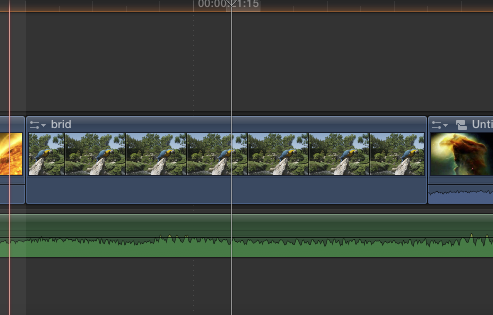
Now after open in timeline, drag in replacement clip and choose replace:
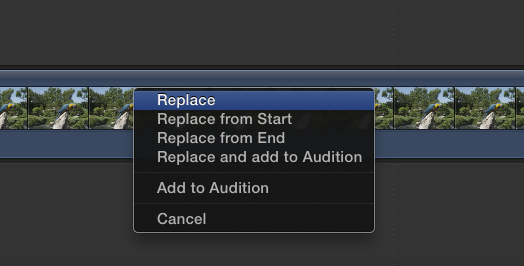
Now back in your timeline, it is a compound clip with the name of the original clip.
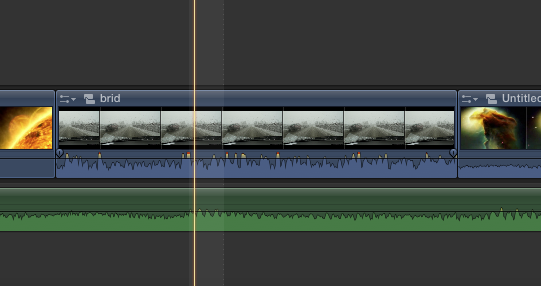
Choose "break apart clip items" to restore the new clip in the timeline:
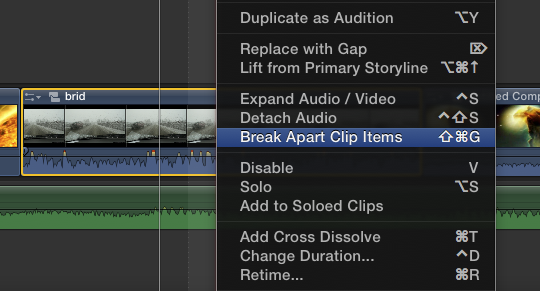
Now your replacement clip is in place with is real name and no compound clip.
Do this by first finalizing your audition (if you have one) and then choose "Break Apart Clip Items." Don't worry it won't actually break apart your audio from your video clip, it will just remove the compound clip that was created and bring in your replaced clip.
Here is a little walkthrough:
Here is our original clip:
Now after open in timeline, drag in replacement clip and choose replace:
Now back in your timeline, it is a compound clip with the name of the original clip.
Choose "break apart clip items" to restore the new clip in the timeline:
Now your replacement clip is in place with is real name and no compound clip.
Last edit: 02 Nov 2011 09:13 by tpayton.
Please Log in to join the conversation.
