


- Posts: 786
- Thank you received: 21
3 Post Moderation Rule for New Boarders (25 Jan 2021)
New boarders will have their posts moderated - Don't worry if you cannot see your post immediately.
10.1.1 Libraries explained, what I know and it's easier than you think. LONG.
- Jonathan Levin
-
 Topic Author
- Offline
- Platinum Member
-

Less
More
20 Jan 2014 18:59 - 21 Jan 2014 05:57 #39349
by Jonathan Levin
10.1.1 Libraries explained, what I know and it's easier than you think. LONG. was created by Jonathan Levin
I thought I'd contribute something here since I have received so much great advice.
I thought I'd tell you about how I set up my Library(s), events and projects, and also in relation to the old FCP 7 way of working.
I am by no means an expert, and anyone with more knowledge than me or feels that I have made any errors, please feel free to comment/correct what I have written here:
First, I prefer to work with External media, even though it's just me editing a video. This makes backing up a LIBRARY easier since it will fit on to a DVD for archiving and safe keeping. I then back up my media to a separate source or drive someplace.
BEFORE I EVEN LAUNCH FCP-
I created a folder on the drive that I work with video, called simply enough, Video Projects. When Starting a new film, I create a folder with the name of the movie I am making. We'll call that folder "Jono's Big Movie"
So, HD>Video Projects>Jono's Big Movie. In the" Jono's Big Movie" ( JBM to save typing) If I know I'll be using music, I make a folder called Music and manually place all my music, audio sound effects files, etc. in there. I create a separate folder in JBM called Photos if I am working with photos and bring copies of those into the photos folder. I make a Graphics folder for Photoshop layered graphics. And don't forget to make a folder to holder video. You get the idea. But I set this up before I do anything in FCP X.1
SO NOW IN FCP-
To me a Library is just a folder. I look at it just like when I create a new folder on a hard drive for a whole new video project which for this I'll call "Jono's Big Movie" However, this "folder" is created within FCP X.1.
The Library (folder) can and in my case always would be the name of my movie "Jono's Big Movie", JBM to save typing from here on. I think of Libraries as a main BIN like in FCP 7.
For EVERY new movie I create, say "Jono Meets Godzilla", I would create a new Library (folder) in FC, and change name according;y. Again, my workflow. But I would first go through my steps that I wrote above before opening FCP. Organizational stuff.
A library from with in FCP X is saved to where ever you choose. In my case the folder on the external drive called Video Projects>Jono's Big Movie". I would have any and all my Libraries in that folder. To re-cap, for me I create a new library for each new movie/video I work on. If you have fifty different libraries, you can chose which you want to see in FCP X.1 or all the libraries. I like just seeing the one I'm currently working on. So if I look in my video projects folder on my external drive, I'll should see fifty folders with fifty movie titles with 50 FCP X library files along with the media I use for that project. You with me?
So I've made the initial library in DC, I now create several events. I change the names of events: One called photos, another called music, another called graphics, and one called video. To me, Events are like BINs in the old FCP 7
I then click/select an event, let's say Photos, and I then use the Get Media command and navigate to the folder where the photos are that I want to use for my project. I select all the photos in that folder and click import. All the photos are now in FCP and ready for use in editing. I'm not sure, but I think rather than make a new event, you can import media, select the actual Photos folder and it creates a new event in FCP called Photos.
I repeat this process for Video event, Music event and so on. And the whole thing is ready to be edited away.
I hope this helps, and again, my apologies if I have left anything out, or incorrectly stated, and I urge the pro's here to expand on this if they feel it is warranted.
Jonathan
I thought I'd tell you about how I set up my Library(s), events and projects, and also in relation to the old FCP 7 way of working.
I am by no means an expert, and anyone with more knowledge than me or feels that I have made any errors, please feel free to comment/correct what I have written here:
First, I prefer to work with External media, even though it's just me editing a video. This makes backing up a LIBRARY easier since it will fit on to a DVD for archiving and safe keeping. I then back up my media to a separate source or drive someplace.
BEFORE I EVEN LAUNCH FCP-
I created a folder on the drive that I work with video, called simply enough, Video Projects. When Starting a new film, I create a folder with the name of the movie I am making. We'll call that folder "Jono's Big Movie"
So, HD>Video Projects>Jono's Big Movie. In the" Jono's Big Movie" ( JBM to save typing) If I know I'll be using music, I make a folder called Music and manually place all my music, audio sound effects files, etc. in there. I create a separate folder in JBM called Photos if I am working with photos and bring copies of those into the photos folder. I make a Graphics folder for Photoshop layered graphics. And don't forget to make a folder to holder video. You get the idea. But I set this up before I do anything in FCP X.1
SO NOW IN FCP-
To me a Library is just a folder. I look at it just like when I create a new folder on a hard drive for a whole new video project which for this I'll call "Jono's Big Movie" However, this "folder" is created within FCP X.1.
The Library (folder) can and in my case always would be the name of my movie "Jono's Big Movie", JBM to save typing from here on. I think of Libraries as a main BIN like in FCP 7.
For EVERY new movie I create, say "Jono Meets Godzilla", I would create a new Library (folder) in FC, and change name according;y. Again, my workflow. But I would first go through my steps that I wrote above before opening FCP. Organizational stuff.
A library from with in FCP X is saved to where ever you choose. In my case the folder on the external drive called Video Projects>Jono's Big Movie". I would have any and all my Libraries in that folder. To re-cap, for me I create a new library for each new movie/video I work on. If you have fifty different libraries, you can chose which you want to see in FCP X.1 or all the libraries. I like just seeing the one I'm currently working on. So if I look in my video projects folder on my external drive, I'll should see fifty folders with fifty movie titles with 50 FCP X library files along with the media I use for that project. You with me?
So I've made the initial library in DC, I now create several events. I change the names of events: One called photos, another called music, another called graphics, and one called video. To me, Events are like BINs in the old FCP 7
I then click/select an event, let's say Photos, and I then use the Get Media command and navigate to the folder where the photos are that I want to use for my project. I select all the photos in that folder and click import. All the photos are now in FCP and ready for use in editing. I'm not sure, but I think rather than make a new event, you can import media, select the actual Photos folder and it creates a new event in FCP called Photos.
I repeat this process for Video event, Music event and so on. And the whole thing is ready to be edited away.
I hope this helps, and again, my apologies if I have left anything out, or incorrectly stated, and I urge the pro's here to expand on this if they feel it is warranted.
Jonathan
Last edit: 21 Jan 2014 05:57 by Jonathan Levin. Reason: title
Please Log in to join the conversation.
- ronny courtens
-

- Offline
- Moderator
-

Less
More
- Posts: 4455
- Thank you received: 962
20 Jan 2014 19:22 - 20 Jan 2014 19:26 #39350
by ronny courtens
Replied by ronny courtens on topic 10.1.1 Libraries explained, what I know and it it's easier than you think. LONG.
Hi Jonathan,
Thank you for sharing your workflow. Just one thing I would like to add:
You already carefully prepare your edit by creating distinct folders for different types of media (which is a really good thing). So instead of creating different Events for every type of media you use in a project you can just create one Event for all the media you will use in a specific project and in this Event you import the folders (Photo folder, Graphics folder, Music folder...) you have prepared for that project. When you do this and in the Import Preferences you have "Import folders as Keyword Collections" checked, FCPX will automatically create a Keyword Collection for every different folder.
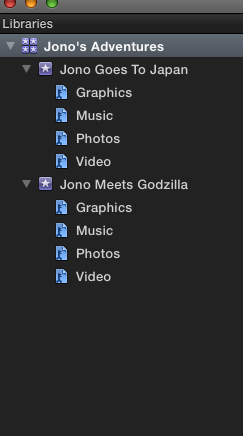
Your workflow is great, this is just a different option you can use.
- Ronny
Thank you for sharing your workflow. Just one thing I would like to add:
You already carefully prepare your edit by creating distinct folders for different types of media (which is a really good thing). So instead of creating different Events for every type of media you use in a project you can just create one Event for all the media you will use in a specific project and in this Event you import the folders (Photo folder, Graphics folder, Music folder...) you have prepared for that project. When you do this and in the Import Preferences you have "Import folders as Keyword Collections" checked, FCPX will automatically create a Keyword Collection for every different folder.
Your workflow is great, this is just a different option you can use.
- Ronny
Last edit: 20 Jan 2014 19:26 by ronny courtens.
Please Log in to join the conversation.
- ronny courtens
-
- Offline
- Moderator
-
Less
More
- Posts: 4455
- Thank you received: 962
20 Jan 2014 19:32 #39352
by ronny courtens
Replied by ronny courtens on topic 10.1.1 Libraries explained, what I know and it it's easier than you think. LONG.
And you could have a look at using Smart Collections for different types of media as well. Very handy when you import new media while working on a project, as FCPX will automatically add the new media to the specific Smart Collections you have created for different type of media. Lots of organizing possibilities in this NLE 
- Ronny
- Ronny
Please Log in to join the conversation.
- Jonathan Levin
-
Topic Author
- Offline
- Platinum Member
-
Less
More
- Posts: 786
- Thank you received: 21
20 Jan 2014 20:54 #39355
by Jonathan Levin
Replied by Jonathan Levin on topic 10.1.1 Libraries explained, what I know and it it's easier than you think. LONG.
Ronny,
Thanks for mentioning the Keyword thing and your suggestions.
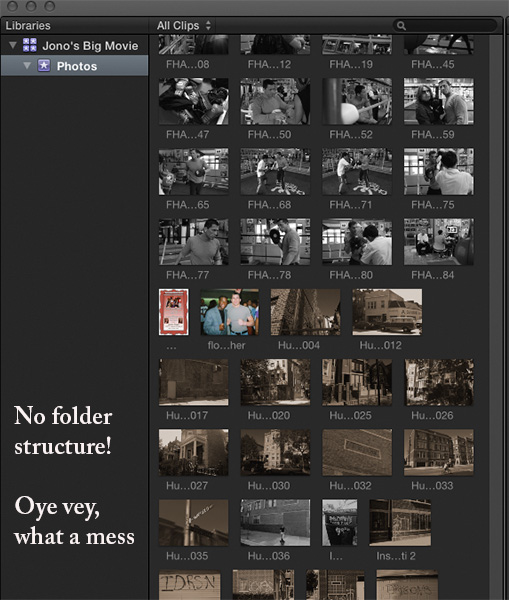
I just learned something interesting. Before starting FCP, as I mentioned, I organize all my stuff. On my external hard drive in the movie folder I created, I made the photos folder and placed all my photos in that folder. What I forgot was that if in that photos folder I have sub-folders: JBM>Photos>Godzilla Portrait and JBM>Photos>Godzilla working out in gym and JBM>Photos>Jono beats Godzilla at Uno. Three sub folders of Photos folder.
If I import media (Photos) setting the Preference to NOT import as Keyword Collection, the photos import, but without their folder structure that reflects how I set up my HD initially. So basically it a whole mess of photos.
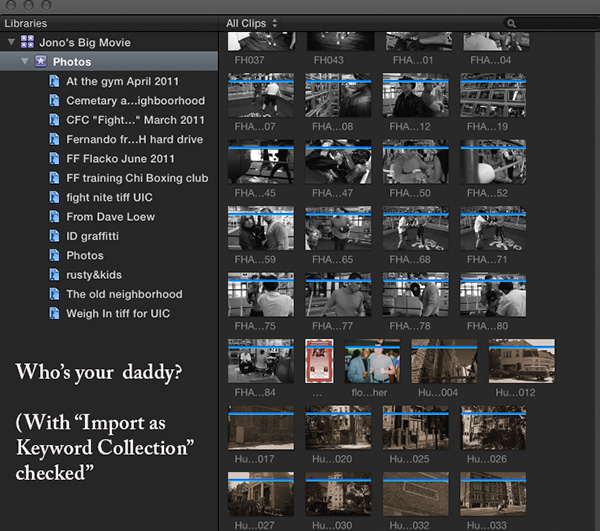
Like you mentioned if I import my media (photos) with "Import Folders as Keywords" then the folder structure appears like it does on my HD, but now it is in the Event called photos. I'll post a couple of screen captures. Bottom line is if I want to keep folder structure of my initial set up on hard drive, then always check Import folders as Keywords form the Import Preference dialog. Not sure why it's called Keywords though.
And the new way:
Thanks for mentioning the Keyword thing and your suggestions.
I just learned something interesting. Before starting FCP, as I mentioned, I organize all my stuff. On my external hard drive in the movie folder I created, I made the photos folder and placed all my photos in that folder. What I forgot was that if in that photos folder I have sub-folders: JBM>Photos>Godzilla Portrait and JBM>Photos>Godzilla working out in gym and JBM>Photos>Jono beats Godzilla at Uno. Three sub folders of Photos folder.
If I import media (Photos) setting the Preference to NOT import as Keyword Collection, the photos import, but without their folder structure that reflects how I set up my HD initially. So basically it a whole mess of photos.
Like you mentioned if I import my media (photos) with "Import Folders as Keywords" then the folder structure appears like it does on my HD, but now it is in the Event called photos. I'll post a couple of screen captures. Bottom line is if I want to keep folder structure of my initial set up on hard drive, then always check Import folders as Keywords form the Import Preference dialog. Not sure why it's called Keywords though.
And the new way:
Please Log in to join the conversation.
- Jonathan Levin
-
Topic Author
- Offline
- Platinum Member
-
Less
More
- Posts: 786
- Thank you received: 21
20 Jan 2014 20:55 #39356
by Jonathan Levin
Replied by Jonathan Levin on topic 10.1.1 Libraries explained, what I know and it it's easier than you think. LONG.
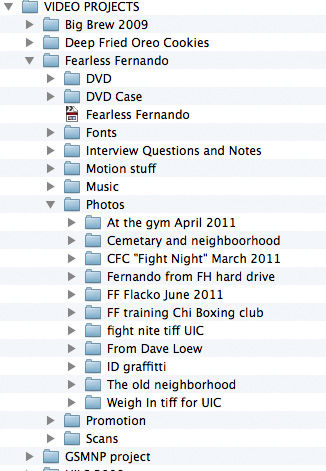
And just for perspective, here is a screen shot of my folder structure:
Please Log in to join the conversation.
- ronny courtens
-
- Offline
- Moderator
-
Less
More
- Posts: 4455
- Thank you received: 962
20 Jan 2014 21:22 #39360
by ronny courtens
Replied by ronny courtens on topic 10.1.1 Libraries explained, what I know and it it's easier than you think. LONG.
Wow, and I thought I was a sick organizational perfectionist 
Yes, if you have sub-folders it is indeed best to create one Event for every main folder and the sub-folders will be imported as Keyword Collections. Very clear media overview, my respect! I'm sure you will have a ball with all the organizational possibilities in FCPX
- Ronny
Yes, if you have sub-folders it is indeed best to create one Event for every main folder and the sub-folders will be imported as Keyword Collections. Very clear media overview, my respect! I'm sure you will have a ball with all the organizational possibilities in FCPX
- Ronny
Please Log in to join the conversation.

21 Jan 2014 12:30 #39403
by andymees
Replied by andymees on topic 10.1.1 Libraries explained, what I know and it it's easier than you think. LONG.
Hi Jonathan
Just in case you're creating this structure by hand ... you should really check out Digital Rebellion's free PostHaste app. Its worth its weight in gold.
www.digitalrebellion.com/posthaste/
Cheers
Andy
Just in case you're creating this structure by hand ... you should really check out Digital Rebellion's free PostHaste app. Its worth its weight in gold.
www.digitalrebellion.com/posthaste/
Cheers
Andy
Please Log in to join the conversation.
- ronny courtens
-
- Offline
- Moderator
-
Less
More
- Posts: 4455
- Thank you received: 962
21 Jan 2014 12:38 #39404
by ronny courtens
Replied by ronny courtens on topic 10.1.1 Libraries explained, what I know and it it's easier than you think. LONG.
Great tip, Andy!
- Ronny
- Ronny
Please Log in to join the conversation.
- cinemaloha
-

- Offline
- Elite Member
-

Less
More
- Posts: 163
- Thank you received: 36
21 Jan 2014 18:22 #39439
by cinemaloha
Replied by cinemaloha on topic 10.1.1 Libraries explained, what I know and it it's easier than you think. LONG.
To add to this workflow and starting from the camera...
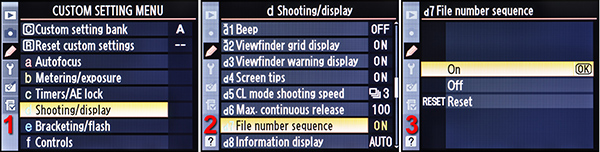
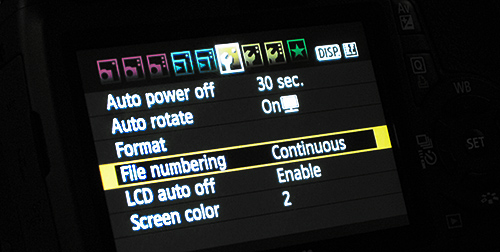
1. On a Canon/Nikon DSLR (or any camera with # reseting or user input data), you can create a folders (by reseting numbering in the menu) for each scene or subject.
2. After copying the folders from the card to your harddrive, you can simply rename the folders in 'Finder'.
3. When importing in FCPX, 'Import Folders as Keyword Collections'. Each scene will be nicely keyworded for quick skimming and quick rough cut.
1. On a Canon/Nikon DSLR (or any camera with # reseting or user input data), you can create a folders (by reseting numbering in the menu) for each scene or subject.
2. After copying the folders from the card to your harddrive, you can simply rename the folders in 'Finder'.
3. When importing in FCPX, 'Import Folders as Keyword Collections'. Each scene will be nicely keyworded for quick skimming and quick rough cut.
Please Log in to join the conversation.
- Gabriel Spaulding
-
- Offline
- Senior Member
-

- I am becoming.
Less
More
- Posts: 41
- Thank you received: 4
21 Jan 2014 19:11 #39441
by Gabriel Spaulding
Replied by Gabriel Spaulding on topic 10.1.1 Libraries explained, what I know and it it's easier than you think. LONG.
Post Haste is a nice little app. However, once you've manually created your project folder hierarchy you can just turn it into a .zip file (right-click and compress). With each new project just double-click the .zip file, rename the top level folder to match your project name, and voila --every subsequent project has the exact same organizational structure, no need to manually recreate any folders. I've been doing this for years and it works wonderfully.
Please Log in to join the conversation.
