


- Posts: 257
- Thank you received: 47
3 Post Moderation Rule for New Boarders (25 Jan 2021)
New boarders will have their posts moderated - Don't worry if you cannot see your post immediately.
Keyframing, easing, scale, and position
02 Jan 2014 06:01 #37821
by ddixon
Keyframing, easing, scale, and position was created by ddixon
I just now had time to read the "Cheat Sheet" posted earlier this week, and was excited to see there were changes to a pet peeve of mine - moving and scaling a clip or photo via keyframes. Now when I do a Scale and a Position simultaneously, I at least get a straight animation path rather than the weird ones of the past. However, this seems to have come at the expense of Position Ease In/Out.
Position keyframe animations now always end in a hard stop, whether the keyframes are set to Linear or Smooth. I almost always want those to Ease In and Out - is there a way to turn that on?
In FCP "Classic" I used a third party plugin to get both straight paths and easing, and I've been using Alex Gollner's free "Smooth Move" plugin to do the same in FCPX. It's looking like I may need to keep using it. (Thanks Alex - it's my most used plugin!! I just wish it had more onscreen controls, and I wish I didn't have to make many photos Compound Clips first to avoid cropping.)
Position keyframe animations now always end in a hard stop, whether the keyframes are set to Linear or Smooth. I almost always want those to Ease In and Out - is there a way to turn that on?
In FCP "Classic" I used a third party plugin to get both straight paths and easing, and I've been using Alex Gollner's free "Smooth Move" plugin to do the same in FCPX. It's looking like I may need to keep using it. (Thanks Alex - it's my most used plugin!! I just wish it had more onscreen controls, and I wish I didn't have to make many photos Compound Clips first to avoid cropping.)
Please Log in to join the conversation.

02 Jan 2014 15:37 #37842
by dkag7
Replied by dkag7 on topic Keyframing, easing, scale, and position
if your on fcpx.1, check to see that all keyframes are on the start of a frame, not sub frame.
this causes strange behavior.
zoom all the way into frame level on the timeline, if any of your video keyframes are not on the start of a frame, move them. then check the animation again, you may need to re-do a few.
kurt
this causes strange behavior.
zoom all the way into frame level on the timeline, if any of your video keyframes are not on the start of a frame, move them. then check the animation again, you may need to re-do a few.
kurt
Please Log in to join the conversation.
02 Jan 2014 17:44 #37858
by ddixon
Replied by ddixon on topic Keyframing, easing, scale, and position
Good suggestion - I've not heard of that. But, my keyframes are all at the start of frames.
Still looking for how to apply Easing to keyframed Position changes.
Still looking for how to apply Easing to keyframed Position changes.
Please Log in to join the conversation.

02 Jan 2014 18:25 - 02 Jan 2014 18:30 #37868
by Jimmyfinn
Replied by Jimmyfinn on topic Keyframing, easing, scale, and position
Select the first keyframe, right click and select Smooth
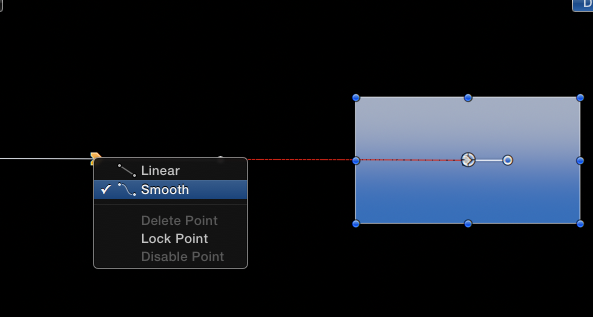
FCPX will apply a smooth profile into the move. Select the second KF
and do the same to smooth Into the stop Position.
For extra control, click and drag the handles that now appear to control the amount of smoothing.
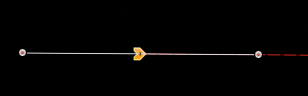
You will notice the black and red line change as you drag, indicating the amount
of smoothing being applied. These are very fiddly but should be able to get the desired effect. You can also CTRL click on them to break/align them
FCPX will apply a smooth profile into the move. Select the second KF
and do the same to smooth Into the stop Position.
For extra control, click and drag the handles that now appear to control the amount of smoothing.
You will notice the black and red line change as you drag, indicating the amount
of smoothing being applied. These are very fiddly but should be able to get the desired effect. You can also CTRL click on them to break/align them
Last edit: 02 Jan 2014 18:30 by Jimmyfinn.
Please Log in to join the conversation.
02 Jan 2014 18:53 #37873
by ddixon
Replied by ddixon on topic Keyframing, easing, scale, and position
OK, maybe I'm using the wrong terminology here. That smoothing option seems to only affect the shape of the animation path. I'm talking about Easing the speed of movement along that path. I want the Position change that I've keyframed to slowly start, speed up, then slow down to a gentle, subtle stop on the second keyframe. Is there a way to control that other than the things I mentioned in my first post?
Thanks, and sorry if I was misleading
Thanks, and sorry if I was misleading
Please Log in to join the conversation.
02 Jan 2014 19:19 - 02 Jan 2014 19:22 #37875
by Jimmyfinn
Replied by Jimmyfinn on topic Keyframing, easing, scale, and position
If you try to keep them IN LINE with the red motion Path, then only the 'easing' will be affected.They are VERY fiddly and not sure its going to be what you need!
Last edit: 02 Jan 2014 19:22 by Jimmyfinn.
Please Log in to join the conversation.
02 Jan 2014 19:44 #37876
by ddixon
Replied by ddixon on topic Keyframing, easing, scale, and position
Yes, that's my point. Even if I keep them perfectly in line (which is indeed difficult), Easing is *not* affected, no matter how far away or close to the keyframe I drag the handles.
I was just hoping that the attention to keyframes in 10.1 might have brought a change, but I don't think so. Is no one else bothered by those ugly hard stops to animated moves?
Thanks again for the replies, and thank you again Alex4D for offering a solution that does what I need.
I was just hoping that the attention to keyframes in 10.1 might have brought a change, but I don't think so. Is no one else bothered by those ugly hard stops to animated moves?
Thanks again for the replies, and thank you again Alex4D for offering a solution that does what I need.
Please Log in to join the conversation.

03 Jan 2014 16:45 - 03 Jan 2014 16:45 #37977
by BenB
Replied by BenB on topic Keyframing, easing, scale, and position
Easing is in fact effected by the distance the handle's control dot is from it's center. It is very subtle. You'd have to work in Motion to get more dramatic results.
Last edit: 03 Jan 2014 16:45 by BenB.
Please Log in to join the conversation.
03 Jan 2014 18:42 #38005
by ddixon
Replied by ddixon on topic Keyframing, easing, scale, and position
OK, thanks. Yes, to see the effect I had to reduce the Viewer to 12.5% and drag the handle a *long* way to even see any difference. Yes, the easing is not dramatic and still includes a hard stop. I often use Position and Scale simultaneously and to my eye that overrides all easing anyway. I'll keep using Smooth Move.
Please Log in to join the conversation.
