


- Posts: 5
- Thank you received: 1
3 Post Moderation Rule for New Boarders (25 Jan 2021)
New boarders will have their posts moderated - Don't worry if you cannot see your post immediately.
How do I create this effect
20 Oct 2013 16:16 #32749
by FireWire
How do I create this effect was created by FireWire
Hi folks,
looking for your expertise in creating an effect. I don't have an example to show, however i'm hoping I can describe it. The effect is a timing effect (I believe) where the shot starts in slow motion, speeds up to normal speed then ends in slow-mo. (conversely, start in normal speed, slow down, then revert to normal speed). Is this accomplished by simply using fcpx's retiming tool or is there a plugin that will do it for me?
Many thanks in advance,
firewire
looking for your expertise in creating an effect. I don't have an example to show, however i'm hoping I can describe it. The effect is a timing effect (I believe) where the shot starts in slow motion, speeds up to normal speed then ends in slow-mo. (conversely, start in normal speed, slow down, then revert to normal speed). Is this accomplished by simply using fcpx's retiming tool or is there a plugin that will do it for me?
Many thanks in advance,
firewire
Please Log in to join the conversation.

20 Oct 2013 17:53 #32756
by BenB
Replied by BenB on topic How do I create this effect
In your Timeline, hit R to get the Range tool. Select the range inside your clip you want to slow down. Go to the retiming menu and select a slow speed close to what you want. Then grab the ending handle of that section and drag to tweak it to taste. That simple. With a range selected, only that segment of the clip gets effected.
Please Log in to join the conversation.
- ronny courtens
-

- Offline
- Moderator
-

Less
More
- Posts: 4455
- Thank you received: 962
20 Oct 2013 17:54 - 20 Oct 2013 17:57 #32757
by ronny courtens
Replied by ronny courtens on topic How do I create this effect
The effect you are describing is called variable retiming or speed ramp. There are different ways you can achieve this in FCPX. For the effect you are looking for (slow/normal/slow or normal/slow/normal) the Range Tool is your best friend.
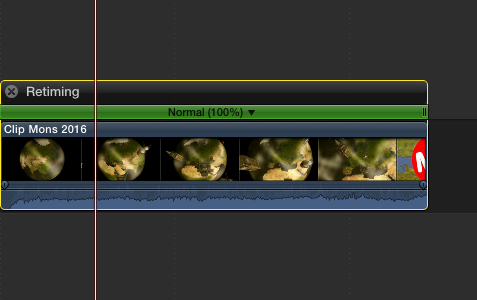
1. Select the clip in the Timeline, then press Command+R to display the Retiming bar.
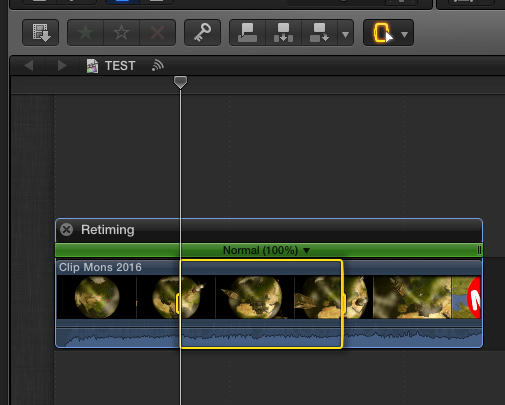
2. Press the R key to activate the Range Selection Tool. Then click and drag across the clip to select the part of the clip that you want to play at a different speed.
3. Press Shift+N to create a new subrange in the Retiming bar based on the range you have selected.
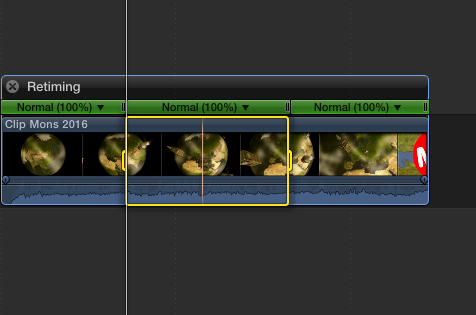
This new subrange has its own speed handles: now you can change the speed of any segment by clicking and dragging the edge of the Retiming bar for each segment.
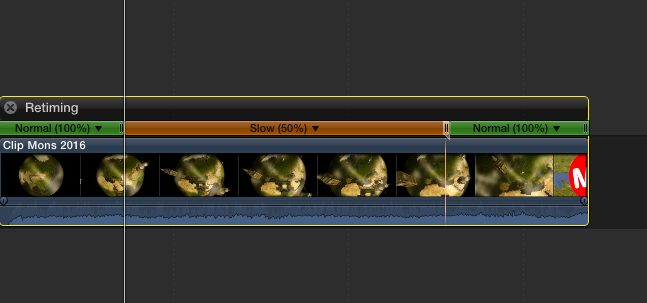
Here's an example of normal/slow/normal
And here it's slow/normal/slow
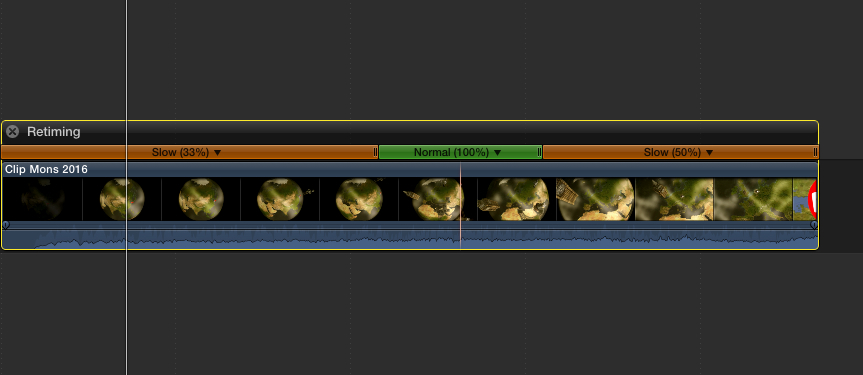
If you do your speed ramp this way FCPX will automatically ease the speed transitions within the clip, it will smoothly speed up and slow down as it moves through the different retime regions.
If instead of using the Range tool you would cut up the clip in three segments with the Blade tool and then change the speed of each segment with the Retiming tool you would not have this ease-in or ease-out.
I hope this answers your question.
EDIT: I see that Ben has been answering your question at the some time as I was, now you have the same advice twice
- Ronny
1. Select the clip in the Timeline, then press Command+R to display the Retiming bar.
2. Press the R key to activate the Range Selection Tool. Then click and drag across the clip to select the part of the clip that you want to play at a different speed.
3. Press Shift+N to create a new subrange in the Retiming bar based on the range you have selected.
This new subrange has its own speed handles: now you can change the speed of any segment by clicking and dragging the edge of the Retiming bar for each segment.
Here's an example of normal/slow/normal
And here it's slow/normal/slow
If you do your speed ramp this way FCPX will automatically ease the speed transitions within the clip, it will smoothly speed up and slow down as it moves through the different retime regions.
If instead of using the Range tool you would cut up the clip in three segments with the Blade tool and then change the speed of each segment with the Retiming tool you would not have this ease-in or ease-out.
I hope this answers your question.
EDIT: I see that Ben has been answering your question at the some time as I was, now you have the same advice twice
- Ronny
Last edit: 20 Oct 2013 17:57 by ronny courtens.
Please Log in to join the conversation.
20 Oct 2013 18:00 #32759
by BenB
Replied by BenB on topic How do I create this effect
With killer illustrated examples!
Please Log in to join the conversation.
20 Oct 2013 20:15 #32763
by FireWire
Replied by FireWire on topic How do I create this effect
Thanks Ben and Ronny...this is just what I was looking for.. When I did it originally (not using the shift N, but simply using the blade tool), it was creating a bit of a jarring look, but with this method the ins and outs are smooth..
Appreciate the quick response guys..
FireWire
Appreciate the quick response guys..
FireWire
Please Log in to join the conversation.
