


- Posts: 2
- Thank you received: 0
3 Post Moderation Rule for New Boarders (25 Jan 2021)
New boarders will have their posts moderated - Don't worry if you cannot see your post immediately.
Help - Moving Transformed Video Across Screen
23 Sep 2013 12:26 #31425
by tarkmiddy
Help - Moving Transformed Video Across Screen was created by tarkmiddy
Hello,
I'm fairly new to Final Cut Pro X and have a video which I've green-screened and in turn free-transformed it so it only takes up a small amount of the screen with a different background (it's a bit of a Harry Potter spoof so they're flying in front of hogwarts).
What I can't work out how to do is how to move my clip across the screen...i.e. so the video of them sat in front of a green screen (now hogwarts) moves across screen.
I hope that makes sense. If anyone can help that would be awesome,
Thank you
I'm fairly new to Final Cut Pro X and have a video which I've green-screened and in turn free-transformed it so it only takes up a small amount of the screen with a different background (it's a bit of a Harry Potter spoof so they're flying in front of hogwarts).
What I can't work out how to do is how to move my clip across the screen...i.e. so the video of them sat in front of a green screen (now hogwarts) moves across screen.
I hope that makes sense. If anyone can help that would be awesome,
Thank you
Please Log in to join the conversation.
- ronny courtens
-

- Offline
- Moderator
-

Less
More
- Posts: 4455
- Thank you received: 962
23 Sep 2013 15:43 - 23 Sep 2013 15:49 #31437
by ronny courtens
Replied by ronny courtens on topic Help - Moving Transformed Video Across Screen
Hi Mark, and welcome to the forum.
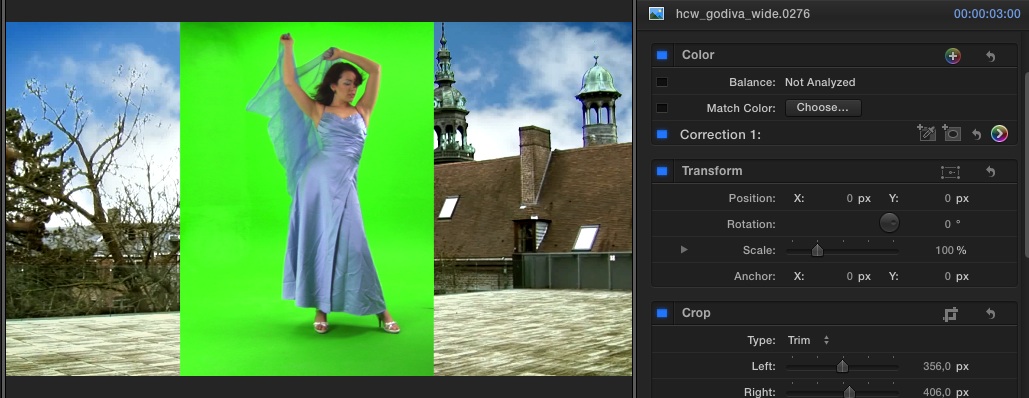
1. Put your greenscreen clip on top of your background clip in the FCPX Timeline
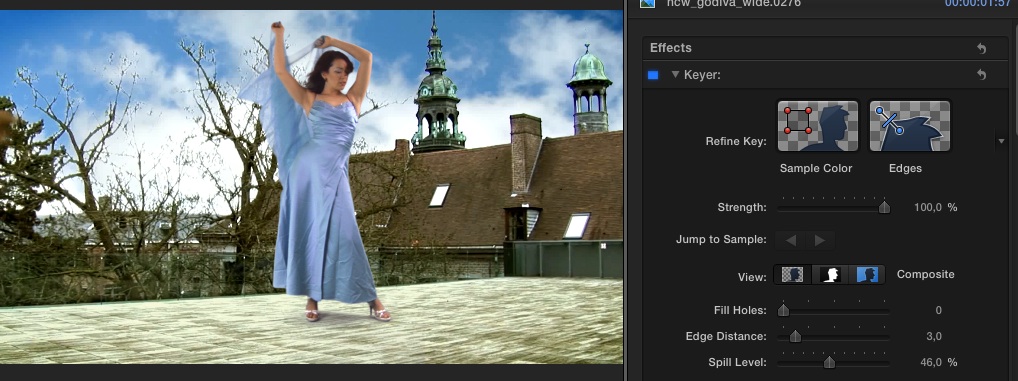
2. Use the Keyer filter to cut out the green screen and reveal your character over your background
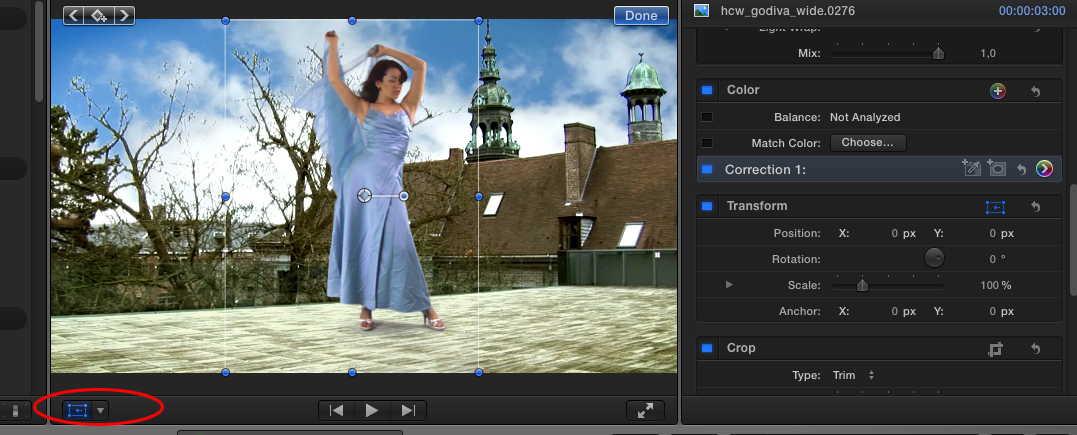
3. Place your playhead on the frame where you want your movement to start. Then press the little button bottom left of the Viewer and select Transform. An on-screen control box will appear around your keyed out character
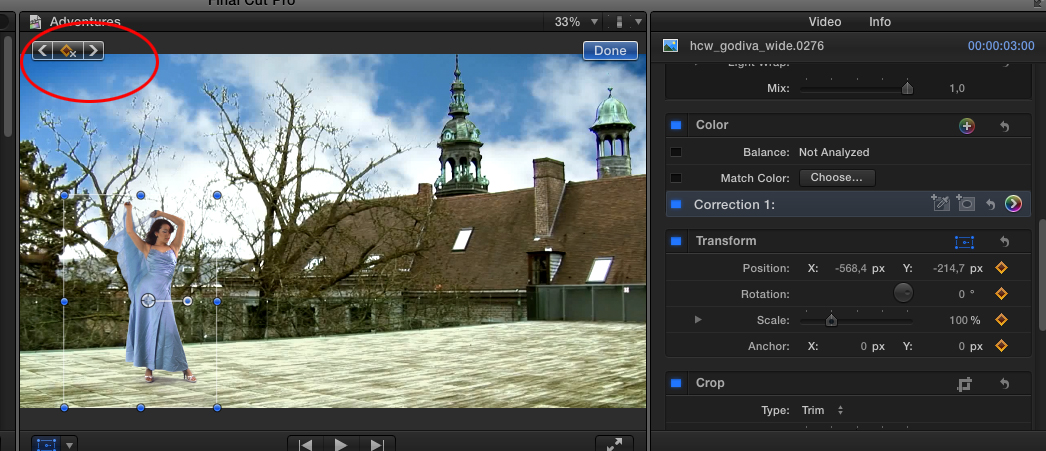
4. Use the on-screen handles to set a starting position and size for your character (or use the Position, Rotation and Scale parameters in the Inspector if you prefer), then press the Add Keyframe button top left of the Viewer to set a keyframe for the start position
5. Place your playhead on the frame where you want your movement to end and use the handles or controls to set an end position and size for your character. Then press Done
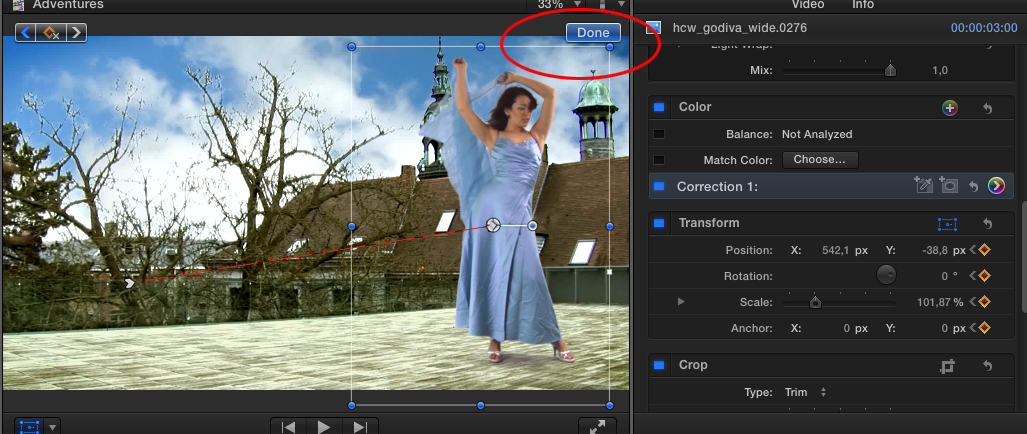
Now when you play your timeline you will see your keyed out character move from the start to the end positions you have set.
The screenshots are just for clarification. Of course you will never scale a standing character up or down over a fixed background. But to create a flyover as you want to do this workflow should be perfect.
- Ronny
1. Put your greenscreen clip on top of your background clip in the FCPX Timeline
2. Use the Keyer filter to cut out the green screen and reveal your character over your background
3. Place your playhead on the frame where you want your movement to start. Then press the little button bottom left of the Viewer and select Transform. An on-screen control box will appear around your keyed out character
4. Use the on-screen handles to set a starting position and size for your character (or use the Position, Rotation and Scale parameters in the Inspector if you prefer), then press the Add Keyframe button top left of the Viewer to set a keyframe for the start position
5. Place your playhead on the frame where you want your movement to end and use the handles or controls to set an end position and size for your character. Then press Done
Now when you play your timeline you will see your keyed out character move from the start to the end positions you have set.
The screenshots are just for clarification. Of course you will never scale a standing character up or down over a fixed background. But to create a flyover as you want to do this workflow should be perfect.
- Ronny
Last edit: 23 Sep 2013 15:49 by ronny courtens.
Please Log in to join the conversation.
