


- Posts: 11
- Thank you received: 0
3 Post Moderation Rule for New Boarders (25 Jan 2021)
New boarders will have their posts moderated - Don't worry if you cannot see your post immediately.
I keep getting a warning that my FC current version is not readable when I try to open it.
23 Sep 2013 12:07 - 23 Sep 2013 12:33 #31424
by Theprince
I keep getting a warning that my FC current version is not readable when I try to open it. was created by Theprince
When I try and open a project to work on it, a warning pops up that states, not all the files needed are readable, change settings and try again. But it doesn't tell me what settings or where. I'm very much a novice at FCPX, so please use laymens terms so that I can keep up with the learning curve. Thanks. I should mention that I am trying to open the project not just the current version, what I'm noticing is that the FC current version is the only file in the project that is not highlighted. What settings need to be changed so that all the files under a project are highlighted? Hopefully this is more specific a question?
Last edit: 23 Sep 2013 12:33 by Theprince.
Please Log in to join the conversation.
- Tom Wolsky
-

- Offline
- Moderator
-

23 Sep 2013 12:56 #31427
by Tom Wolsky
Replied by Tom Wolsky on topic I keep getting a warning that my FC current version is not readable when I try to open it.
You keep saying you're opening a project. What exactly are you doing? You cannot open the currentversion file. FCP opens it by recognizing it in the correct location. Can you post a screen shot of what you're seeing?
Please Log in to join the conversation.
23 Sep 2013 13:03 #31428
by Theprince
Replied by Theprince on topic I keep getting a warning that my FC current version is not readable when I try to open it.
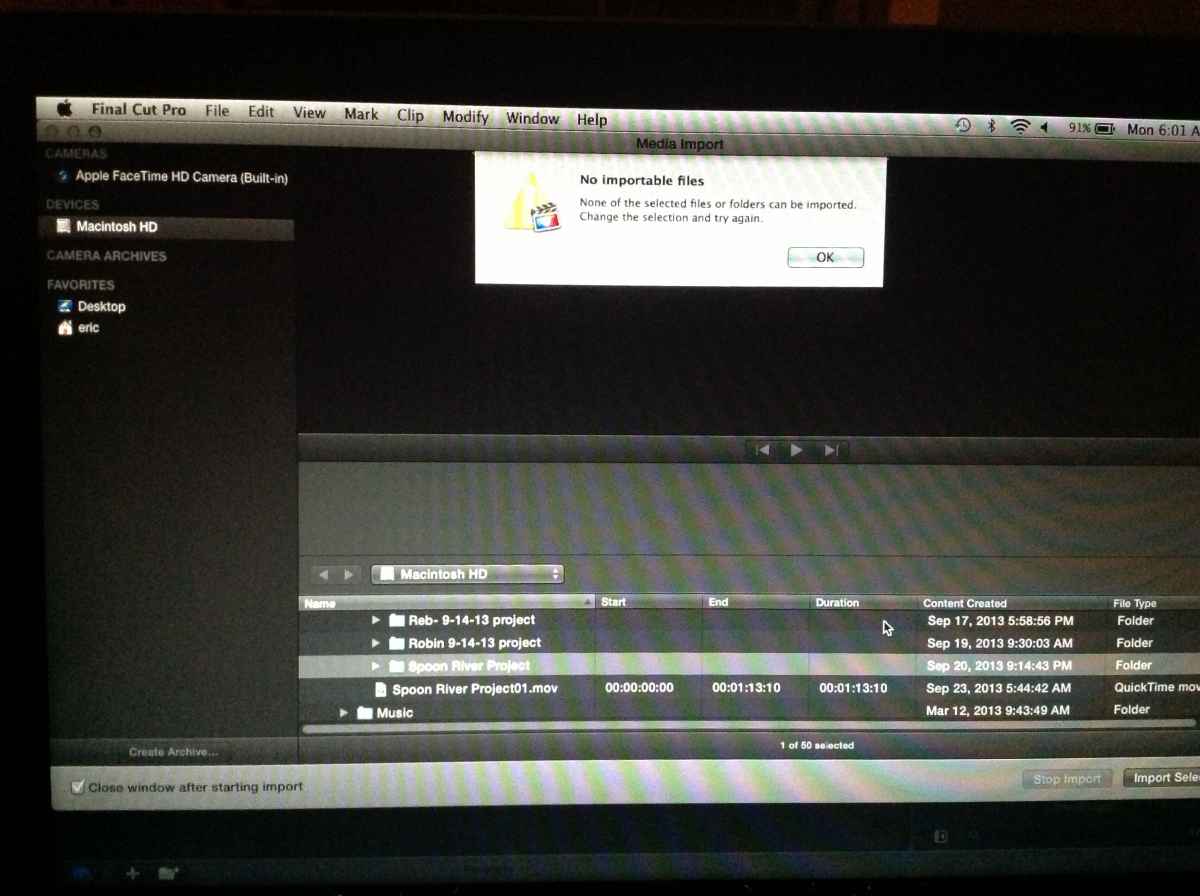
Thanks for the quick response. Here's is what I'm seeing.
Please Log in to join the conversation.
- Tom Wolsky
-
- Offline
- Moderator
-
23 Sep 2013 13:07 - 23 Sep 2013 13:09 #31429
by Tom Wolsky
Replied by Tom Wolsky on topic I keep getting a warning that my FC current version is not readable when I try to open it.
That's the import window. You can't import a project. Where is the project exactly? In your Movies folder? On an external drive? Projects should appear automatically in the project library.
It looks like you only have your system drive. The project folder has to be inside a folder called Final Cut Projects at the top level of your Movies folder.
It looks like you only have your system drive. The project folder has to be inside a folder called Final Cut Projects at the top level of your Movies folder.
Last edit: 23 Sep 2013 13:09 by Tom Wolsky.
Please Log in to join the conversation.
23 Sep 2013 13:14 #31430
by Theprince
Replied by Theprince on topic I keep getting a warning that my FC current version is not readable when I try to open it.
The project did not appear in the project library with its thumbnails ( project is there in library with all blue squares) So I tried to reopen it from the projects folder through the import button. That is where things got confusing. The project is in the library and in the projects folder. But no thumbnails.
Please Log in to join the conversation.
23 Sep 2013 13:29 #31431
by Theprince
Replied by Theprince on topic I keep getting a warning that my FC current version is not readable when I try to open it.
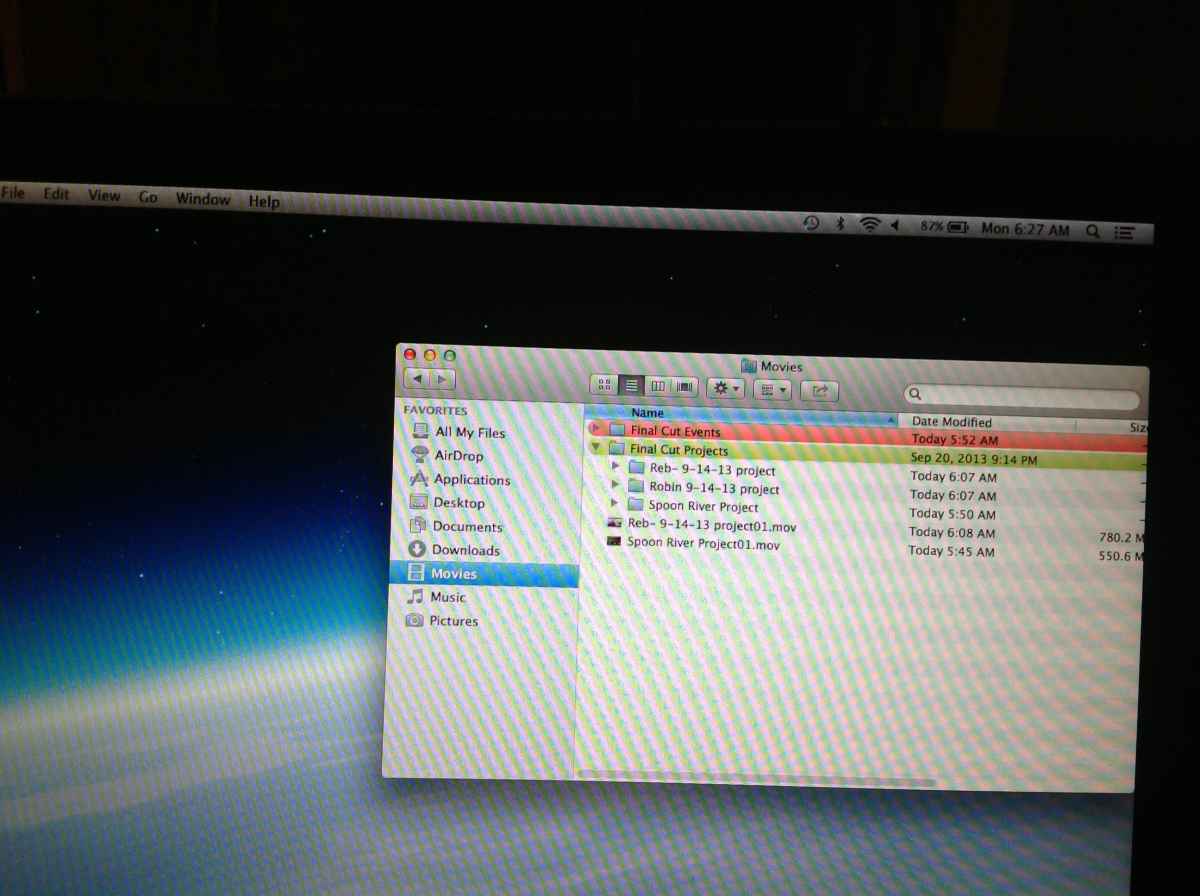
Here's how I have the folders set up in my movies on my computer. Is this right?
Please Log in to join the conversation.
- Tom Wolsky
-
- Offline
- Moderator
-
23 Sep 2013 13:36 #31432
by Tom Wolsky
Replied by Tom Wolsky on topic I keep getting a warning that my FC current version is not readable when I try to open it.
That looks right. The projects and events should appear in the libraries in FCP.
Please Log in to join the conversation.
23 Sep 2013 14:00 #31434
by Theprince
Replied by Theprince on topic I keep getting a warning that my FC current version is not readable when I try to open it.
The events and projects are in their places on FCPX. I'm not sure what was going on when there was no thumbnails in the projects library. This only happened on two of the four projects that I'm working on right now. The other two projects seem to have no issues. Thank you for help in confirming that I have the correct set up on my file folders.
Please Log in to join the conversation.
- Tom Wolsky
-
- Offline
- Moderator
-
23 Sep 2013 17:17 #31444
by Tom Wolsky
Replied by Tom Wolsky on topic I keep getting a warning that my FC current version is not readable when I try to open it.
One common cause of this is that sometimes users aren't actually editing in a project. For instance, they'll make a new project, which opens in the timeline. They then select a clip in the browser and use open in timeline, and then proceed to edit inside that clip. When you open in timeline you're not putting the clip in the project, you're opening up the clip. Not saying that's what happened here, but I've seen it happen often enough.
Please Log in to join the conversation.
- ronny courtens
-

- Offline
- Moderator
-
Less
More
- Posts: 4455
- Thank you received: 962
23 Sep 2013 18:20 #31448
by ronny courtens
Replied by ronny courtens on topic I keep getting a warning that my FC current version is not readable when I try to open it.
I entirely agree with Tom on the dangers of inadvertently starting to edit inside a clip after opening it in its timeline.
But when you say "I'm not sure what was going on when there was no thumbnails in the projects library", do you mean you could open the Project correctly but you saw no thumbnails on the Timeline? If so, is this still the case? If it is, can you open one of the problematic Projects and post a screenshot of the Timeline?
- Ronny
But when you say "I'm not sure what was going on when there was no thumbnails in the projects library", do you mean you could open the Project correctly but you saw no thumbnails on the Timeline? If so, is this still the case? If it is, can you open one of the problematic Projects and post a screenshot of the Timeline?
- Ronny
Please Log in to join the conversation.
25 Sep 2013 01:16 #31509
by Theprince
Replied by Theprince on topic I keep getting a warning that my FC current version is not readable when I try to open it.
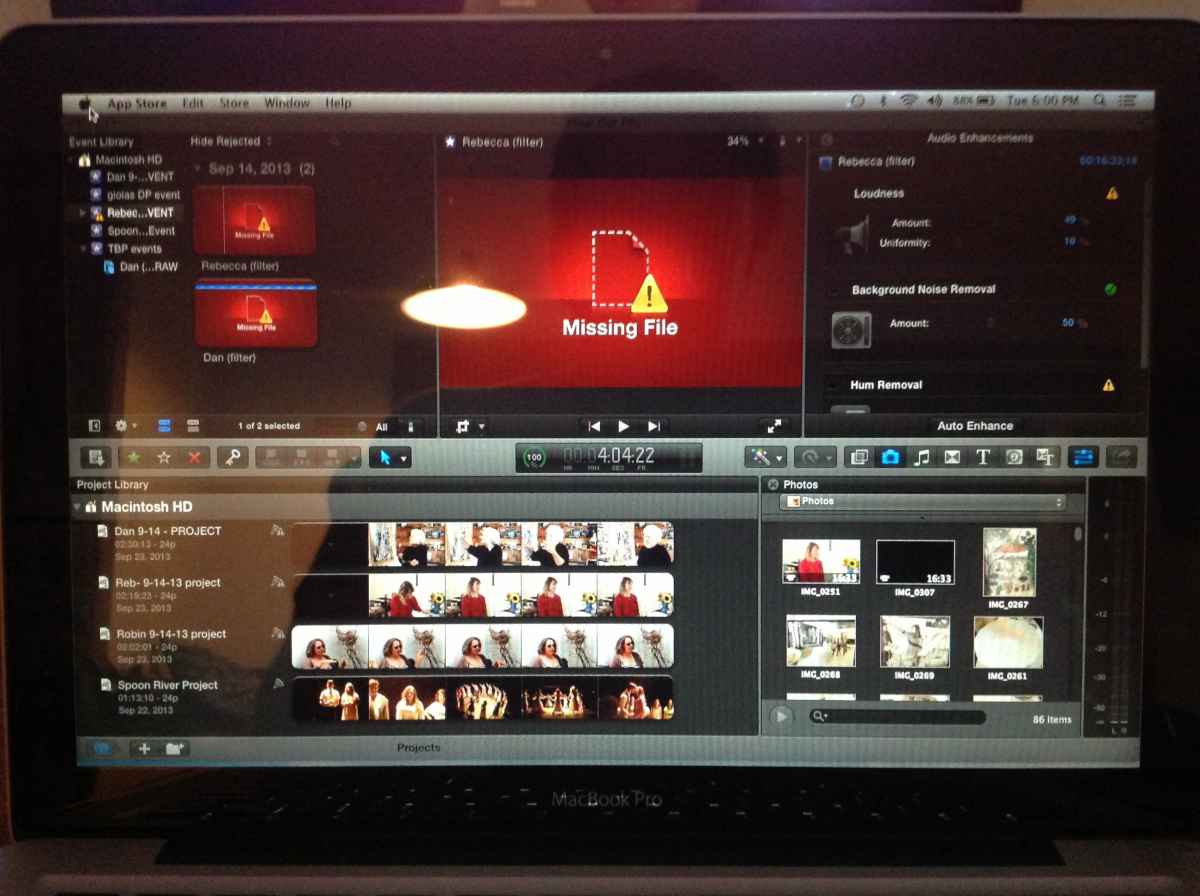
Thanks for responding, what I saw was no thumbnails in the project. I closed FCPX reopened it and the project had viewable thumbnails. I edited and everything worked. I opened another project and only added transitions and titles to the project, closed the program. I reopened FCPX a couple of hours later and the events from the project I had been working on had this warning. See attached pic. The project is still there, and when I try to import the media from the Final Cut Events folder another warning " no files readable, choose another option"...any advice would be appreciated.
- JPrince
- JPrince
Please Log in to join the conversation.
25 Sep 2013 01:32 #31510
by Theprince
Replied by Theprince on topic I keep getting a warning that my FC current version is not readable when I try to open it.
Also too address the working in a clip timeline rather than a project timeline. all the projects I'm working on are from another editor, we have imported the media via a HD to the Events/Projects folders in movies. I'm only inserting text, transition, and secondary footage over the existing project. I'm not taking original media clips from the Events library at any time. My understanding is that the events need to be present though for the project to be edited. I hope this helps understand the particular problem. Thanks! -JPrince
Please Log in to join the conversation.
- ronny courtens
-
- Offline
- Moderator
-
Less
More
- Posts: 4455
- Thank you received: 962
25 Sep 2013 10:12 #31522
by ronny courtens
Replied by ronny courtens on topic I keep getting a warning that my FC current version is not readable when I try to open it.
The "Missing File" warning you are getting means that there are some original media missing in the Event. In your case you have two missing clips in the "Rebecca" Event: "Rebecca Filter" and "Dan Filter".
I most cases this happens when the original media were not copied over into the Event while importing and the Event only contains a link to the original media somewhere on your system or on another drive.
If the original media were moved to another place or folder on your system, or if the external drive that holds the original media is disconnected from your system, the link will be lost and you will have to relink the missing clips to the original media.
You can use Relink to find the missing clips and put them back into your Event. To show you how to do this I have recreated a similar situation:
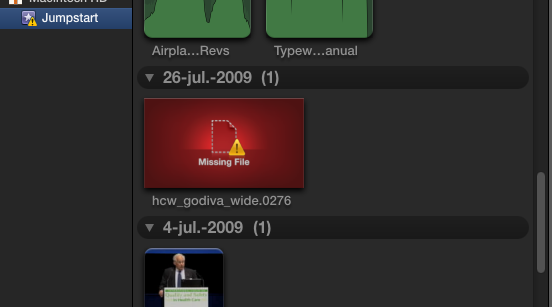
1. Here you see an Event ("Jumpstart") that shows one clip missing ("hwc_godiva")
2. Select the Event in the Event Library, then choose File > Relink Event Files
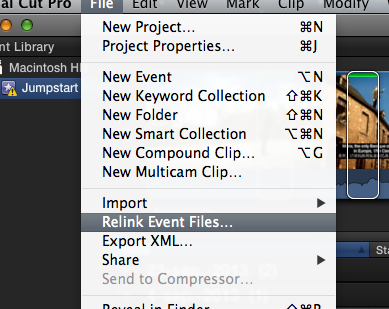
3. The Relink window will open. In the Relink window click the little button next to "Missing" to make sure you only see the files that are missing. In this case FCPX shows that I have 1 missing file (godiva) and under the window it also shows where that file was located when I have imported it into he Event (my desktop).
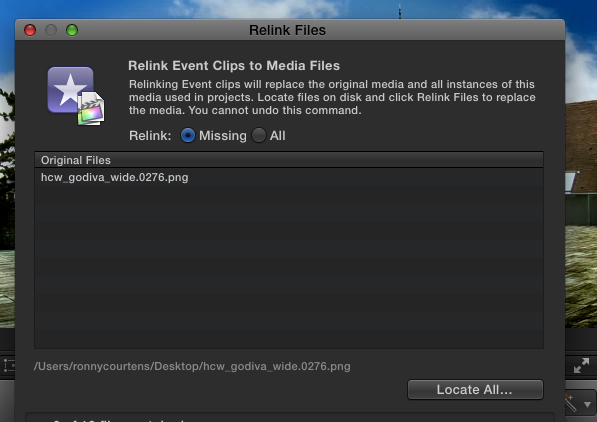
4. This means that when importing the godiva file from my desktop I did not copy the file over into my Event, so the Event still points to the original file on my desktop. To find the missing file and relink it to the Event I press the Locate button. This opens a Finder window.
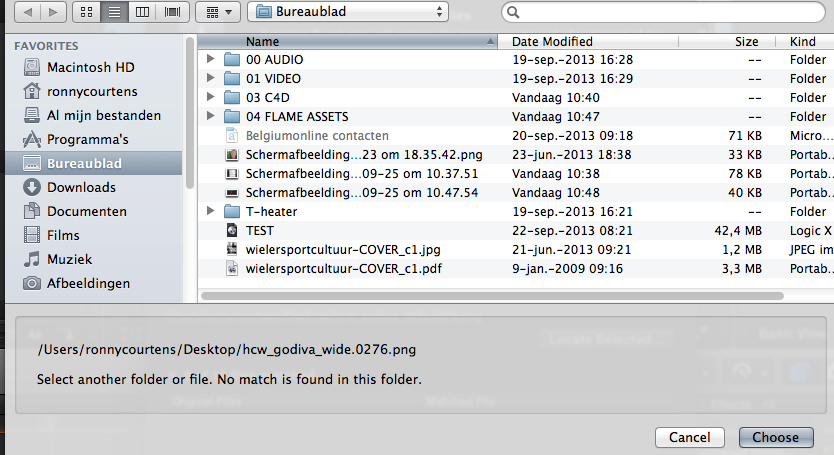
In the Finder window I can see that FCPX has selected my desktop, but it cannot find the missing file there. So it gives me a message I should select another drive or folder to find the godiva file.
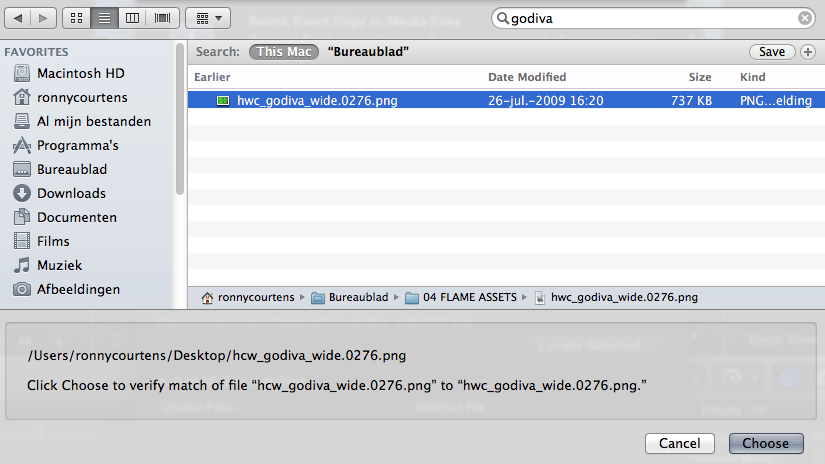
5. I have no clue where that file is, so I enter the name of the file in the Search field. Apparently the file is still on my system as it is revealed in the Finder window.
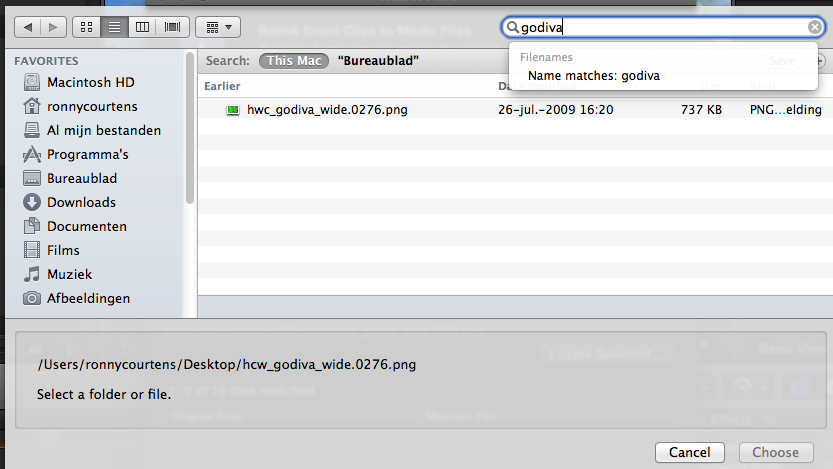
6. I select the godiva file and I can see that it is inside the "Flame Assets" folder on the desktop. I must have moved the file inside that folder when FCPX was closed, that's why FCPX could not find it anymore when I launched it again. So I click Choose to confirm this is the correct file.
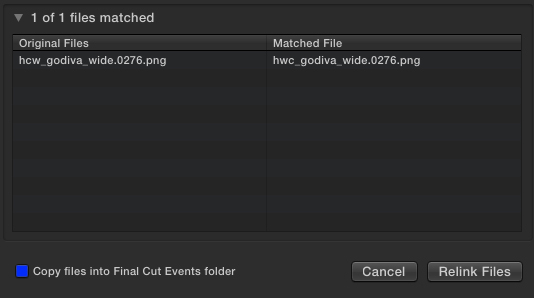
7. The relink window opens again and it shows that my godiva file has been found and matched to the missing clip. To make sure the file never goes missing again I select the "Copy files into Final Cut Events folder" option and I press the Relink button.
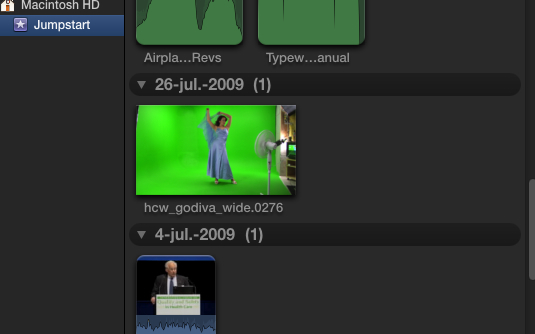
8. The file is relinked to the clip in my Event and it shows in the Event Library again.
You can use the same procedure to try and relink your two missing files. The Relink window (3) will show you immediately where your files are supposed to be. If they are on an external drive just connect that drive to relink them. If they have been moved use the Search field to find them back.
- Ronny
I most cases this happens when the original media were not copied over into the Event while importing and the Event only contains a link to the original media somewhere on your system or on another drive.
If the original media were moved to another place or folder on your system, or if the external drive that holds the original media is disconnected from your system, the link will be lost and you will have to relink the missing clips to the original media.
You can use Relink to find the missing clips and put them back into your Event. To show you how to do this I have recreated a similar situation:
1. Here you see an Event ("Jumpstart") that shows one clip missing ("hwc_godiva")
2. Select the Event in the Event Library, then choose File > Relink Event Files
3. The Relink window will open. In the Relink window click the little button next to "Missing" to make sure you only see the files that are missing. In this case FCPX shows that I have 1 missing file (godiva) and under the window it also shows where that file was located when I have imported it into he Event (my desktop).
4. This means that when importing the godiva file from my desktop I did not copy the file over into my Event, so the Event still points to the original file on my desktop. To find the missing file and relink it to the Event I press the Locate button. This opens a Finder window.
In the Finder window I can see that FCPX has selected my desktop, but it cannot find the missing file there. So it gives me a message I should select another drive or folder to find the godiva file.
5. I have no clue where that file is, so I enter the name of the file in the Search field. Apparently the file is still on my system as it is revealed in the Finder window.
6. I select the godiva file and I can see that it is inside the "Flame Assets" folder on the desktop. I must have moved the file inside that folder when FCPX was closed, that's why FCPX could not find it anymore when I launched it again. So I click Choose to confirm this is the correct file.
7. The relink window opens again and it shows that my godiva file has been found and matched to the missing clip. To make sure the file never goes missing again I select the "Copy files into Final Cut Events folder" option and I press the Relink button.
8. The file is relinked to the clip in my Event and it shows in the Event Library again.
You can use the same procedure to try and relink your two missing files. The Relink window (3) will show you immediately where your files are supposed to be. If they are on an external drive just connect that drive to relink them. If they have been moved use the Search field to find them back.
- Ronny
Please Log in to join the conversation.
