


- Posts: 1
- Thank you received: 0
3 Post Moderation Rule for New Boarders (25 Jan 2021)
New boarders will have their posts moderated - Don't worry if you cannot see your post immediately.
export problems and transcoding. I must be doing something wrong somewhere.
30 Aug 2013 02:32 #30570
by BJReis
A litany of problems regarding Final Cut Pro X.
This may be an issue regarding my relative inexperience with Final Cut Pro X and video editing in general, but I am having one hell of a time completing work efficiently with this software. This may be due to somewhat older equipment:
2.4GHz Intel Core Duo MacBook Pro with a 4GB memory computer with Ddr3 running OSX 10.8.4
Using the latest version of Final Cut Pro X, 10.0.9,
I am attempting to import content into my events and transcode them to what has been recommended to me, the Optimized media or their Proxy Media such as Final Cut describes.
The basic structure of my current enterprise involves shooting from a HDV cam straight into iMovie, so that I do not have to deal with tape log and capture, and do not currently have the budget for a Canon 5D or a similar camera.
This footage is then imported as an hdv file into Final Cut.
I then transcode to ProRes422.
The issue arises when I attempt to pull in other videos of other formats and transcode them to the same format. Many times, I cannot create optimized media. This I would attribute to the fact that it has already been created.
My question then, is why does Final Cut Pro X insist on storing your events and projects in your libraries where you are encouraged and in fact required to do all of your management within the program, as meddling with it causes problems, and then only store your transcoded media in the file folders themselves, having you import them later rather than keeping them in your project folders?
Similarly, I must ask the question, then if in fact ProREs is the best codec to use, regardless of what file you export to, when you are compressing to H.264, do the wait times take such a long time?
My exports all say [Transcoding to H.264] for some incalculable reason. I wasn't aware that an export was necessarily a transcode. This would explain why it takes so long. However, in Final Cut 7, I distinctly remember doing the exact same things and I wouldn't have to wait, oh say, five hours for a 13 minute video involving a layering of two videos, one already compressed to H.264 and the other an Apple Intermediate codec
Furthermore, if Final Cut automatically transcodes your media when you drag it into the timeline as some sites, such as this one declare, fcpx.tv/Pages/optimize.html , why do I only see Apple intermediate codec when I look in the inspector? Shouldn't I see ProRes or the codec that it was supposedly transcoded to? Perhaps my preferences were not as I thought.
All of this brouhaha has created a large problem for me. I am responsible for shooting, compiling and editing all of the footage for a startup company that will require me to have a much for efficient workflow, so I need to nip this in the bud.
My question is...now that I've already had everything ready for export and I've had everything apparently not transcoded consistently, do I ahve to go back to square one in order to have efficent export times?
Secondly, if converting to H.264 export, would it make any difference if I were working with H.264 footage and exporting it to H.264, because frankly, that seems to defeat the purpose of the optimized media bit.
I need help ASAP. All of the files work perfectly when in the program, edit workflow is very smooth, I turn of background render when I don't need it, and then I attempt to export, and I look like a schmuck who can't deliver because the exports take so long. Ont he front end, transcoding is supposed to be a long and boring process, but that's supposed to stave off these issues once you're working it eh right format.
Do you think it might be a combination of my preferences not being wholly consistent, and the codecs not working well with each other, and if so, how do I remedy this without having to re-edit or re-apply my settings?
Brian

This may be an issue regarding my relative inexperience with Final Cut Pro X and video editing in general, but I am having one hell of a time completing work efficiently with this software. This may be due to somewhat older equipment:
2.4GHz Intel Core Duo MacBook Pro with a 4GB memory computer with Ddr3 running OSX 10.8.4
Using the latest version of Final Cut Pro X, 10.0.9,
I am attempting to import content into my events and transcode them to what has been recommended to me, the Optimized media or their Proxy Media such as Final Cut describes.
The basic structure of my current enterprise involves shooting from a HDV cam straight into iMovie, so that I do not have to deal with tape log and capture, and do not currently have the budget for a Canon 5D or a similar camera.
This footage is then imported as an hdv file into Final Cut.
I then transcode to ProRes422.
The issue arises when I attempt to pull in other videos of other formats and transcode them to the same format. Many times, I cannot create optimized media. This I would attribute to the fact that it has already been created.
My question then, is why does Final Cut Pro X insist on storing your events and projects in your libraries where you are encouraged and in fact required to do all of your management within the program, as meddling with it causes problems, and then only store your transcoded media in the file folders themselves, having you import them later rather than keeping them in your project folders?
Similarly, I must ask the question, then if in fact ProREs is the best codec to use, regardless of what file you export to, when you are compressing to H.264, do the wait times take such a long time?
My exports all say [Transcoding to H.264] for some incalculable reason. I wasn't aware that an export was necessarily a transcode. This would explain why it takes so long. However, in Final Cut 7, I distinctly remember doing the exact same things and I wouldn't have to wait, oh say, five hours for a 13 minute video involving a layering of two videos, one already compressed to H.264 and the other an Apple Intermediate codec
Furthermore, if Final Cut automatically transcodes your media when you drag it into the timeline as some sites, such as this one declare, fcpx.tv/Pages/optimize.html , why do I only see Apple intermediate codec when I look in the inspector? Shouldn't I see ProRes or the codec that it was supposedly transcoded to? Perhaps my preferences were not as I thought.
All of this brouhaha has created a large problem for me. I am responsible for shooting, compiling and editing all of the footage for a startup company that will require me to have a much for efficient workflow, so I need to nip this in the bud.
My question is...now that I've already had everything ready for export and I've had everything apparently not transcoded consistently, do I ahve to go back to square one in order to have efficent export times?
Secondly, if converting to H.264 export, would it make any difference if I were working with H.264 footage and exporting it to H.264, because frankly, that seems to defeat the purpose of the optimized media bit.
I need help ASAP. All of the files work perfectly when in the program, edit workflow is very smooth, I turn of background render when I don't need it, and then I attempt to export, and I look like a schmuck who can't deliver because the exports take so long. Ont he front end, transcoding is supposed to be a long and boring process, but that's supposed to stave off these issues once you're working it eh right format.
Do you think it might be a combination of my preferences not being wholly consistent, and the codecs not working well with each other, and if so, how do I remedy this without having to re-edit or re-apply my settings?
Brian
Please Log in to join the conversation.

30 Aug 2013 08:18 #30578
by Seamusvfx
Replied by Seamusvfx on topic export problems and transcoding. I must be doing something wrong somewhere.
Hi Brian.
Sounds like you have a few issues. I think they are stemming from you not completely understanding whats going on behind the scenes in FCPX. To be fair it can be fairly opaque, so I'll attempt to address your immediate issues, but it might be worthwhile checking an online training course to get up to speed.
So you have hdv footage captured with iMovie, and then you're importing that into FCPX. When you hit import Final Cut gives you some options. Firstly to copy media to the events folder, a step which i heartily recommend, as it makes media management a lot easier. The import dialog will also give you the option to create optimised media, which as you seem to have worked out, creates ProRes versions in the events folder structure.
If you select the create optimised media option, what FCPX will then do, in the background, is transcode all your hdv footage to ProRes. This process can be seen in the background tasks window in the transcoding and analysis flyout. Once this is done however, you don't need to manually reimport the ProRes files, final cut will link to them as they are created. However, the info tab of the inspector will continue to report the metadata in the original media. The way to check if your file has been transcoded, if you don't trust the automatic process, is to right click on the event clip and reveal in finder.
In some instances the 'create optimised media' option wont be available, if, as you correctly point out, the optimised is already created, or, I believe in some cases, if Final Cut deems optimisation to be unnecessary. This may be the case with footage imported in Apple Intermediate Codec. I am not sure without checking.
On to the problems you seem to be having with exporting, this may not actually be to do with the export process, but rather the render process. You say you turn off background rendering when you don't need it. The issue here is that Final Cut still needs to render in order to export, so by manually cancelling rendering you don't actually stop the render process, you just delay it, so it may take a while on your older processor, especially if there are lots of effects or transparencies.
What rendering actually is doing is creating a ProRes file with the effect applied to it, kind of like flattening layers if you have used photoshop. The timeline codec that you select only affects the codec of the render file, not the codec of the event file. That's why it won't show up in the inspector.
Finally your question about whether or not it's worth transcoding to optimised media. The answer is: not always. Optimised exists primarily to reduce load on your processor during editing to make the process smoother. The pay off is that it takes up more drive space, and requires a higher speed drive to play back multiple streams. In regard media that is already as an h.264, there are multiple types of h264, so when exporting FCP still needs to unwind the h264 and rewind it as the export h264. It's not as simple as just a pass through to the export. Creating optimised media will speed export up, but not necessarily drastically. And yes, exporting to h264 will always involve a transcode, even if only of the render files.
What I recommend you do now is the following:
Select all media in your event, right click > transcode media > create optimised media. That will start a background process which will get all your media to ProRes. It's smart enough not to retranscode that which you have already optimised. It might be quite quick, then again it could take a while. Either way, let FCP do its thing and when its done at least you'll have all your ducks in a row.
Then let the timeline render if needed. If you have no orange bars above your timeline, you are ready to export.
Hit share. If h264 is still too slow, it might be problem with the encoder and your computer. Apple's h264 encoder is not the best. What I recommend in that case, is that you export a master file, then download handbrake from handbrake.fr. (It's a very good, and free h264 encoder). Run your master file through that and you should be done in a few minutes!
Best of luck
Seamus
Sounds like you have a few issues. I think they are stemming from you not completely understanding whats going on behind the scenes in FCPX. To be fair it can be fairly opaque, so I'll attempt to address your immediate issues, but it might be worthwhile checking an online training course to get up to speed.
So you have hdv footage captured with iMovie, and then you're importing that into FCPX. When you hit import Final Cut gives you some options. Firstly to copy media to the events folder, a step which i heartily recommend, as it makes media management a lot easier. The import dialog will also give you the option to create optimised media, which as you seem to have worked out, creates ProRes versions in the events folder structure.
If you select the create optimised media option, what FCPX will then do, in the background, is transcode all your hdv footage to ProRes. This process can be seen in the background tasks window in the transcoding and analysis flyout. Once this is done however, you don't need to manually reimport the ProRes files, final cut will link to them as they are created. However, the info tab of the inspector will continue to report the metadata in the original media. The way to check if your file has been transcoded, if you don't trust the automatic process, is to right click on the event clip and reveal in finder.
In some instances the 'create optimised media' option wont be available, if, as you correctly point out, the optimised is already created, or, I believe in some cases, if Final Cut deems optimisation to be unnecessary. This may be the case with footage imported in Apple Intermediate Codec. I am not sure without checking.
On to the problems you seem to be having with exporting, this may not actually be to do with the export process, but rather the render process. You say you turn off background rendering when you don't need it. The issue here is that Final Cut still needs to render in order to export, so by manually cancelling rendering you don't actually stop the render process, you just delay it, so it may take a while on your older processor, especially if there are lots of effects or transparencies.
What rendering actually is doing is creating a ProRes file with the effect applied to it, kind of like flattening layers if you have used photoshop. The timeline codec that you select only affects the codec of the render file, not the codec of the event file. That's why it won't show up in the inspector.
Finally your question about whether or not it's worth transcoding to optimised media. The answer is: not always. Optimised exists primarily to reduce load on your processor during editing to make the process smoother. The pay off is that it takes up more drive space, and requires a higher speed drive to play back multiple streams. In regard media that is already as an h.264, there are multiple types of h264, so when exporting FCP still needs to unwind the h264 and rewind it as the export h264. It's not as simple as just a pass through to the export. Creating optimised media will speed export up, but not necessarily drastically. And yes, exporting to h264 will always involve a transcode, even if only of the render files.
What I recommend you do now is the following:
Select all media in your event, right click > transcode media > create optimised media. That will start a background process which will get all your media to ProRes. It's smart enough not to retranscode that which you have already optimised. It might be quite quick, then again it could take a while. Either way, let FCP do its thing and when its done at least you'll have all your ducks in a row.
Then let the timeline render if needed. If you have no orange bars above your timeline, you are ready to export.
Hit share. If h264 is still too slow, it might be problem with the encoder and your computer. Apple's h264 encoder is not the best. What I recommend in that case, is that you export a master file, then download handbrake from handbrake.fr. (It's a very good, and free h264 encoder). Run your master file through that and you should be done in a few minutes!
Best of luck
Seamus
Please Log in to join the conversation.
- ronny courtens
-

- Offline
- Moderator
-

Less
More
- Posts: 4455
- Thank you received: 962
30 Aug 2013 09:14 - 30 Aug 2013 09:17 #30579
by ronny courtens
Replied by ronny courtens on topic export problems and transcoding. I must be doing something wrong somewhere.
Hi Brian,
Adding to what Seamus said here's the answers to some other questions you asked.
The issue arises when I attempt to pull in other videos of other formats and transcode them to the same format. Many times, I cannot create optimized media. This I would attribute to the fact that it has already been created.
If FCPX does not give you the option to optimize your media after it has been imported this means:
1. That this footage is in a format that does not require optimizing.
Some standard formats give no performance gain when they are optimized to ProRes, so FCPX just leaves them in their original format. These are some formats that don't require optimizing to get good performance: support.apple.com/kb/HT5294
2. OR that the footage has already been optimized to ProRes 422 while you were importing it.
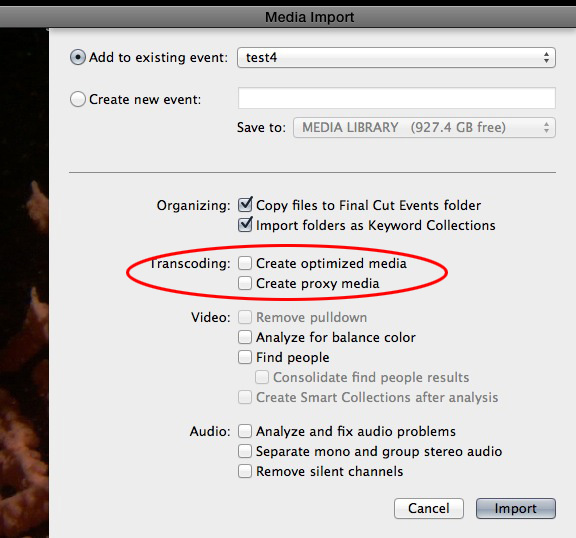
- If you use the Import window to import your files you will always get an Import preferences window where you can select to optimize your video while importing or not.
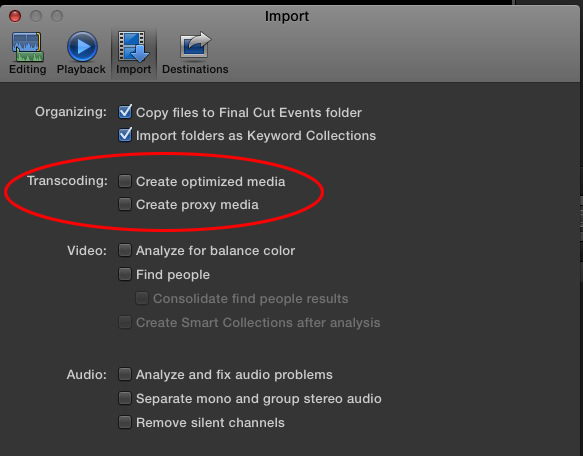
- If you drag and drop your files into the FCPX Event it will optimize your files while importing if in Preferences > Import you have this option checked.
My question then, is why does Final Cut Pro X insist on storing your events and projects in your libraries where you are encouraged and in fact required to do all of your management within the program, as meddling with it causes problems, and then only store your transcoded media in the file folders themselves, having you import them later rather than keeping them in your project folders?
Events and Projects can be stored anywhere you wish. If you want to work comfortably with FCPX and avoid system slowdowns or crashes it is absolutely advised that you store your Events and Projects on a fast external or second internal drive and NOT on your system drive. This is a basic rule for working with any NLE.
To store your Projects and Events on a second drive just select the drive in the Event Library or the Project Library before you create your Event or your Project.
When you create optimized media the transcoded files are always stored in the Transcoded Media folder inside your Event folder.
Furthermore, if Final Cut automatically transcodes your media when you drag it into the timeline as some sites, such as this one declare, fcpx.tv/Pages/optimize.html, why do I only see Apple intermediate codec when I look in the inspector? Shouldn't I see ProRes or the codec that it was supposedly transcoded to? Perhaps my preferences were not as I thought.
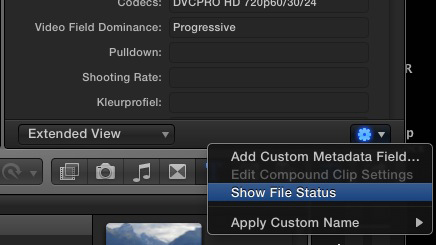
When you select a clip in the Event Browser or on the Timeline and you look at the Info tab in the Inspector FCPX always shows you the native format of your clip. But you also can see if the clip has been converted to ProRes or Proxy or not. To see this press the little icon bottom right of the Inspector and select "Show File Status"
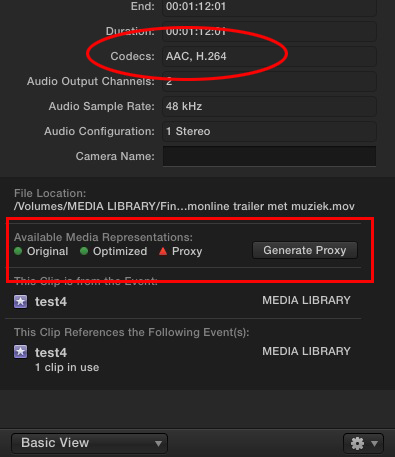
When Show File Status is activated you get more detailed information about your clip. In this example I have an original clip in H.264 that has been converted to ProRes but not to Proxy media:
For the H.264 conversion time I concur with Seamus. Unless you have a fast multicore CPU H.264 will take long to encode because it uses the Compressor engine for its conversions. In your case exporting a ProRes master file and converting this file to H.264 using Handbrake or even QT Pro (free if you have FCPX installed) will be much faster.
It will also help if you have your Projects and Events running from an external drive as you won't be reading from and writing to the same drive while you do the conversion.
- Ronny
Adding to what Seamus said here's the answers to some other questions you asked.
The issue arises when I attempt to pull in other videos of other formats and transcode them to the same format. Many times, I cannot create optimized media. This I would attribute to the fact that it has already been created.
If FCPX does not give you the option to optimize your media after it has been imported this means:
1. That this footage is in a format that does not require optimizing.
Some standard formats give no performance gain when they are optimized to ProRes, so FCPX just leaves them in their original format. These are some formats that don't require optimizing to get good performance: support.apple.com/kb/HT5294
2. OR that the footage has already been optimized to ProRes 422 while you were importing it.
- If you use the Import window to import your files you will always get an Import preferences window where you can select to optimize your video while importing or not.
- If you drag and drop your files into the FCPX Event it will optimize your files while importing if in Preferences > Import you have this option checked.
My question then, is why does Final Cut Pro X insist on storing your events and projects in your libraries where you are encouraged and in fact required to do all of your management within the program, as meddling with it causes problems, and then only store your transcoded media in the file folders themselves, having you import them later rather than keeping them in your project folders?
Events and Projects can be stored anywhere you wish. If you want to work comfortably with FCPX and avoid system slowdowns or crashes it is absolutely advised that you store your Events and Projects on a fast external or second internal drive and NOT on your system drive. This is a basic rule for working with any NLE.
To store your Projects and Events on a second drive just select the drive in the Event Library or the Project Library before you create your Event or your Project.
When you create optimized media the transcoded files are always stored in the Transcoded Media folder inside your Event folder.
Furthermore, if Final Cut automatically transcodes your media when you drag it into the timeline as some sites, such as this one declare, fcpx.tv/Pages/optimize.html, why do I only see Apple intermediate codec when I look in the inspector? Shouldn't I see ProRes or the codec that it was supposedly transcoded to? Perhaps my preferences were not as I thought.
When you select a clip in the Event Browser or on the Timeline and you look at the Info tab in the Inspector FCPX always shows you the native format of your clip. But you also can see if the clip has been converted to ProRes or Proxy or not. To see this press the little icon bottom right of the Inspector and select "Show File Status"
When Show File Status is activated you get more detailed information about your clip. In this example I have an original clip in H.264 that has been converted to ProRes but not to Proxy media:
For the H.264 conversion time I concur with Seamus. Unless you have a fast multicore CPU H.264 will take long to encode because it uses the Compressor engine for its conversions. In your case exporting a ProRes master file and converting this file to H.264 using Handbrake or even QT Pro (free if you have FCPX installed) will be much faster.
It will also help if you have your Projects and Events running from an external drive as you won't be reading from and writing to the same drive while you do the conversion.
- Ronny
Last edit: 30 Aug 2013 09:17 by ronny courtens.
Please Log in to join the conversation.
