


- Posts: 222
- Thank you received: 3
3 Post Moderation Rule for New Boarders (25 Jan 2021)
New boarders will have their posts moderated - Don't worry if you cannot see your post immediately.
Multi-Cam Audio
17 Aug 2013 18:09 #30056
by Rbelfi
Multi-Cam Audio was created by Rbelfi
When finished with your multi-cam clip and you want 1 camera audio to play throughout and not change with each cut. Let's say using camera 1 of 4's audio without change. Is there an easier way to do this without individually selecting each clip and changing it?
Please Log in to join the conversation.
- Tom Wolsky
-

- Offline
- Moderator
-

17 Aug 2013 18:16 - 17 Aug 2013 18:17 #30058
by Tom Wolsky
Replied by Tom Wolsky on topic Multi-Cam Audio
Probably not at this stage. What you should have done is cut the program so it cut video only and didn't change the audio track when you cut. You do that with the three buttons at the top if the angle viewer.
You probably can select all the audio and change them at one time.
You probably can select all the audio and change them at one time.
Last edit: 17 Aug 2013 18:17 by Tom Wolsky.
Please Log in to join the conversation.
17 Aug 2013 18:57 #30060
by Rbelfi
Replied by Rbelfi on topic Multi-Cam Audio
I actually figured out that all I needed to do was select all the clips I want the same, go to the inspector, and select the channel of audio I want for all of them. But thanks for your help.
Please Log in to join the conversation.
- ronny courtens
-

- Offline
- Moderator
-
Less
More
- Posts: 4455
- Thank you received: 962
17 Aug 2013 19:04 #30061
by ronny courtens
Replied by ronny courtens on topic Multi-Cam Audio
If you have made no changes to the length of your multiclip on the timeline this could do the trick:
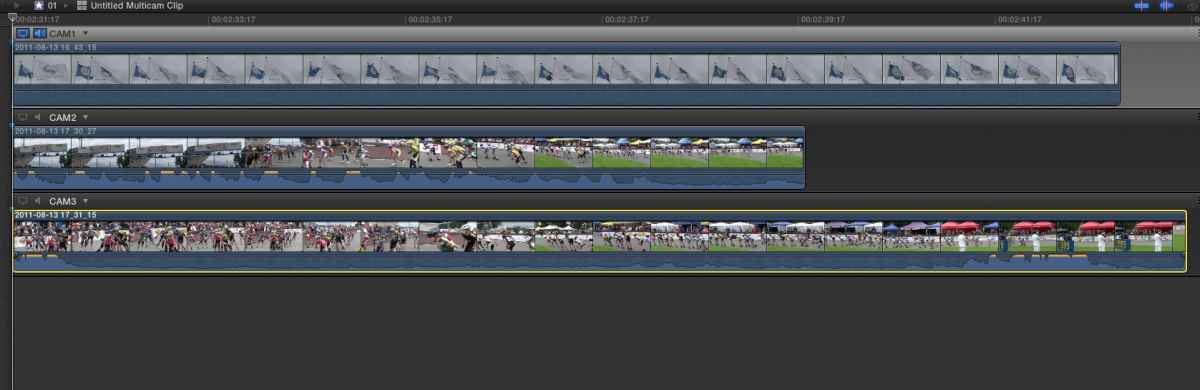
Open the multiclip in the Angle Editor. Select the Angle from which you want to use the audio and copy it.
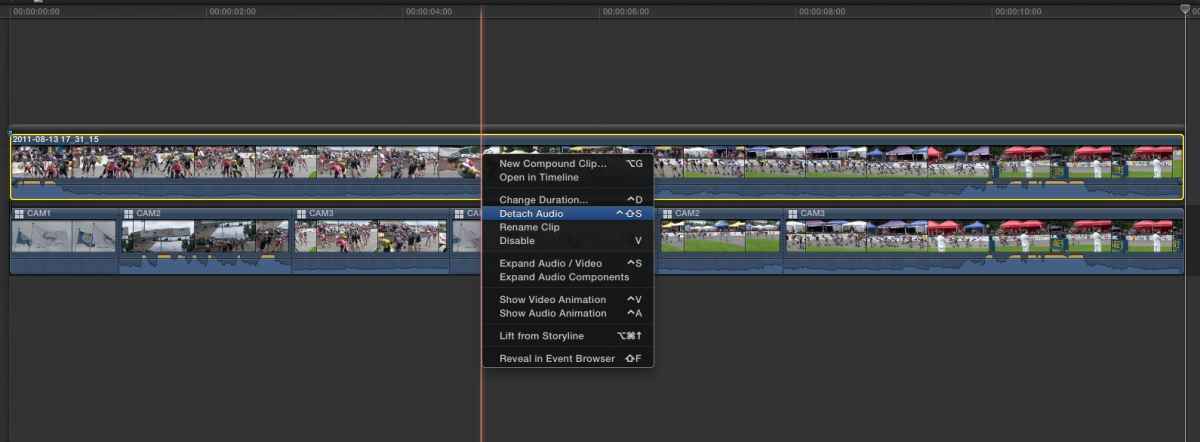
Return to the multiclip timeline and paste the copied angle at the start of your timeline. Detach the audio of the pasted clip and then delete the video of the pasted clip.
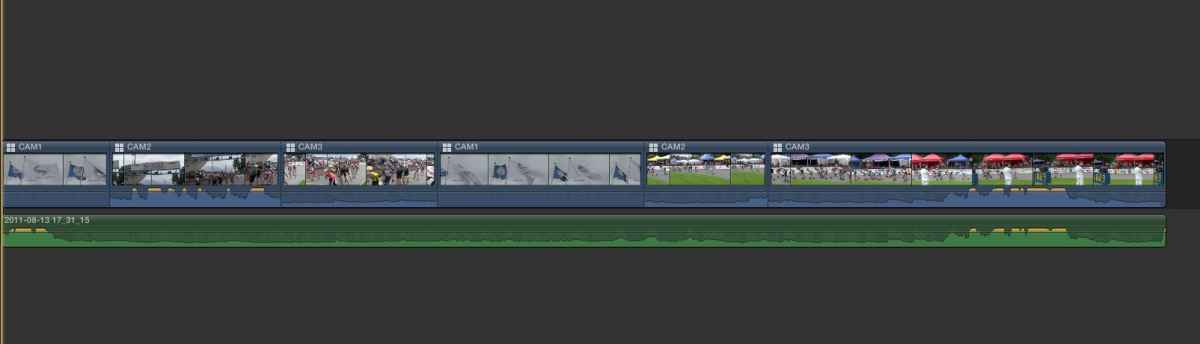
Finally group-select your video clips on the timeline and in the Inspector > Audio tab set Volume to 0.
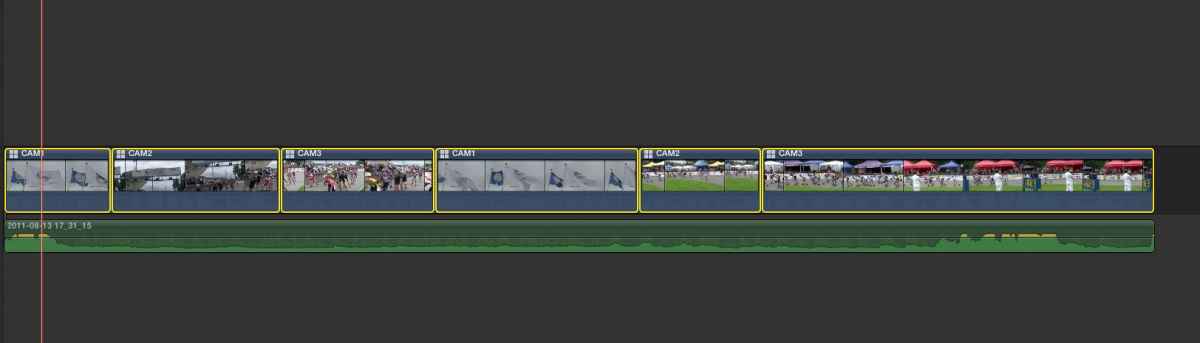
Now you should have your cut video angles with underneath only the audio of one angle.
Open the multiclip in the Angle Editor. Select the Angle from which you want to use the audio and copy it.
Return to the multiclip timeline and paste the copied angle at the start of your timeline. Detach the audio of the pasted clip and then delete the video of the pasted clip.
Finally group-select your video clips on the timeline and in the Inspector > Audio tab set Volume to 0.
Now you should have your cut video angles with underneath only the audio of one angle.
Please Log in to join the conversation.
- ronny courtens
-
- Offline
- Moderator
-
Less
More
- Posts: 4455
- Thank you received: 962
17 Aug 2013 20:26 #30063
by ronny courtens
Replied by ronny courtens on topic Multi-Cam Audio
Good you figured it out and thanks for posting the solution.
Please Log in to join the conversation.
