


- Posts: 17
- Thank you received: 0
3 Post Moderation Rule for New Boarders (25 Jan 2021)
New boarders will have their posts moderated - Don't worry if you cannot see your post immediately.
Final Cut Pro X to Vimeo
- videogopher
-
 Topic Author
- Offline
- New Member
-

Less
More
17 Aug 2013 03:05 #30035
by videogopher
Replied by videogopher on topic Final Cut Pro X to Vimeo
Hey NEWVIDEO,
thanks for your reply. Everything that you said, is what I thought I could do.
I shot some video. downloaded it to FCP X, Created a NEW PROJECT, I chose the 1080 P settings, put all my favorite clips in, added transitions, added music, and that's pretty much it. The video was 10 minutes long, I clicked on the share to vimeo and it was telling me it would take over 130-somthing hours. I looked to see how big the file was and it is over 10 GB.
So maybe it was the extra effects I made on many clips (effects that came directly from FCP x, I didn't use any plug in's from outside FCP x). I also edited each clip to obtain a different quality pictures by using things like the "COLOR CORRECTION" options.
Maybe it was because I picked the 1080 P settings when I created a new project in FCP X (however, I doubt 720p is going to get the video size down to 50 MB, so I doubt that's the only problem).
Maybe it was my settings when I shot the video initially on my camera - I don't know, as I'm still learning my camera too.
The songs I chose for the project were some songs I purchased off of some Professional Royalty Free Music sites - such as Audio Jungle.
I have a Canon AX10 and I shot this wedding in the Cinematic mode which allows you to chose between several different filters - maybe this had something to do with it. I do notice in my camera manual it states, " in cinema mode the FRAME RATE setting will be set to PF24
thanks for your reply. Everything that you said, is what I thought I could do.
I shot some video. downloaded it to FCP X, Created a NEW PROJECT, I chose the 1080 P settings, put all my favorite clips in, added transitions, added music, and that's pretty much it. The video was 10 minutes long, I clicked on the share to vimeo and it was telling me it would take over 130-somthing hours. I looked to see how big the file was and it is over 10 GB.
So maybe it was the extra effects I made on many clips (effects that came directly from FCP x, I didn't use any plug in's from outside FCP x). I also edited each clip to obtain a different quality pictures by using things like the "COLOR CORRECTION" options.
Maybe it was because I picked the 1080 P settings when I created a new project in FCP X (however, I doubt 720p is going to get the video size down to 50 MB, so I doubt that's the only problem).
Maybe it was my settings when I shot the video initially on my camera - I don't know, as I'm still learning my camera too.
The songs I chose for the project were some songs I purchased off of some Professional Royalty Free Music sites - such as Audio Jungle.
I have a Canon AX10 and I shot this wedding in the Cinematic mode which allows you to chose between several different filters - maybe this had something to do with it. I do notice in my camera manual it states, " in cinema mode the FRAME RATE setting will be set to PF24
Please Log in to join the conversation.
- videogopher
-
Topic Author
- Offline
- New Member
-
Less
More
- Posts: 17
- Thank you received: 0
17 Aug 2013 16:01 #30050
by videogopher
Replied by videogopher on topic Final Cut Pro X to Vimeo
Can you help me understand why my file size is so big. I began to redo the video using the 720 p settings from the very beginning, and after only 50 seconds of editing so far, the file size is 404 MB. I then removed the song, just to see how much a difference it makes, and the file size went down to about 60 MB. The overall video will be 7-10 minutes, and it's already way too big after only 50 seconds. I also went into each clip and chose the "scale down" option in the inspector window to 75%, just to get a smaller picture to see if that would help - I don't know if it did or not.
Please Log in to join the conversation.
- ronny courtens
-

- Offline
- Moderator
-

Less
More
- Posts: 4455
- Thank you received: 962
17 Aug 2013 17:08 - 17 Aug 2013 17:11 #30054
by ronny courtens
Replied by ronny courtens on topic Final Cut Pro X to Vimeo
Hi Mike,
Like we said before it does not matter how big your FCPX project is. You don't need to scale down anything, nor do you need to work in 720p. Just finish your edit in full quality and when your edit is finished you have three options to bring your finished project to Vimeo:
1. Export a Master File
Press the Share button and select Master File.
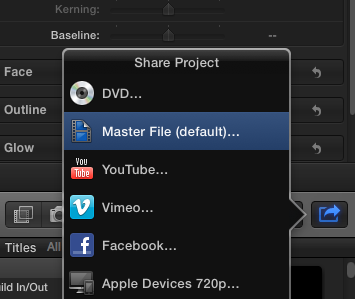
The Master File window will open. Click the Settings button and set Format to "Video and Audio". Make sure Video Codec is set to "Source". Then press Next, enter a name and a destination and press Save.
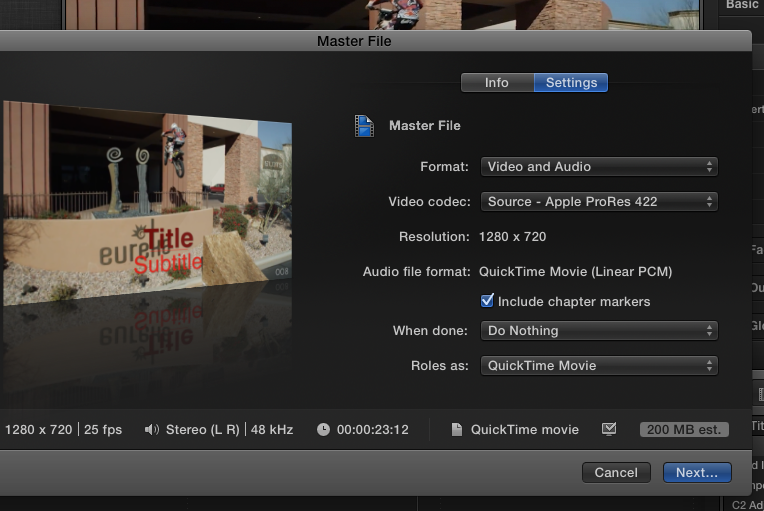
Your project will be exported to a large high-quality ProRes file. Then you convert the ProRes file to H.264 using Handbrake or any other third party application, which will give you a much smaller file. Then you launch Vimeo, you sign in and you upload the H.264 file.
2. Export a H.264 QuickTime file
Press the Share button and select Master File. The Master File window will open. Click the Settings button and set Format to "Web Hosting". Set Video Codec to "H.264 Better Quality". Then press Next, enter a name and a destination and press Save.
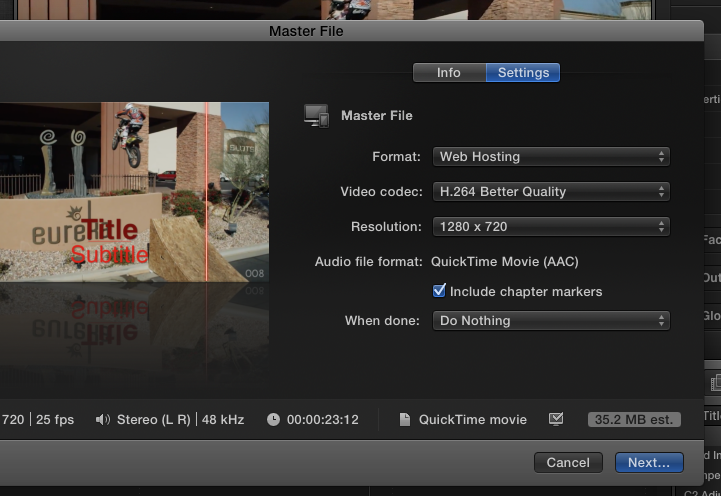
Your project will be exported to a good quality H.264 file. Then you launch Vimeo, you sign in and you upload the H.264 file.
3. Share to Vimeo inside FCPX
When your edit is finished click the Share button. In the Share Project window that opens click the Vimeo icon. The Vimeo upload window will open.
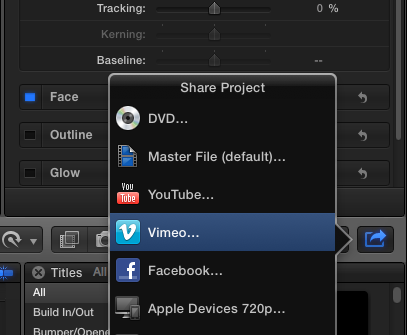
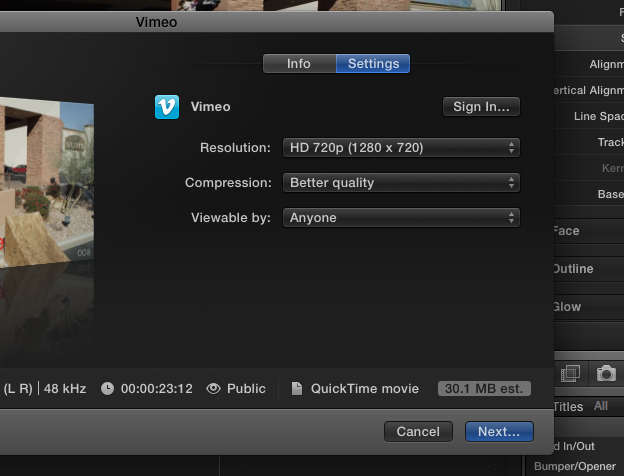
In the Vimeo upload window click the Settings button and here you set the size and the quality of the file that will be uploaded to Vimeo. Set Resolution to the highest resolution available. Set Compression to Better Quality and in "Viewable by" choose who will be able to watch your video in Vimeo.
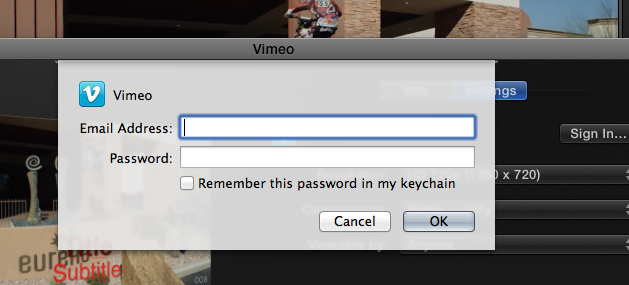
Then you press the Sign In button and you sign in with your e-mail address and your Vimeo password and you click OK.
Your project will now be converted to H.264 within FCPX and the H.264 file will be uploaded to your Vimeo account.
What is the difference between the three options?
1. This will give you the best possible quality H.264 video for uploading. In Handbrake, Compressor, MPEG Streamclip or other dedicated conversion programs you can tweak the bitrates and other settings to convert your ProRes master to a very high quality H.264 video with a reasonable file size. The condition is, of course, that you know how to work with these programs.
2. This will give you a much smaller but good quality H.264 file that you can manually upload to Vimeo.
3. This will give you a smaller but good quality H.264 file that will automatically be uploaded to Vimeo from within FCPX. If for some reasons the automatic signing in or uploading does not work, use option 2 instead and do the upload manually.
- Ronny
Like we said before it does not matter how big your FCPX project is. You don't need to scale down anything, nor do you need to work in 720p. Just finish your edit in full quality and when your edit is finished you have three options to bring your finished project to Vimeo:
1. Export a Master File
Press the Share button and select Master File.
The Master File window will open. Click the Settings button and set Format to "Video and Audio". Make sure Video Codec is set to "Source". Then press Next, enter a name and a destination and press Save.
Your project will be exported to a large high-quality ProRes file. Then you convert the ProRes file to H.264 using Handbrake or any other third party application, which will give you a much smaller file. Then you launch Vimeo, you sign in and you upload the H.264 file.
2. Export a H.264 QuickTime file
Press the Share button and select Master File. The Master File window will open. Click the Settings button and set Format to "Web Hosting". Set Video Codec to "H.264 Better Quality". Then press Next, enter a name and a destination and press Save.
Your project will be exported to a good quality H.264 file. Then you launch Vimeo, you sign in and you upload the H.264 file.
3. Share to Vimeo inside FCPX
When your edit is finished click the Share button. In the Share Project window that opens click the Vimeo icon. The Vimeo upload window will open.
In the Vimeo upload window click the Settings button and here you set the size and the quality of the file that will be uploaded to Vimeo. Set Resolution to the highest resolution available. Set Compression to Better Quality and in "Viewable by" choose who will be able to watch your video in Vimeo.
Then you press the Sign In button and you sign in with your e-mail address and your Vimeo password and you click OK.
Your project will now be converted to H.264 within FCPX and the H.264 file will be uploaded to your Vimeo account.
What is the difference between the three options?
1. This will give you the best possible quality H.264 video for uploading. In Handbrake, Compressor, MPEG Streamclip or other dedicated conversion programs you can tweak the bitrates and other settings to convert your ProRes master to a very high quality H.264 video with a reasonable file size. The condition is, of course, that you know how to work with these programs.
2. This will give you a much smaller but good quality H.264 file that you can manually upload to Vimeo.
3. This will give you a smaller but good quality H.264 file that will automatically be uploaded to Vimeo from within FCPX. If for some reasons the automatic signing in or uploading does not work, use option 2 instead and do the upload manually.
- Ronny
Last edit: 17 Aug 2013 17:11 by ronny courtens.
Please Log in to join the conversation.
- videogopher
-
Topic Author
- Offline
- New Member
-
Less
More
- Posts: 17
- Thank you received: 0
17 Aug 2013 17:47 #30055
by videogopher
Replied by videogopher on topic Final Cut Pro X to Vimeo
OK, Ronny ... I'm working on it now. I can't thank you enough for all your help and taking the time. I don't have the "Share" button that you have and I don't see "Master File" as an option when I used the SHARE drop down menu up at the top of the computer screen, but that's not too important. I was able to export it to my desk top using settings you described, it's transferring now, then I'll try to compress it with HANDBREAK, ETC... ETC... I'll let you know what happens.
Please Log in to join the conversation.
- videogopher
-
Topic Author
- Offline
- New Member
-
Less
More
- Posts: 17
- Thank you received: 0
17 Aug 2013 18:13 #30057
by videogopher
Replied by videogopher on topic Final Cut Pro X to Vimeo
Ronny, by the way.
I have to make a copy of this video for the Bride and Groom, a standard DVD copy is what I was going to give them. DO you have any recommendations as far as what brand DVD to use, and how to go about transferring it to DVD?
Should I also give them a thumb drive with a copy of the video on it? What do you recommend?
I have to make a copy of this video for the Bride and Groom, a standard DVD copy is what I was going to give them. DO you have any recommendations as far as what brand DVD to use, and how to go about transferring it to DVD?
Should I also give them a thumb drive with a copy of the video on it? What do you recommend?
Please Log in to join the conversation.
- ronny courtens
-
- Offline
- Moderator
-
Less
More
- Posts: 4455
- Thank you received: 962
17 Aug 2013 18:21 - 17 Aug 2013 18:24 #30059
by ronny courtens
Replied by ronny courtens on topic Final Cut Pro X to Vimeo
I haven't burnt a DVD for a long while now.
You can burn a DVD straight from within FCPX, which will give you a very basic menu. Or you export a master file out of FCPX and you use an authoring program such as iDVD to create a DVD with a more fancy menu. If you don't have iDVD (Apple does not install it on newer computers anymore) you can find DVD authoring software on the internet.
We have a thread about it here: www.fcp.co/forum/4-final-cut-pro-x-fcpx/17722-dvd-burning#30045
Just use a good brand for the disc. Cheap discs tend to have compatibility issues.
If you don't have a Share button you must be using an old version of FCPX. You really should update as soon as possible.
As to the thumb drive: yes you can do this. Just export an MP4 file out of FCPX and copy it to the thumb drive.
You can burn a DVD straight from within FCPX, which will give you a very basic menu. Or you export a master file out of FCPX and you use an authoring program such as iDVD to create a DVD with a more fancy menu. If you don't have iDVD (Apple does not install it on newer computers anymore) you can find DVD authoring software on the internet.
We have a thread about it here: www.fcp.co/forum/4-final-cut-pro-x-fcpx/17722-dvd-burning#30045
Just use a good brand for the disc. Cheap discs tend to have compatibility issues.
If you don't have a Share button you must be using an old version of FCPX. You really should update as soon as possible.
As to the thumb drive: yes you can do this. Just export an MP4 file out of FCPX and copy it to the thumb drive.
Last edit: 17 Aug 2013 18:24 by ronny courtens.
Please Log in to join the conversation.
- videogopher
-
Topic Author
- Offline
- New Member
-
Less
More
- Posts: 17
- Thank you received: 0
17 Aug 2013 21:08 #30064
by videogopher
Replied by videogopher on topic Final Cut Pro X to Vimeo
OK, I FINALLY DID IT.... THE VIDEO IS NOW ON MY VIMEO PRO PAGE. FINALLY!!!! Thank you very much!
It did however come out a little jumpy. The version downloaded on my desk top is nice and smooth, even when I watch it in full screen, but the version that uploaded to vimeo is SLIGHTLY jumpy/skippy at parts. It's sort of like, if you were to play a video in full screen before it was done rendering.
I did chose the max bitrate of 10,000 instead of 5,000 for the video, so not sure if that had anything to do with it. BUT TO BE HONEST, AT THIS POINT, I'M JUST HAPPY IT'S ON THERE.
It did however come out a little jumpy. The version downloaded on my desk top is nice and smooth, even when I watch it in full screen, but the version that uploaded to vimeo is SLIGHTLY jumpy/skippy at parts. It's sort of like, if you were to play a video in full screen before it was done rendering.
I did chose the max bitrate of 10,000 instead of 5,000 for the video, so not sure if that had anything to do with it. BUT TO BE HONEST, AT THIS POINT, I'M JUST HAPPY IT'S ON THERE.
Please Log in to join the conversation.
- ronny courtens
-
- Offline
- Moderator
-
Less
More
- Posts: 4455
- Thank you received: 962
18 Aug 2013 07:12 #30076
by ronny courtens
Replied by ronny courtens on topic Final Cut Pro X to Vimeo
Hey Mike,
Glad to hear everything worked out for you! You seem to attach a lot of importance to delivering good quality, that's an excellent attitude for a starting editor. Not everything will be perfect from the start, you will have to spend time and effort to improve both your editing and your encoding skills. But if you keep up this attitude you will definitely get there.
- Ronny
Glad to hear everything worked out for you! You seem to attach a lot of importance to delivering good quality, that's an excellent attitude for a starting editor. Not everything will be perfect from the start, you will have to spend time and effort to improve both your editing and your encoding skills. But if you keep up this attitude you will definitely get there.
- Ronny
Please Log in to join the conversation.
30 Aug 2013 12:37 #30580
by wooter
Replied by wooter on topic Final Cut Pro X to Vimeo
Just putting in my 2 cents in here.
I use Compessor out of FCPX to prepare my clips for Vimeo. Using the Vimeo Encoding settings ( vimeo.com/help/compression ) I end up with about 500MB per 5 minutes of footage, and this at 1080p 20000kbps.
I use Compessor out of FCPX to prepare my clips for Vimeo. Using the Vimeo Encoding settings ( vimeo.com/help/compression ) I end up with about 500MB per 5 minutes of footage, and this at 1080p 20000kbps.
Please Log in to join the conversation.
