


- Posts: 35
- Thank you received: 0
3 Post Moderation Rule for New Boarders (25 Jan 2021)
New boarders will have their posts moderated - Don't worry if you cannot see your post immediately.
Question on selecting images from event library...
23 May 2013 15:33 #26205
by Marcusb
Question on selecting images from event library... was created by Marcusb
Question #1 (see pic)
In the event library, how come when I move the cursor over the image and click it to select (to drop and drag to my primary clip) it only selects a part of the image, and creates these vertical lines? This does not happen when I'm selecting a clip? And, actually doesn't happen all the time when selecting an image. Sometimes when I move the cursor over the image and click, it selects the whole image in yellow, which I wold like to happen all the time.... Is there some setting I need to activate to do this?
Question #2
If I input an effect to my primary clip, and do a whole bunch of other edits to my project I'm happy with, what if the next day I want to delete that effect, how to I do this? I know I can hit Command "Z" and that will undo what ever I just did, but that only works in the sequence "backwards" to the last edits you want to delete....
also, can you put more than one effect (layered over another) in your primary clip in FCPX?
I do apologize if my questions are novice. I've purchased the whole tutorial vids with Larry Jordon and could not find the answers to these questions...
Thank you guys!
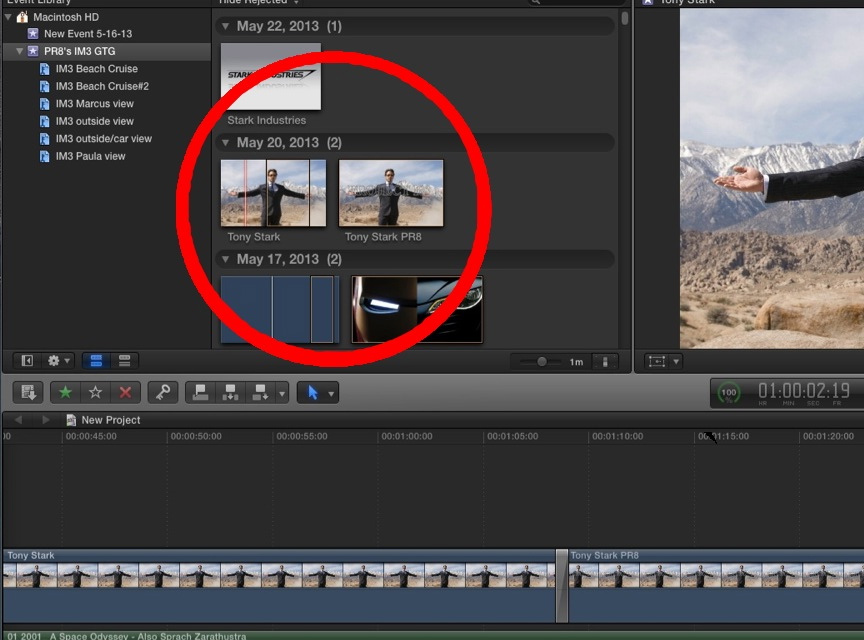
In the event library, how come when I move the cursor over the image and click it to select (to drop and drag to my primary clip) it only selects a part of the image, and creates these vertical lines? This does not happen when I'm selecting a clip? And, actually doesn't happen all the time when selecting an image. Sometimes when I move the cursor over the image and click, it selects the whole image in yellow, which I wold like to happen all the time.... Is there some setting I need to activate to do this?
Question #2
If I input an effect to my primary clip, and do a whole bunch of other edits to my project I'm happy with, what if the next day I want to delete that effect, how to I do this? I know I can hit Command "Z" and that will undo what ever I just did, but that only works in the sequence "backwards" to the last edits you want to delete....
also, can you put more than one effect (layered over another) in your primary clip in FCPX?
I do apologize if my questions are novice. I've purchased the whole tutorial vids with Larry Jordon and could not find the answers to these questions...
Thank you guys!
Please Log in to join the conversation.
23 May 2013 16:24 #26211
by bobmax48
Replied by bobmax48 on topic Question on selecting images from event library...
The answer to question two is to turn off the effect in the Inspector. Click the blue square and the effect is off. Click on the effect name and hit the Delete key to get rid of it.
Please Log in to join the conversation.
- Don Rumsey
-

- Offline
- Elite Member
-

Less
More
- Posts: 220
- Thank you received: 17
23 May 2013 16:27 #26212
by Don Rumsey
Replied by Don Rumsey on topic Question on selecting images from event library...
Question 1
It does the same to me with no ill gotten effects. I couldn't tell you why it only selects part of the image...however when I add it to the timeline everything is just fine and dandy.
Question 2
To delete the effect, click and highlight the clip with the effect, go to the clip inspector at the top right of the screen. There you will see the information regarding that clip including the effect paramaters. Click and highlight the effect and press delete...poof...gone.
Otherwise you can place many effects onto on clip...unlimited I beleive. However your going to run into slower render speeds with more effects. Also I have found that when you change the order of the effects in the Inspector window you will get various results.
It does the same to me with no ill gotten effects. I couldn't tell you why it only selects part of the image...however when I add it to the timeline everything is just fine and dandy.
Question 2
To delete the effect, click and highlight the clip with the effect, go to the clip inspector at the top right of the screen. There you will see the information regarding that clip including the effect paramaters. Click and highlight the effect and press delete...poof...gone.
Otherwise you can place many effects onto on clip...unlimited I beleive. However your going to run into slower render speeds with more effects. Also I have found that when you change the order of the effects in the Inspector window you will get various results.
Please Log in to join the conversation.
- ronny courtens
-

- Offline
- Moderator
-

Less
More
- Posts: 4455
- Thank you received: 962
23 May 2013 16:42 #26214
by ronny courtens
Replied by ronny courtens on topic Question on selecting images from event library...
1. Selecting images in the Event Library
Still images are always imported with a duration of 10 seconds in FCPX. So every still image in the FCPX Event library has a default duration of 10 seconds.
Now in Preferences > Editing > Still Images you can set the editing duration of your stills.
When you click on a still in the Event Library FCPX will limit the range of the still to the editing duration you have set in your Preferences. So if you have set a 4 second editing duration in Preferences and you click on an imported still in the Event Library FCPX will mark a range of 4 seconds, and this part of the clip will be edited onto the timeline.
On the other hand, when you click and drag on the still in the Event Library FCPX will set the range of the still based on where you start clicking and stop dragging, just like when you drag a range onto any clip.
As you can easily make any still shorter or longer once it's on the Timeline this editing duration setting doesn't seem very important. But it can be very useful if you want any still you use in a project to have the same duration when you drop it onto the Timeline.
2. Deleting a filter from a clip
Select the clip in the Timeline and in the Inspector > Video tab you will see the video information of the clip as well as any video filters you have applied to the clip. Here you can de-activate or completely delete any filter for this specific clip.
3. Adding multiple filters to a clip
Yes, you can add as many filters as you like to a clip in the Timeline. Just think logically when you stack filters because every filter that is higher in the stack will influence the filters below it. As an example: say you want to apply a blur and a matte. If you first add the blur and then the matte on top the matte will not be blurred. If you add the matte first and then the blur on top the matte will be blurred as well.
If you have stacked some filters and you get unexpected results you can change the stack order of the filters by just dragging them over each other in the Inspector.
Still images are always imported with a duration of 10 seconds in FCPX. So every still image in the FCPX Event library has a default duration of 10 seconds.
Now in Preferences > Editing > Still Images you can set the editing duration of your stills.
When you click on a still in the Event Library FCPX will limit the range of the still to the editing duration you have set in your Preferences. So if you have set a 4 second editing duration in Preferences and you click on an imported still in the Event Library FCPX will mark a range of 4 seconds, and this part of the clip will be edited onto the timeline.
On the other hand, when you click and drag on the still in the Event Library FCPX will set the range of the still based on where you start clicking and stop dragging, just like when you drag a range onto any clip.
As you can easily make any still shorter or longer once it's on the Timeline this editing duration setting doesn't seem very important. But it can be very useful if you want any still you use in a project to have the same duration when you drop it onto the Timeline.
2. Deleting a filter from a clip
Select the clip in the Timeline and in the Inspector > Video tab you will see the video information of the clip as well as any video filters you have applied to the clip. Here you can de-activate or completely delete any filter for this specific clip.
3. Adding multiple filters to a clip
Yes, you can add as many filters as you like to a clip in the Timeline. Just think logically when you stack filters because every filter that is higher in the stack will influence the filters below it. As an example: say you want to apply a blur and a matte. If you first add the blur and then the matte on top the matte will not be blurred. If you add the matte first and then the blur on top the matte will be blurred as well.
If you have stacked some filters and you get unexpected results you can change the stack order of the filters by just dragging them over each other in the Inspector.
Please Log in to join the conversation.
23 May 2013 17:09 #26216
by Marcusb
Replied by Marcusb on topic Question on selecting images from event library...
Thank you Don,
Yes, I tried it and even though it highlights a part of the clip it still inputs the whole clip in its integrity on the Timeline. I should of tried this, but as usual... wasn't thinking
Thank you Don!
Yes, I tried it and even though it highlights a part of the clip it still inputs the whole clip in its integrity on the Timeline. I should of tried this, but as usual... wasn't thinking
Thank you Don!
Please Log in to join the conversation.
23 May 2013 17:13 #26217
by Marcusb
Replied by Marcusb on topic Question on selecting images from event library...
Thank you Ronny!
Wow, what a great reply. Really appreciate the time you guys take to answer my questions... This is a process, like learning anything in life. Sure makes it easier to have a forum like this to shave off hours of frustration and research...
Thank you very much!
Wow, what a great reply. Really appreciate the time you guys take to answer my questions... This is a process, like learning anything in life. Sure makes it easier to have a forum like this to shave off hours of frustration and research...
Thank you very much!
Please Log in to join the conversation.
- ronny courtens
-
- Offline
- Moderator
-
Less
More
- Posts: 4455
- Thank you received: 962
23 May 2013 17:14 #26218
by ronny courtens
Replied by ronny courtens on topic Question on selecting images from event library...
You are very welcome, that's what we're here for. We all learn from each other.
Please Log in to join the conversation.
- Don Rumsey
-
- Offline
- Elite Member
-
Less
More
- Posts: 220
- Thank you received: 17
23 May 2013 18:40 #26223
by Don Rumsey
Replied by Don Rumsey on topic Question on selecting images from event library...
Your welcome as well. I learn plenty of stuff from here as well. Great group!
Please Log in to join the conversation.
