


- Posts: 51
- Thank you received: 0
3 Post Moderation Rule for New Boarders (25 Jan 2021)
New boarders will have their posts moderated - Don't worry if you cannot see your post immediately.
Video is jittery on playback
- cockneyjay
-
 Topic Author
- Offline
- Senior Member
-

Less
More
02 Dec 2012 17:49 #18073
by cockneyjay
Video is jittery on playback was created by cockneyjay
Ever since I've got FCP I've had problems with the playback. It's constantly jittery when I upload videos but then after a while it settles down with a particular clip. Afterwards that clip seems to be fine but others are jittery and skipping.
I'm not sure what to do because I'm trying to edit something which is going to take a lot of time but if I have to wait around until the jittering stop then it'll take 3 times as long.
I'm recording with an HDC - SD900 which I've been told is not properly compatible with a mac but that being said why is it that some shots work perfectly and others skip all over the place?
I'd really appreciate any responses and I'll answer any questions that you have to give a little more insight in to my problem.
I'm not sure what to do because I'm trying to edit something which is going to take a lot of time but if I have to wait around until the jittering stop then it'll take 3 times as long.
I'm recording with an HDC - SD900 which I've been told is not properly compatible with a mac but that being said why is it that some shots work perfectly and others skip all over the place?
I'd really appreciate any responses and I'll answer any questions that you have to give a little more insight in to my problem.
Please Log in to join the conversation.
- ronny courtens
-

- Offline
- Moderator
-

Less
More
- Posts: 4455
- Thank you received: 962
02 Dec 2012 18:38 #18076
by ronny courtens
Replied by ronny courtens on topic Video is jittery on playback
The HDC-SD900 is perfectly compatible with the mac and with FCP10, the camera is listed as supported by FCP10 in the Apple technical specs. Only video recorded in the 1080p50 format can lead to import errors. But if you can import your video you shouldn't have any problems.
If you can properly import your video but the playback in the timeline is jittery (i.e. frames are dropped during playback) it would help if you could provide some more information:
- What are your system specifications (which computer, how much RAM, what kind of graphics card, your OS, which version of FCP10) ?
- Do you optimize your video while you import?
- Do you have background rendering turned on in FCP10?
- Is your Playback setting set to "Better Performance" or to "High Quality"?
If you can properly import your video but the playback in the timeline is jittery (i.e. frames are dropped during playback) it would help if you could provide some more information:
- What are your system specifications (which computer, how much RAM, what kind of graphics card, your OS, which version of FCP10) ?
- Do you optimize your video while you import?
- Do you have background rendering turned on in FCP10?
- Is your Playback setting set to "Better Performance" or to "High Quality"?
Please Log in to join the conversation.
- cockneyjay
-
Topic Author
- Offline
- Senior Member
-
Less
More
- Posts: 51
- Thank you received: 0
02 Dec 2012 19:11 #18079
by cockneyjay
Replied by cockneyjay on topic Video is jittery on playback
Ronny thank you so much for getting back to me mate.
I did record it in 1080p50 and that didn't seem to get recognised in iMovie but in FCP it looks like if renders it.
I have a Macbook Pro, OS 10.7.5,
I don't know what kind of graphics card or how to find that out,
Memory is 4gb,
I have FinalCut Pro X
Not sure if I optimise video on import, all I do is plug my SD card in and click import all. I'm very new to this.
I have background rendering turned on. I wait for everything to be rendered before trying to playback.
My playback setting was at "better performance" but I just changed it to "high quality" and the results are relatively similar on the playback.
Thanks again Ronny, I really want to get this sorted asap so your help is really appreciated.
I did record it in 1080p50 and that didn't seem to get recognised in iMovie but in FCP it looks like if renders it.
I have a Macbook Pro, OS 10.7.5,
I don't know what kind of graphics card or how to find that out,
Memory is 4gb,
I have FinalCut Pro X
Not sure if I optimise video on import, all I do is plug my SD card in and click import all. I'm very new to this.
I have background rendering turned on. I wait for everything to be rendered before trying to playback.
My playback setting was at "better performance" but I just changed it to "high quality" and the results are relatively similar on the playback.
Thanks again Ronny, I really want to get this sorted asap so your help is really appreciated.
Please Log in to join the conversation.
- ronny courtens
-
- Offline
- Moderator
-
Less
More
- Posts: 4455
- Thank you received: 962
02 Dec 2012 19:53 - 02 Dec 2012 19:55 #18081
by ronny courtens
Replied by ronny courtens on topic Video is jittery on playback
Okay, the problem is that AVCHD 1080p50 footage puts a lot of strain on your system. If you are on an older MBP this could cause playback issues. How can you avoid this?
1. (irrelevant in your case but worth mentioning) Don't shoot 1080p50 unless you really need to do this for creating fluid slow-motion. 1080p25 will give you the same quality when shooting AVCHD and it will be less demanding on your system.
2. You say "I wait for everything to be rendered before trying to playback." This shouldn't happen. Create a new project and when the Project Settings window opens put a checkmark next to "Set based on first video clip". Then drop a 1080p clip onto the timeline. This will ensure that your Project settings will match your original footage and, unless you are on a really slow system, your footage will not have to be rendered at all and it will play smoothly.
2. If you cannot playback your native AVCHD video smoothly Optimize your video while you are importing. When you import your footage check the "Create optimized media" checkbox in your Media Import setting window and FCP10 will convert your video to ProRes, which is a much better format for editing. It is possible that FCP10 has already optimized your video while importing. It does this automatically whenever it feels your system won't be able to handle the imported footage natively. You can check this. R-click an imported file in the Event Browser and select Transcode Media. If the "Create optimized media" is greyed out this means your video is already optimized. If the option isn't greyed out and you experience playback problems you can always optimize your imported clips from within the Event Browser: group-select all your imported 1080p50 clips in the Event Browser, R-click the selection and choose Transcode Media. Then, in the Transcoding Media pop-up, put a checkmark next to Create optimized media and click OK. Wait until your clips are optimized, then create a new Project as described above.
4. To improve the performance of your system turn Background Rendering off. You can render manually whenever you wish and background rendering slows down your editing performance.
5. Set your Playback preference to "Better Performance". It will not make a huge difference, but when things get tight every little bit helps.
6. Very important: if you are on a slower system and/or you work with full HD video never, ever create your Events and your Projects on your internal drive. Always use a fast external drive as your media drive, this will significantly improve your editing experience.
If you have any further questions, don't hesitate to ask.
1. (irrelevant in your case but worth mentioning) Don't shoot 1080p50 unless you really need to do this for creating fluid slow-motion. 1080p25 will give you the same quality when shooting AVCHD and it will be less demanding on your system.
2. You say "I wait for everything to be rendered before trying to playback." This shouldn't happen. Create a new project and when the Project Settings window opens put a checkmark next to "Set based on first video clip". Then drop a 1080p clip onto the timeline. This will ensure that your Project settings will match your original footage and, unless you are on a really slow system, your footage will not have to be rendered at all and it will play smoothly.
2. If you cannot playback your native AVCHD video smoothly Optimize your video while you are importing. When you import your footage check the "Create optimized media" checkbox in your Media Import setting window and FCP10 will convert your video to ProRes, which is a much better format for editing. It is possible that FCP10 has already optimized your video while importing. It does this automatically whenever it feels your system won't be able to handle the imported footage natively. You can check this. R-click an imported file in the Event Browser and select Transcode Media. If the "Create optimized media" is greyed out this means your video is already optimized. If the option isn't greyed out and you experience playback problems you can always optimize your imported clips from within the Event Browser: group-select all your imported 1080p50 clips in the Event Browser, R-click the selection and choose Transcode Media. Then, in the Transcoding Media pop-up, put a checkmark next to Create optimized media and click OK. Wait until your clips are optimized, then create a new Project as described above.
4. To improve the performance of your system turn Background Rendering off. You can render manually whenever you wish and background rendering slows down your editing performance.
5. Set your Playback preference to "Better Performance". It will not make a huge difference, but when things get tight every little bit helps.
6. Very important: if you are on a slower system and/or you work with full HD video never, ever create your Events and your Projects on your internal drive. Always use a fast external drive as your media drive, this will significantly improve your editing experience.
If you have any further questions, don't hesitate to ask.
Last edit: 02 Dec 2012 19:55 by ronny courtens.
Please Log in to join the conversation.
- cockneyjay
-
Topic Author
- Offline
- Senior Member
-
Less
More
- Posts: 51
- Thank you received: 0
02 Dec 2012 20:28 #18083
by cockneyjay
Replied by cockneyjay on topic Video is jittery on playback
Thank you mate this is all really helpful.
I've done most of what you said and it seems to have a little effect but not much. I haven't used an external hard drive because I don't have one yet but I'll get one tomorrow if that's what's required.
If the playback is dropping frames then does that mean that when I export this on to a dvd the frames will be lost or is it just in the playback? Obviously I need to get it sorted ether way but I was curious.
I'm really hoping that I can get this sorted out because the only other alternative is what panasonic suggested and film with the "iFrame" setting on their camera (which they said is the only way it can work with a mac). This this records in 960x540p and is not picture quality I'm having with after what I've paid for this camera. Similar picture quality seems to be achieved by my phone.
I'm not sure if this is relevant information but when i play these videos on quicktime they're perfect but as soon as I import the same file on to FCPX it's all over the place. Would that indicate that it's definitely a hardrive problem?
I've done most of what you said and it seems to have a little effect but not much. I haven't used an external hard drive because I don't have one yet but I'll get one tomorrow if that's what's required.
If the playback is dropping frames then does that mean that when I export this on to a dvd the frames will be lost or is it just in the playback? Obviously I need to get it sorted ether way but I was curious.
I'm really hoping that I can get this sorted out because the only other alternative is what panasonic suggested and film with the "iFrame" setting on their camera (which they said is the only way it can work with a mac). This this records in 960x540p and is not picture quality I'm having with after what I've paid for this camera. Similar picture quality seems to be achieved by my phone.
I'm not sure if this is relevant information but when i play these videos on quicktime they're perfect but as soon as I import the same file on to FCPX it's all over the place. Would that indicate that it's definitely a hardrive problem?
Please Log in to join the conversation.
- ronny courtens
-
- Offline
- Moderator
-
Less
More
- Posts: 4455
- Thank you received: 962
02 Dec 2012 20:59 #18084
by ronny courtens
Replied by ronny courtens on topic Video is jittery on playback
No when you experience stuttering playback this won't have any effect on the video you export from FCP10. But I'm surprised none of the suggestions have helped.
Let's check a few things:
Have you checked if your clips have been optimized by FCP10?
Do you still get a render line when you create a new project with the settings based on the first clip?
Let's check a few things:
Have you checked if your clips have been optimized by FCP10?
Do you still get a render line when you create a new project with the settings based on the first clip?
Please Log in to join the conversation.
- ronny courtens
-
- Offline
- Moderator
-
Less
More
- Posts: 4455
- Thank you received: 962
02 Dec 2012 21:19 - 02 Dec 2012 21:25 #18085
by ronny courtens
Replied by ronny courtens on topic Video is jittery on playback
UPDATE:
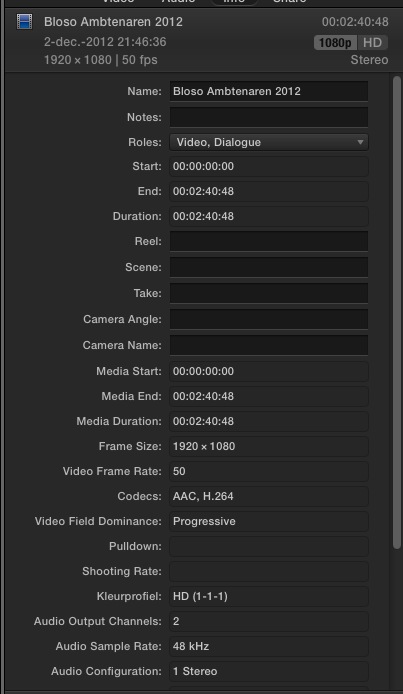
I have done a test with an H.264 1080p50 clip (this is the format your camera produces) on an older MBP I have here. When importing without optimizing the clip doesn't play smoothly, even from an external drive.
Here's a screenshot of the clip properties:
BUT: when I R-click the imported clip in the Event Browser, I choose "Transcode Media" from the pop-up and I select "Create optimized media" the clip plays perfectly.
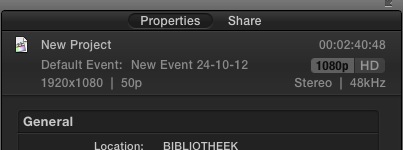
ALSO: when I create a new Project, I set Video Properties to "Set based on first clip" in the project settings window and I drop the clip onto the timeline I get a perfect 1080p50 project without any render bar. The clip plays perfectly on this timeline. Here's a screenshot of the Project properties:
So yes, I think you can solve your problem by optimizing your video and using the correct settings for your project.
I have done a test with an H.264 1080p50 clip (this is the format your camera produces) on an older MBP I have here. When importing without optimizing the clip doesn't play smoothly, even from an external drive.
Here's a screenshot of the clip properties:
BUT: when I R-click the imported clip in the Event Browser, I choose "Transcode Media" from the pop-up and I select "Create optimized media" the clip plays perfectly.
ALSO: when I create a new Project, I set Video Properties to "Set based on first clip" in the project settings window and I drop the clip onto the timeline I get a perfect 1080p50 project without any render bar. The clip plays perfectly on this timeline. Here's a screenshot of the Project properties:
So yes, I think you can solve your problem by optimizing your video and using the correct settings for your project.
Last edit: 02 Dec 2012 21:25 by ronny courtens.
Please Log in to join the conversation.
- cockneyjay
-
Topic Author
- Offline
- Senior Member
-
Less
More
- Posts: 51
- Thank you received: 0
02 Dec 2012 22:36 #18091
by cockneyjay
Replied by cockneyjay on topic Video is jittery on playback
Thanks a lot mate. It seems the optimising or "optimizing" as you might say in America, actually did work. I didn't realise I had to wait for it to actually take effect. You're a guru my friend.
Did you say there's a way to automatically set it to optimise everything I input in to it? You've already helped me so much so I don't want to take up your time as I'm sure I can work it out somehow. But if it's simple setting could you let me know where to find it?
Did you say there's a way to automatically set it to optimise everything I input in to it? You've already helped me so much so I don't want to take up your time as I'm sure I can work it out somehow. But if it's simple setting could you let me know where to find it?
Please Log in to join the conversation.
- ronny courtens
-
- Offline
- Moderator
-
Less
More
- Posts: 4455
- Thank you received: 962
02 Dec 2012 22:49 #18092
by ronny courtens
Replied by ronny courtens on topic Video is jittery on playback
No problem at all, that's why we are here. I'm happy you got it working.
Yes indeed it is best to wait until the optimising is done. When you optimise clips you can see the progress of the conversion in the Background Tasks Window (press CMD+9 to open this window).
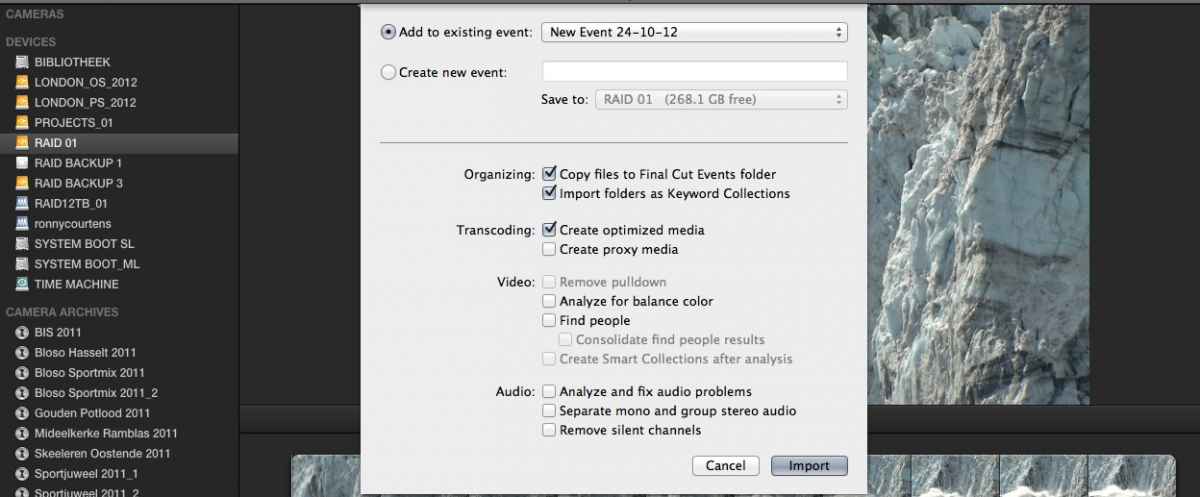
Yes you can optimise clips when importing. When you press "Import Selected" (or "Import All") in the Media Import window, FCP10 opens an import preference pane in which you can choose to create optimized media for the clips you are importing (see screenshot).
Yes indeed it is best to wait until the optimising is done. When you optimise clips you can see the progress of the conversion in the Background Tasks Window (press CMD+9 to open this window).
Yes you can optimise clips when importing. When you press "Import Selected" (or "Import All") in the Media Import window, FCP10 opens an import preference pane in which you can choose to create optimized media for the clips you are importing (see screenshot).
Please Log in to join the conversation.
