


- Posts: 2
- Thank you received: 0
3 Post Moderation Rule for New Boarders (25 Jan 2021)
New boarders will have their posts moderated - Don't worry if you cannot see your post immediately.
ReTIME de-interlace issue
30 Oct 2012 06:57 - 30 Oct 2012 06:57 #16199
by casper2
ReTIME de-interlace issue was created by casper2
Hi Everyone, this is my first post so please bear with me.
Anyways, I have been having an issue with the retime in FCPX. I have been cutting with DVCPRO HD 1080i 50 footage. This is the same footage that i use in FCP7.
Once I apply a retime (slowing down) to the footage, I get interlace problems. This is visible on Export. It is only visible in FCPX if i turn on "SHOW BOTH FIELDS" in the viewer.
I have tried applying the motion de interlace preset but nothing helps. It still shows as jagged striped interlacing artifacts.
I have resorted to retiming(slowing down) the footage needed in FCP7 and applying an de-interlacing with MAX FLICKER reduction.
This has so far allowed me to get stuff finished but not the most optimal way of doing things obviously.
Has anyone else had this problem? What am I missing or doing wrong?
Both my source footage and project are DVCPROHD 1080i 50. But i have had this same problem with 5D footage that is 25P. Any retiming will cause interlace artifacts and no amount of deinterlacing in FCPX seems to do anything.
This occurs even when all I want is to perform a "HOLD" on the last frame. Unless I split the clip and revert the previous footage before the "HOLD" to REALTIME, it will again have interlacing artifacts.
Any help with this would be much appreciated.
Anyways, I have been having an issue with the retime in FCPX. I have been cutting with DVCPRO HD 1080i 50 footage. This is the same footage that i use in FCP7.
Once I apply a retime (slowing down) to the footage, I get interlace problems. This is visible on Export. It is only visible in FCPX if i turn on "SHOW BOTH FIELDS" in the viewer.
I have tried applying the motion de interlace preset but nothing helps. It still shows as jagged striped interlacing artifacts.
I have resorted to retiming(slowing down) the footage needed in FCP7 and applying an de-interlacing with MAX FLICKER reduction.
This has so far allowed me to get stuff finished but not the most optimal way of doing things obviously.
Has anyone else had this problem? What am I missing or doing wrong?
Both my source footage and project are DVCPROHD 1080i 50. But i have had this same problem with 5D footage that is 25P. Any retiming will cause interlace artifacts and no amount of deinterlacing in FCPX seems to do anything.
This occurs even when all I want is to perform a "HOLD" on the last frame. Unless I split the clip and revert the previous footage before the "HOLD" to REALTIME, it will again have interlacing artifacts.
Any help with this would be much appreciated.
Last edit: 30 Oct 2012 06:57 by casper2.
Please Log in to join the conversation.


30 Oct 2012 09:54 #16205
by alex4D
Replied by alex4D on topic ReTIME de-interlace issue
I don't work with interlaced footage any more, so sorry if this is the first thing you tried:
Did you deinterlace the clip using the Deinterlace checkbox first?
From page 297 of the manual:
@alex4d
Did you deinterlace the clip using the Deinterlace checkbox first?
From page 297 of the manual:
- In the Info inspector, choose Settings View from the Metadata View pop-up menu.
- Select the Deinterlace checkbox.
Note: Selecting the Deinterlace setting causes the frame rate of the selected clips to double. For example, if the original interlaced clips have a frame rate of 29.97 fps, the deinterlaced clips will have a frame rate of 59.94 fps. Keep this in mind when you choose the video and audio settings for your project.
- Choose Final Cut Pro > Preferences, click Playback, and choose High Quality from the Playback Quality pop-up menu.
The clips now play back and function as progressive clips. Depending on your specific computer configuration, background rendering may be necessary.
@alex4d
Please Log in to join the conversation.
31 Oct 2012 03:55 #16273
by casper2
Replied by casper2 on topic ReTIME de-interlace issue
Thanks Alex4D
I have tried your suggestion but still no luck.
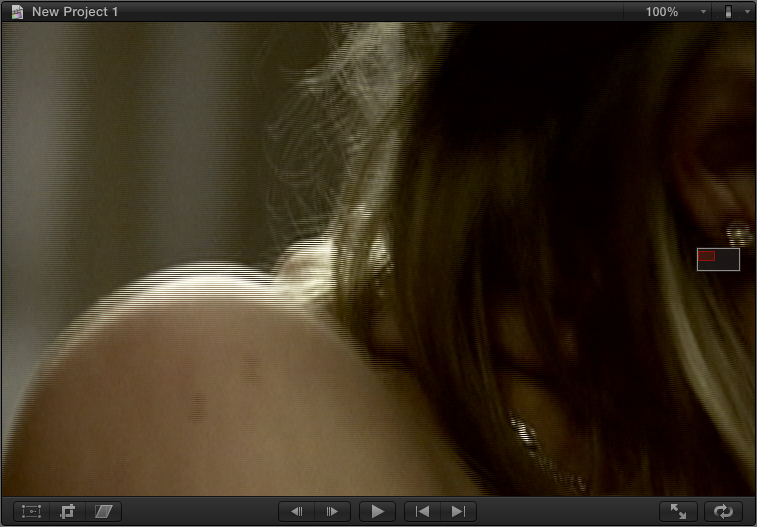
from the pic below you can see what i mean by interlace artifacts.
My project is DVCPROHD1080i 50, my footage is the same.
I de-interlaced the footage with the check box, and as you mentioned it changed the fps to 50. So the footage in effect became 1080p.
I retimed the footage to 89%
Going through frame by frame and at 100% things look fine. But once i turn on the "Show Both Fields" the interlacing shows up.
This only happens so far with retimed footage.
I have tried your suggestion but still no luck.
from the pic below you can see what i mean by interlace artifacts.
My project is DVCPROHD1080i 50, my footage is the same.
I de-interlaced the footage with the check box, and as you mentioned it changed the fps to 50. So the footage in effect became 1080p.
I retimed the footage to 89%
Going through frame by frame and at 100% things look fine. But once i turn on the "Show Both Fields" the interlacing shows up.
This only happens so far with retimed footage.
Please Log in to join the conversation.
