


- Posts: 11
- Thank you received: 0
3 Post Moderation Rule for New Boarders (25 Jan 2021)
New boarders will have their posts moderated - Don't worry if you cannot see your post immediately.
Attached clips are "shrinking" along the edges by about a pixel, any clips below show through.
- dademurphy
-
 Topic Author
- Offline
- New Member
-

Less
More
21 Jun 2012 05:12 - 21 Jun 2012 17:18 #10101
by dademurphy
Attached clips are "shrinking" along the edges by about a pixel, any clips below show through. was created by dademurphy
I've attached a screencap to illustrate what I'm putting into words very poorly here.
Basically, most of the clips that are above the main Storyline, as Attached Clips, Secondary Storylines or Compound Clips, seem to be shrinking by a couple pixels along all edges. The result is that if there happens to be an active video image below them, it shows through along those edges.
It's most visible in this image along the left and bottom borders (I should clarify that I'm referring to the white bits, the grey along all the edges was intentional to provide a neutral background).
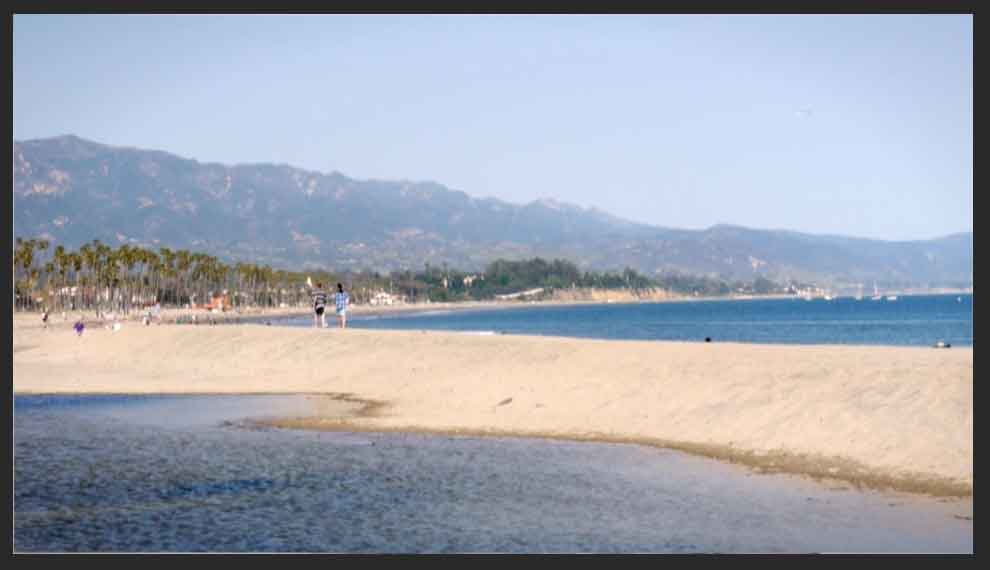
The only constant I've noticed so far is that it seems to be happening solely on footage that was originally interlaced (which has since been optimized on import and mixed with progressive footage in a project with progressive settings).
The only other thing I've noticed while trying to figure this out, is that toggling effects on and off (such as vignette or custom color presets) seems to affect how bad the "shrinkage" is.
Apologies if this is an amateur-hour question, but I don't recall ever running into this issue before when mixing interlaced and progressive. Or maybe I just didn't notice.
Basically, most of the clips that are above the main Storyline, as Attached Clips, Secondary Storylines or Compound Clips, seem to be shrinking by a couple pixels along all edges. The result is that if there happens to be an active video image below them, it shows through along those edges.
It's most visible in this image along the left and bottom borders (I should clarify that I'm referring to the white bits, the grey along all the edges was intentional to provide a neutral background).
The only constant I've noticed so far is that it seems to be happening solely on footage that was originally interlaced (which has since been optimized on import and mixed with progressive footage in a project with progressive settings).
The only other thing I've noticed while trying to figure this out, is that toggling effects on and off (such as vignette or custom color presets) seems to affect how bad the "shrinkage" is.
Apologies if this is an amateur-hour question, but I don't recall ever running into this issue before when mixing interlaced and progressive. Or maybe I just didn't notice.
Last edit: 21 Jun 2012 17:18 by dademurphy. Reason: (reuploaded screenshot that went 'missing')
Please Log in to join the conversation.


21 Jun 2012 07:52 #10110
by BenB
Replied by BenB on topic Re: Attached clips are "shrinking" along the edges by about a pixel, any clips below show through.
What is the format and origin of these problem clips?
What is the frame size of these clips, what is the frame size of the Timeline?
What is the Conform parameter set to for these clips? What if you set it to "Fill"?
I've never seen this issue. Very interesting.
What is the frame size of these clips, what is the frame size of the Timeline?
What is the Conform parameter set to for these clips? What if you set it to "Fill"?
I've never seen this issue. Very interesting.
Please Log in to join the conversation.
- dademurphy
-
Topic Author
- Offline
- New Member
-
Less
More
- Posts: 11
- Thank you received: 0
21 Jun 2012 17:30 #10134
by dademurphy
Replied by dademurphy on topic Re: Attached clips are "shrinking" along the edges by about a pixel, any clips below show through.
Thanks for your response.
They were shot with a GH2 at 1080i/29.97.
Both the frame size of the clips and the timeline are 1920x1080/29.97. The only difference is that the timeline is set to 1080p as that's what the primary camera on the project was shooting at.
Ooooh, this was a good one I hadn't considered. Spatial Conform was set to "Fit", but sadly changing to "Fill" had no effect (as did "None"). I also took this opportunity to try the different options on Rate Conform, but alas none of these had any effect either.
Nor have I, though this is my first project in FCPX and it's so consistent across the entire timeline that only interlaced clips exhibit this behavior that I'm starting to wonder if it's a bug. Though I also recognize that I don't know what I don't know so I wanted to consult with the wealth of experience that congregates here as well.
What is the format and origin of these problem clips?
They were shot with a GH2 at 1080i/29.97.
What is the frame size of these clips, what is the frame size of the Timeline?
Both the frame size of the clips and the timeline are 1920x1080/29.97. The only difference is that the timeline is set to 1080p as that's what the primary camera on the project was shooting at.
What is the Conform parameter set to for these clips? What if you set it to "Fill"?
Ooooh, this was a good one I hadn't considered. Spatial Conform was set to "Fit", but sadly changing to "Fill" had no effect (as did "None"). I also took this opportunity to try the different options on Rate Conform, but alas none of these had any effect either.
I've never seen this issue. Very interesting.
Nor have I, though this is my first project in FCPX and it's so consistent across the entire timeline that only interlaced clips exhibit this behavior that I'm starting to wonder if it's a bug. Though I also recognize that I don't know what I don't know so I wanted to consult with the wealth of experience that congregates here as well.
Please Log in to join the conversation.
21 Jun 2012 18:39 - 21 Jun 2012 18:40 #10136
by BenB
Replied by BenB on topic Re: Attached clips are "shrinking" along the edges by about a pixel, any clips below show through.
Make a new Project and either chose "custom" and set it to manually be 1080i29.97, or set it for the project to conform to the first clip.
Last edit: 21 Jun 2012 18:40 by BenB.
Please Log in to join the conversation.

21 Jun 2012 18:49 #10137
by Jimmyfinn
Replied by Jimmyfinn on topic Re: Attached clips are "shrinking" along the edges by about a pixel, any clips below show through.
Just for kicks, select the offending shots and go to the Inspector and Info
Change the view to Settings View and change the field dominance to progressive.
Any effect?
Change the view to Settings View and change the field dominance to progressive.
Any effect?
Please Log in to join the conversation.
21 Jun 2012 18:58 - 21 Jun 2012 18:59 #10138
by Jimmyfinn
Replied by Jimmyfinn on topic Re: Attached clips are "shrinking" along the edges by about a pixel, any clips below show through.
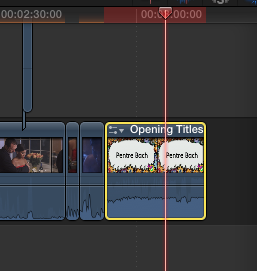
Whoops! When I try that using my interlaced footage in a progressive TL i get the dreaded red Indicator and the clip becomes unplayable. De-interlace just stretches the image vertically to no particlular dimension. Bizarre! I remember Tom Wolsky mentioning this a while back.
Last edit: 21 Jun 2012 18:59 by Jimmyfinn.
Please Log in to join the conversation.
21 Jun 2012 19:01 #10139
by BenB
Replied by BenB on topic Re: Attached clips are "shrinking" along the edges by about a pixel, any clips below show through.
I've had that red render line come up once, and everything played just fine. It shouldn't come up. Report it to the feedback page!
Please Log in to join the conversation.
21 Jun 2012 19:08 #10140
by Jimmyfinn
Replied by Jimmyfinn on topic Re: Attached clips are "shrinking" along the edges by about a pixel, any clips below show through.
Well, the trick seems to be change the field dominance override in the event
before dropping it into the timeline. Changing it retrospectively sends FCPX
into a bit of a flap!! Red Render line is consistent and repeatable and feedback
sent
before dropping it into the timeline. Changing it retrospectively sends FCPX
into a bit of a flap!! Red Render line is consistent and repeatable and feedback
sent
Please Log in to join the conversation.
- dademurphy
-
Topic Author
- Offline
- New Member
-
Less
More
- Posts: 11
- Thank you received: 0
21 Jun 2012 22:20 #10142
by dademurphy
Tried this but surprisingly did the exact same thing. I really expected this to work. But not so fast...
Again, no change. Until...
Winner, winner, chicken dinner!!
If I go back to, say, the clip I posted the screenshot of and select it in the event, change the dominance to progressive in the settings view of the inspector and then replace it back into the timeline, the mysterious gap along the border is gone.
I tried it on multiple clips, both as simple Connected Clips as well as within Compound Clips that were attached to the main storyline and they all worked.
So, in conclusion, there seems to be something going on with interlaced footage and full resolution. The really odd thing is, both the problem and solution persisted, even with a fresh Project file set to 1080i as BenB suggested.
Guess it's time to fire up the ol' Apple feedback form and let them know about this. Though I may do some experimenting with my GH2 first just to confirm that I don't have some wonky setting on there screwing this all up.
My thanks to you both for helping me track this down! You guys rock!
Replied by dademurphy on topic Re: Attached clips are "shrinking" along the edges by about a pixel, any clips below show through.
Make a new Project and either chose "custom" and set it to manually be 1080i29.97, or set it for the project to conform to the first clip.
Tried this but surprisingly did the exact same thing. I really expected this to work. But not so fast...
Just for kicks, select the offending shots and go to the Inspector and Info
Change the view to Settings View and change the field dominance to progressive.
Again, no change. Until...
Well, the trick seems to be change the field dominance override in the event
before dropping it into the timeline.
Winner, winner, chicken dinner!!
If I go back to, say, the clip I posted the screenshot of and select it in the event, change the dominance to progressive in the settings view of the inspector and then replace it back into the timeline, the mysterious gap along the border is gone.
I tried it on multiple clips, both as simple Connected Clips as well as within Compound Clips that were attached to the main storyline and they all worked.
So, in conclusion, there seems to be something going on with interlaced footage and full resolution. The really odd thing is, both the problem and solution persisted, even with a fresh Project file set to 1080i as BenB suggested.
Guess it's time to fire up the ol' Apple feedback form and let them know about this. Though I may do some experimenting with my GH2 first just to confirm that I don't have some wonky setting on there screwing this all up.
My thanks to you both for helping me track this down! You guys rock!
Please Log in to join the conversation.
- TheTik-TokMan
-

- Offline
- New Member
-
Less
More
- Posts: 2
- Thank you received: 1
24 Jun 2022 01:06 #121048
by TheTik-TokMan
Replied by TheTik-TokMan on topic Attached clips are "shrinking" along the edges by about a pixel, any clips below show through.
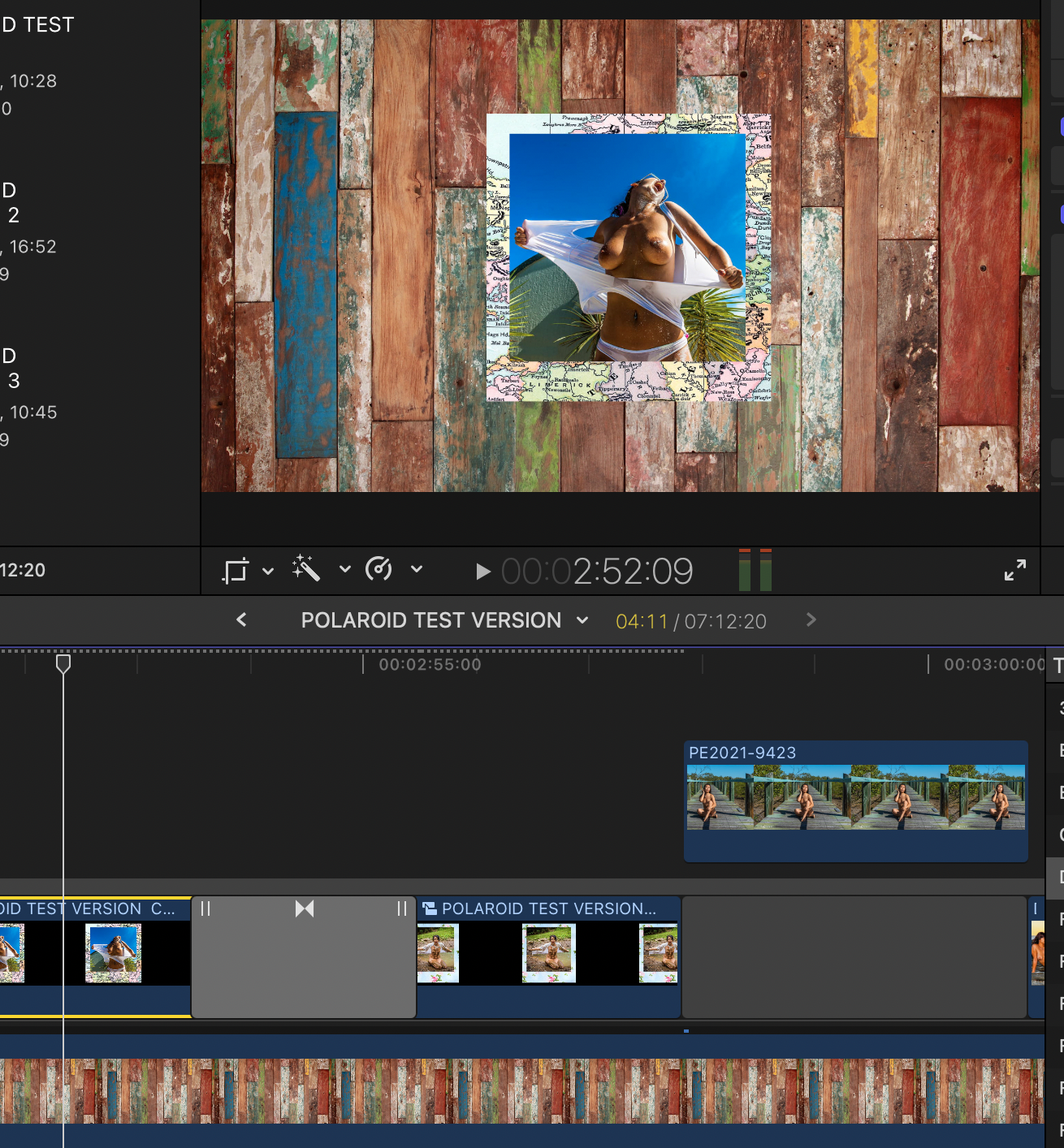
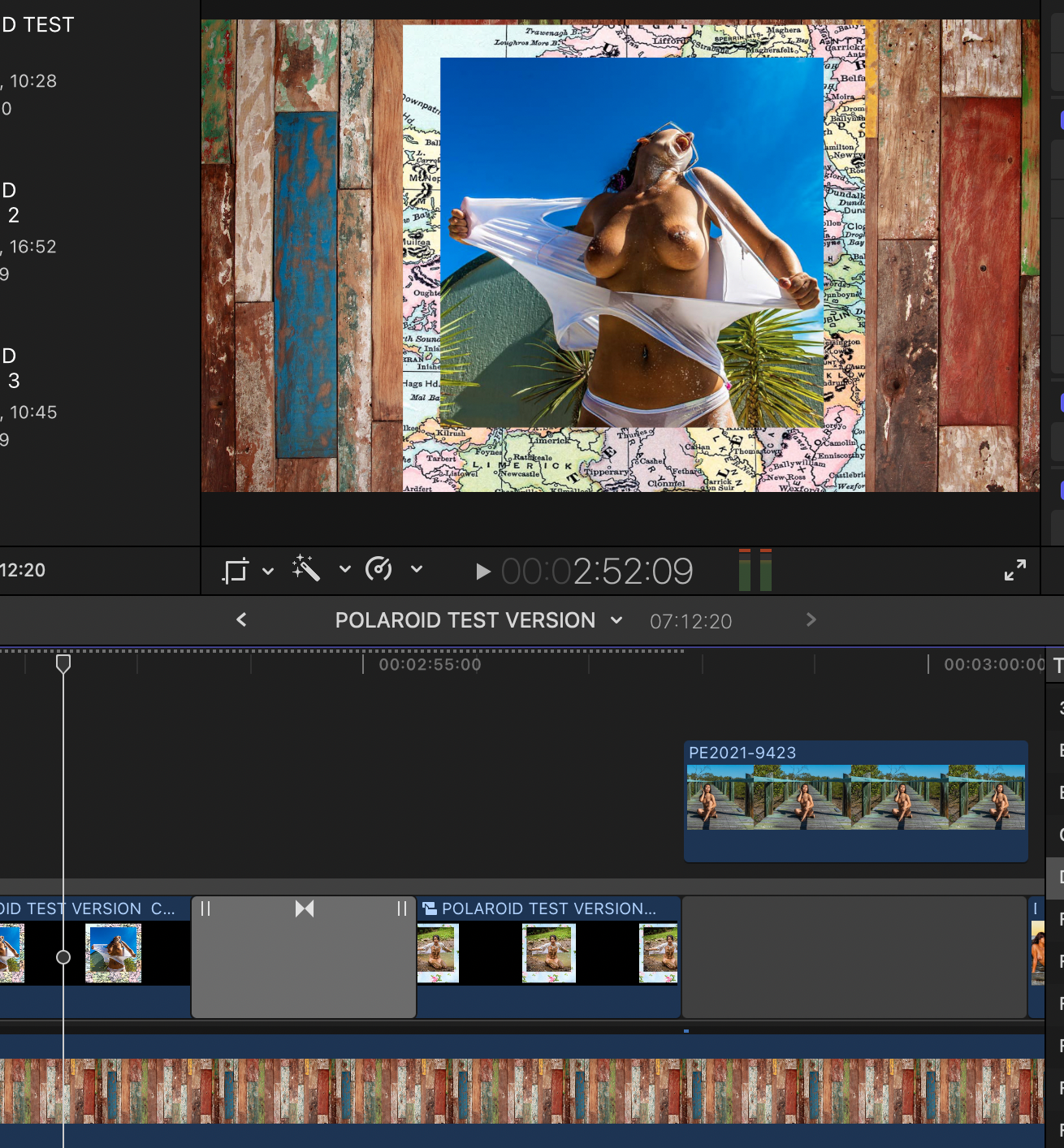
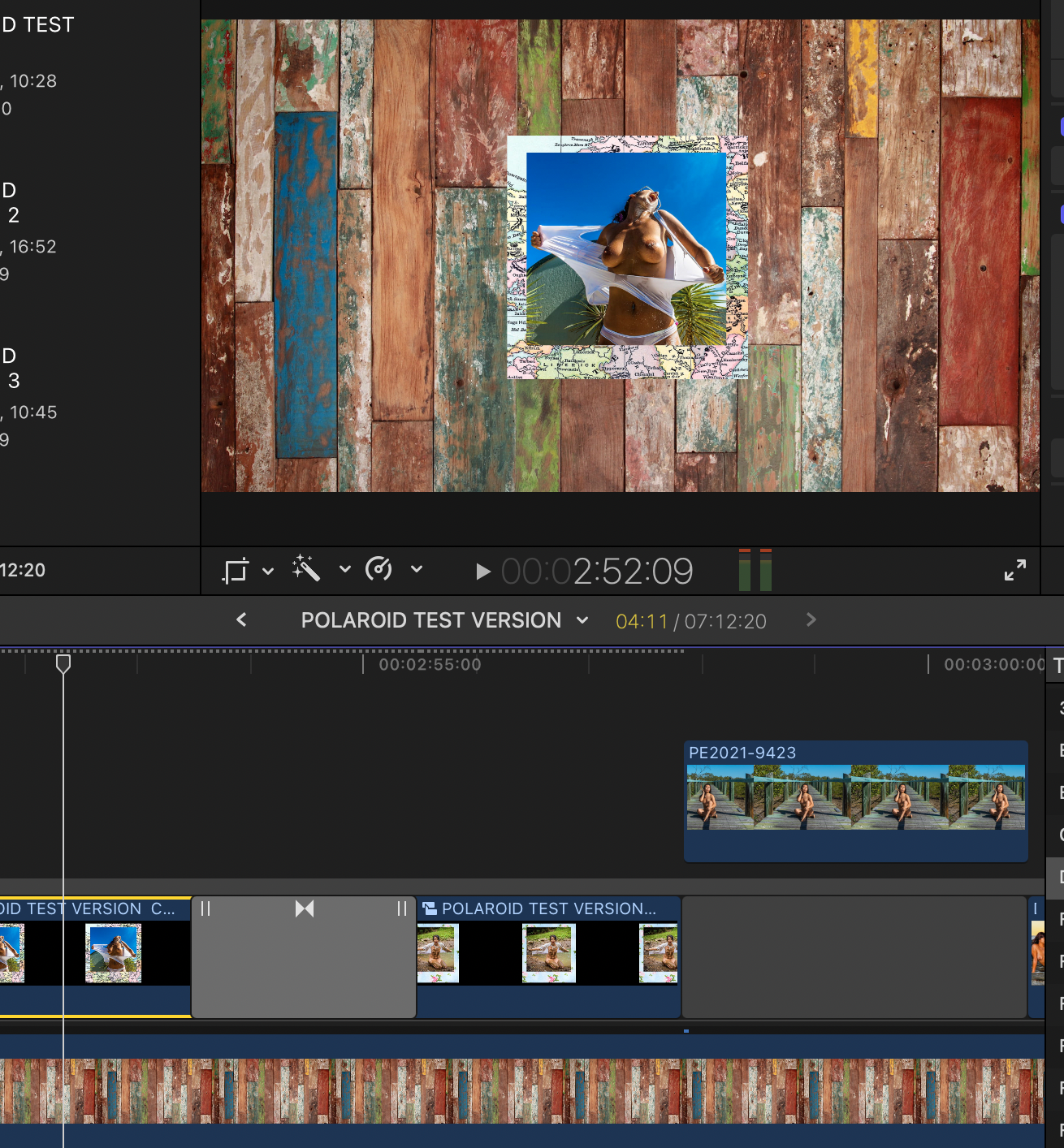
I have a similar issue with still images inside compound clips containing a polaroid png frame enclosing a jpg, using a page wipe between the compound clips. At first the size was normal full screen, then FCPX decided to shrink my images but only on the timeline, not within the compound clips. When I changed the spatial conform on each clip on the timeline to 'NONE' the still images returned to normal size. Before & after screenshots attached. The smallest size still is spatial conform set to FIT, the slightly larger one is FILL. Project settings: 1920 x 1080 25 fps rec 709 - Weird. Bug perhaps?
Please Log in to join the conversation.
