


- Posts: 407
- Thank you received: 16
3 Post Moderation Rule for New Boarders (25 Jan 2021)
New boarders will have their posts moderated - Don't worry if you cannot see your post immediately.
Combining 4Gb clips
16 Feb 2023 00:42 #124185
by Albo
Combining 4Gb clips was created by Albo
Hi,
My Canon is making two 4GB clips (related to Fat32). It's not a problem.
Would the best way to join two clips would be putting them inside a compound clip?
I will have one audio file for the full duration but 2 clips I have to stitch.
Thanks.
My Canon is making two 4GB clips (related to Fat32). It's not a problem.
Would the best way to join two clips would be putting them inside a compound clip?
I will have one audio file for the full duration but 2 clips I have to stitch.
Thanks.
Please Log in to join the conversation.

16 Feb 2023 00:55 - 16 Feb 2023 00:55 #124186
by Redifer
Replied by Redifer on topic Combining 4Gb clips
Just butt them up against each other on the timeline. No need to compound clip them unless you plan on making adjustments to the clips like color grading, then compound clipping them would be helpful. You could also include the separate audio file in that compound clip. I hope the camera is frame-accurate when splitting the file... some are not.
Last edit: 16 Feb 2023 00:55 by Redifer.
Please Log in to join the conversation.
16 Feb 2023 00:59 #124187
by Albo
Replied by Albo on topic Combining 4Gb clips
Great.
I have heard that I might need to tweek the second clip by one or two frame but it shouldn't happen.
I have heard that I might need to tweek the second clip by one or two frame but it shouldn't happen.
Please Log in to join the conversation.

16 Feb 2023 01:48 #124189
by joema
Replied by joema on topic Combining 4Gb clips
Some cameras can be configured to not create segmented files. Check the documentation.
For cameras which do create those, there is sometimes an associated folder tree or other metadata which enables NLEs to automatically assemble those as a single clip. Verify if the original camera files are in such a structure or if other metadata files exist which you might have discarded.
Yet other camera manufacturers have a plugin or other software which assembles the files. E.g, each clip from a RED camera exists as a series of segmented files inside a folder named after the clip. The RED Apple Workflow plugin after installation on your Mac will enable FCP to present those segmented files as a single clip.
So the lesson is first examine the specifics of the camera, available recording modes and whether Canon makes any utility or plugin to assemble the file segments.
For cameras which do create those, there is sometimes an associated folder tree or other metadata which enables NLEs to automatically assemble those as a single clip. Verify if the original camera files are in such a structure or if other metadata files exist which you might have discarded.
Yet other camera manufacturers have a plugin or other software which assembles the files. E.g, each clip from a RED camera exists as a series of segmented files inside a folder named after the clip. The RED Apple Workflow plugin after installation on your Mac will enable FCP to present those segmented files as a single clip.
So the lesson is first examine the specifics of the camera, available recording modes and whether Canon makes any utility or plugin to assemble the file segments.
Please Log in to join the conversation.
16 Feb 2023 02:17 #124190
by Albo
Replied by Albo on topic Combining 4Gb clips
Perfect. Found the Canon utility the merges the files.
I will try it out tomorrow.
I will try it out tomorrow.
Please Log in to join the conversation.
16 Feb 2023 13:01 - 16 Feb 2023 13:02 #124192
by Albo
Replied by Albo on topic Combining 4Gb clips
UPDATE: Canon software is unusable on Monterey or Catalina.
I will be merging in Final Cut and see how that goes.
Note: I am using a Canon 7D Mark II so not a RED or anything similar.
I will be merging in Final Cut and see how that goes.
Note: I am using a Canon 7D Mark II so not a RED or anything similar.
Last edit: 16 Feb 2023 13:02 by Albo.
Please Log in to join the conversation.

16 Feb 2023 14:24 #124193
by dmetz
Replied by dmetz on topic Combining 4Gb clips
If you've got the camera card structure intact, it's likely that EditReady would also stitch those segments together.
hedge.video/editready
hedge.video/editready
Please Log in to join the conversation.
- DanClancey
-
- Offline
- New Member
-

Less
More
- Posts: 6
- Thank you received: 0
16 Feb 2023 21:20 #124205
by DanClancey
Replied by DanClancey on topic Combining 4Gb clips
I have seen a 1 frame drop when butting up against each other
Please Log in to join the conversation.
17 Feb 2023 00:22 #124224
by Albo
Replied by Albo on topic Combining 4Gb clips
Thanks.
I will try with FC and if I have problems I will try your suggestion.
I will try with FC and if I have problems I will try your suggestion.
Please Log in to join the conversation.
17 Feb 2023 00:40 - 17 Feb 2023 00:43 #124225
by Redifer
Replied by Redifer on topic Combining 4Gb clips
You can also merge your clips with Apple's own app called "Quicktime". Since it's Apple, it's very easy and extremely straightforward:
1 - Open clip #1 in Quicktime.
2 - In the Quicktime Menu choose EDIT > Add Clip to End
3 - Choose the second 4GB clip from the import menu that pops up and click the "Choose Media" button.
4 - Do not press DONE on the Quicktime window yet.
5 - If you have more clips to add, choose EDIT > Add Clip to End, and repeat the process with as many clips as you need to merge into one file. Otherwise skip to step 6.
6 - Press the DONE button on the Quicktime player. You now have the option to export the video as a single clip under FILE > Export, but these will re-compress the video which is unacceptable.
7 - To keep the codec of the original files, you want to choose FILE > SHARE > Add to Photos. It will then write the file to the Photos app. It may take a while.
8 - Open the app from Apple called "Photos".
9 - In the Recents section, your video should be the most recent thing, right at the top. You can also filter by videos if you wish.
10 - Click on the video once to select it.
11 - In Photos choose FILE > EXPORT > EXPORT UNMODIFIED ORIGINAL FOR 1 VIDEO
12 - Click the EXPORT button
13 - Click the EXPORT ORIGINALS button and choose a location.
14 - Go to said location and make sure it's there and all is fine.
15 - Rename the exported file from "Untitled" to whatever you'd like it to be called.
16 - Unless you want a backup on this same drive taking up a lot of storage space, I recommend that you delete the file in Photos. In the Photos app, right click on the video file and select "Delete 1 Video".
17 - Press the Delete button.
18 - YOU'RE NOT DONE YET! The items still exists in Photo's Deleted folder. So from the contextual menu at the top of the screen choose PHOTOS > ERASE DELETED ITEMS.
19 - Press DELETE.
20 - Quit Photos. Also Quit Quicktime. Press the DELETE button when Quicktime prompts you.
21 - Import your file and make backups on other drives, if desired.
DONE! It simply could not be easier.
1 - Open clip #1 in Quicktime.
2 - In the Quicktime Menu choose EDIT > Add Clip to End
3 - Choose the second 4GB clip from the import menu that pops up and click the "Choose Media" button.
4 - Do not press DONE on the Quicktime window yet.
5 - If you have more clips to add, choose EDIT > Add Clip to End, and repeat the process with as many clips as you need to merge into one file. Otherwise skip to step 6.
6 - Press the DONE button on the Quicktime player. You now have the option to export the video as a single clip under FILE > Export, but these will re-compress the video which is unacceptable.
7 - To keep the codec of the original files, you want to choose FILE > SHARE > Add to Photos. It will then write the file to the Photos app. It may take a while.
8 - Open the app from Apple called "Photos".
9 - In the Recents section, your video should be the most recent thing, right at the top. You can also filter by videos if you wish.
10 - Click on the video once to select it.
11 - In Photos choose FILE > EXPORT > EXPORT UNMODIFIED ORIGINAL FOR 1 VIDEO
12 - Click the EXPORT button
13 - Click the EXPORT ORIGINALS button and choose a location.
14 - Go to said location and make sure it's there and all is fine.
15 - Rename the exported file from "Untitled" to whatever you'd like it to be called.
16 - Unless you want a backup on this same drive taking up a lot of storage space, I recommend that you delete the file in Photos. In the Photos app, right click on the video file and select "Delete 1 Video".
17 - Press the Delete button.
18 - YOU'RE NOT DONE YET! The items still exists in Photo's Deleted folder. So from the contextual menu at the top of the screen choose PHOTOS > ERASE DELETED ITEMS.
19 - Press DELETE.
20 - Quit Photos. Also Quit Quicktime. Press the DELETE button when Quicktime prompts you.
21 - Import your file and make backups on other drives, if desired.
DONE! It simply could not be easier.
Last edit: 17 Feb 2023 00:43 by Redifer.
Please Log in to join the conversation.
17 Feb 2023 00:49 #124226
by Albo
Replied by Albo on topic Combining 4Gb clips
That's a nice detailed run through !
It's curious to use the photo app for video. I didn't know photo supported videos.
Cheers.
It's curious to use the photo app for video. I didn't know photo supported videos.
Cheers.
Please Log in to join the conversation.

17 Feb 2023 17:10 - 17 Feb 2023 17:11 #124235
by VTC
Replied by VTC on topic Combining 4Gb clips
First off I'm stunned that any modern camera still records / mandates Fat32 4gb file limits. Insanity having to deal with a new file created every 4 minutes (ProRes). Now on to a simpler approach to ganging files.
Quicktime Player. Open video file. Park playhead at end. Grab a group of files and drag into window. Save as...
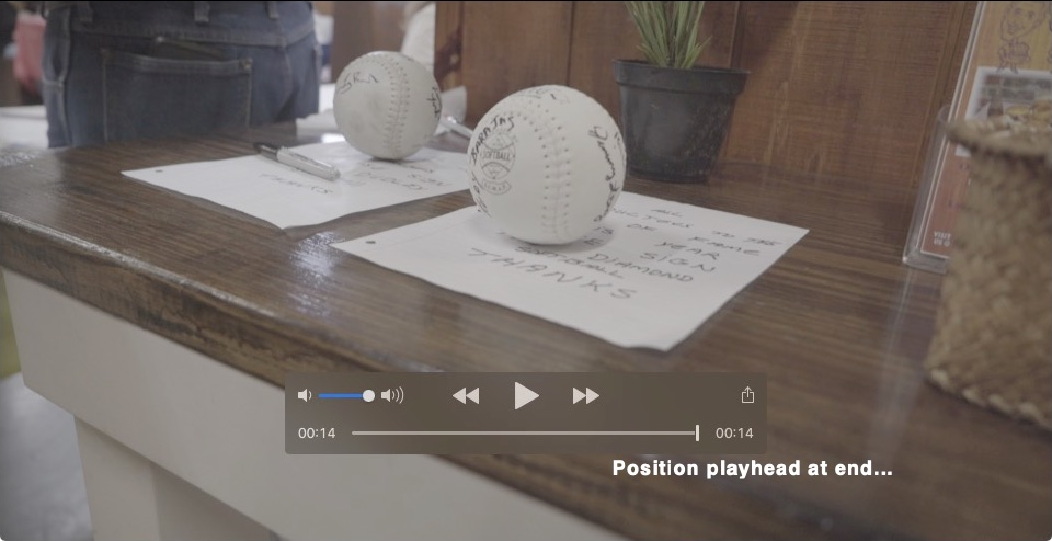
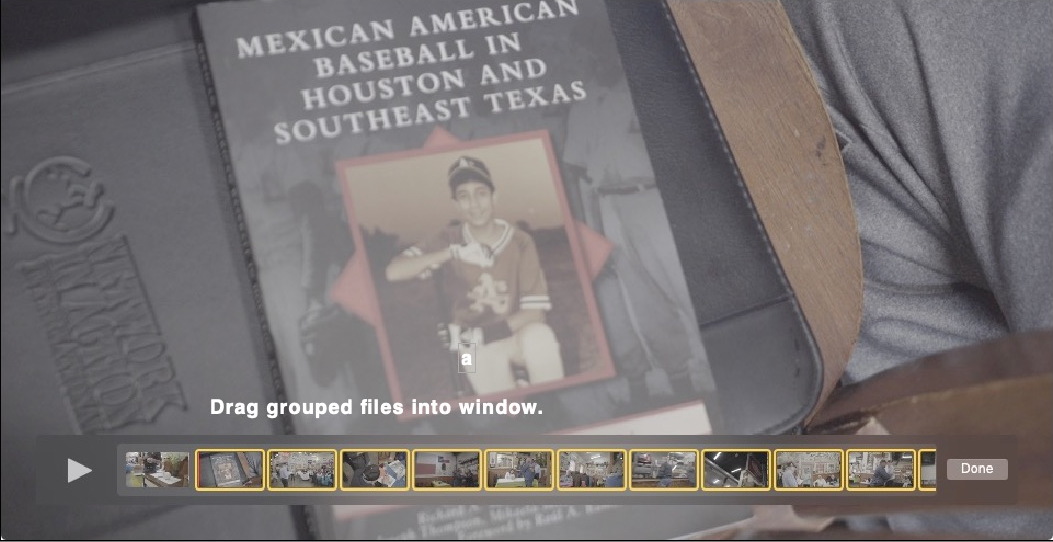
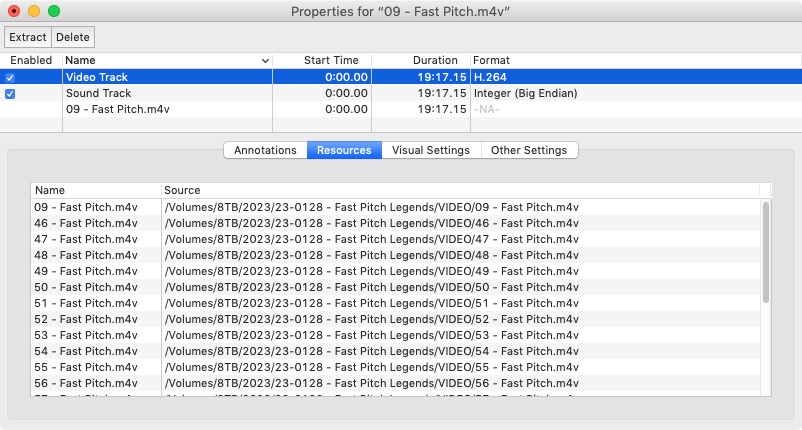
Quicktime Player 7. Open video file. Park playhead at end. Grab a group of files and drag into window. Now here's where QT7 shines over QT Player... You can save as a 212mb REFERENCE file instead of a 7gb file. (QT7 doesn't recognize my Sony mp4 files unless I change extension to m4v.)
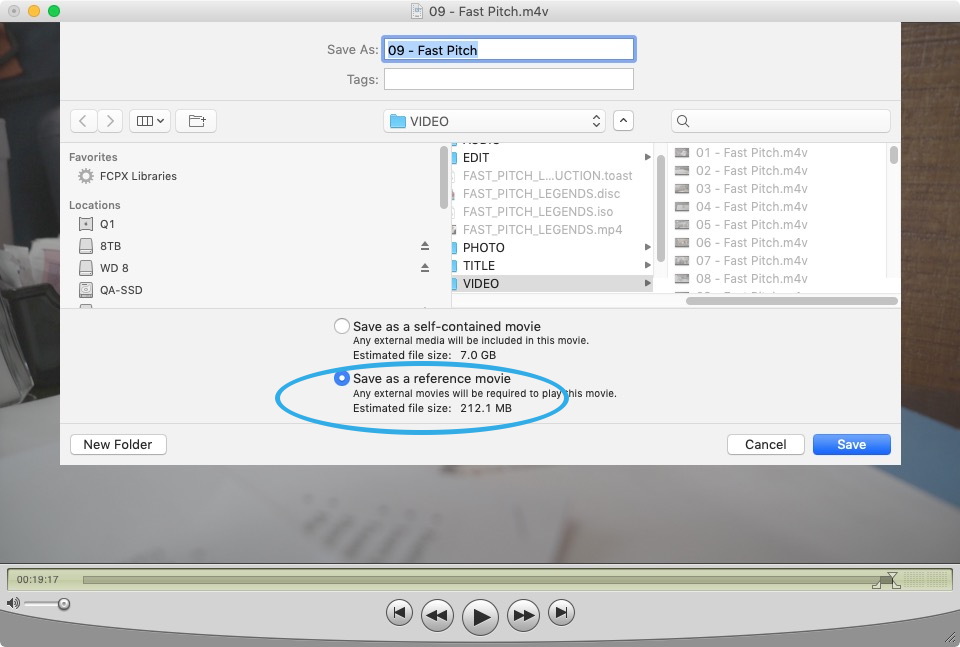
Quicktime Player. Open video file. Park playhead at end. Grab a group of files and drag into window. Save as...
Quicktime Player 7. Open video file. Park playhead at end. Grab a group of files and drag into window. Now here's where QT7 shines over QT Player... You can save as a 212mb REFERENCE file instead of a 7gb file. (QT7 doesn't recognize my Sony mp4 files unless I change extension to m4v.)
Last edit: 17 Feb 2023 17:11 by VTC.
Please Log in to join the conversation.
17 Feb 2023 17:55 #124237
by Albo
Replied by Albo on topic Combining 4Gb clips
Simpler indeed.
I am also bewildered on the Fat32 limit.
I'm downloading QT7. Hope it works on M1.
Thank you.
I am also bewildered on the Fat32 limit.
I'm downloading QT7. Hope it works on M1.
Thank you.
Please Log in to join the conversation.
17 Feb 2023 18:09 #124238
by VTC
Not certain if it works on modern OSes. QT7 Still works on Mojave, which is the reason I have previous OS in play here. You'll likely have to use QT10 and export a time consuming & enormous file instead of an immediate and tiny reference file.
Replied by VTC on topic Combining 4Gb clips
I'm downloading QT7. Hope it works on M1.
Not certain if it works on modern OSes. QT7 Still works on Mojave, which is the reason I have previous OS in play here. You'll likely have to use QT10 and export a time consuming & enormous file instead of an immediate and tiny reference file.
Please Log in to join the conversation.
17 Feb 2023 18:14 #124239
by Albo
Replied by Albo on topic Combining 4Gb clips
Confirmed...It doesn't work.
Please Log in to join the conversation.
17 Feb 2023 18:44 #124240
by Albo
Replied by Albo on topic Combining 4Gb clips
All this being said.
Can I format my 32 GB memory card to EXFAT without causing
any problems during capture?
Can I format my 32 GB memory card to EXFAT without causing
any problems during capture?
Please Log in to join the conversation.
17 Feb 2023 18:58 #124242
by Albo
Replied by Albo on topic Combining 4Gb clips
Canon7D mark II
And yes firmware is latest 1.1.3
Eventually I will use 128GB cards as I am sure they canb be formated to EXFAT.
And yes firmware is latest 1.1.3
Eventually I will use 128GB cards as I am sure they canb be formated to EXFAT.
Please Log in to join the conversation.
17 Feb 2023 19:07 #124243
by dmetz
Replied by dmetz on topic Combining 4Gb clips
Found this blurb at the bottom of page 68 of the camera's manual:
"This device incorporates exFAT technology licensed from Microsoft."
Which makes me wonder why the camera didn't do exFAT as default. Have you low-level formatted the card with the camera?
"This device incorporates exFAT technology licensed from Microsoft."
Which makes me wonder why the camera didn't do exFAT as default. Have you low-level formatted the card with the camera?
Please Log in to join the conversation.
17 Feb 2023 19:10 #124244
by Albo
Replied by Albo on topic Combining 4Gb clips
No. Formatted normally.
I personally never format low level.
Ok.
So I will simply try Canon tech for the info.
Format the card and see what happens in the test shot.
Thanks for your time !
I personally never format low level.
Ok.
So I will simply try Canon tech for the info.
Format the card and see what happens in the test shot.
Thanks for your time !
Please Log in to join the conversation.
