




- Posts: 9
- Thank you received: 0
3 Post Moderation Rule for New Boarders (25 Jan 2021)
New boarders will have their posts moderated - Don't worry if you cannot see your post immediately.
PROBLEM: animating frames get 'overtaken' by a black space
05 Feb 2023 17:14 #123987
by Browncow
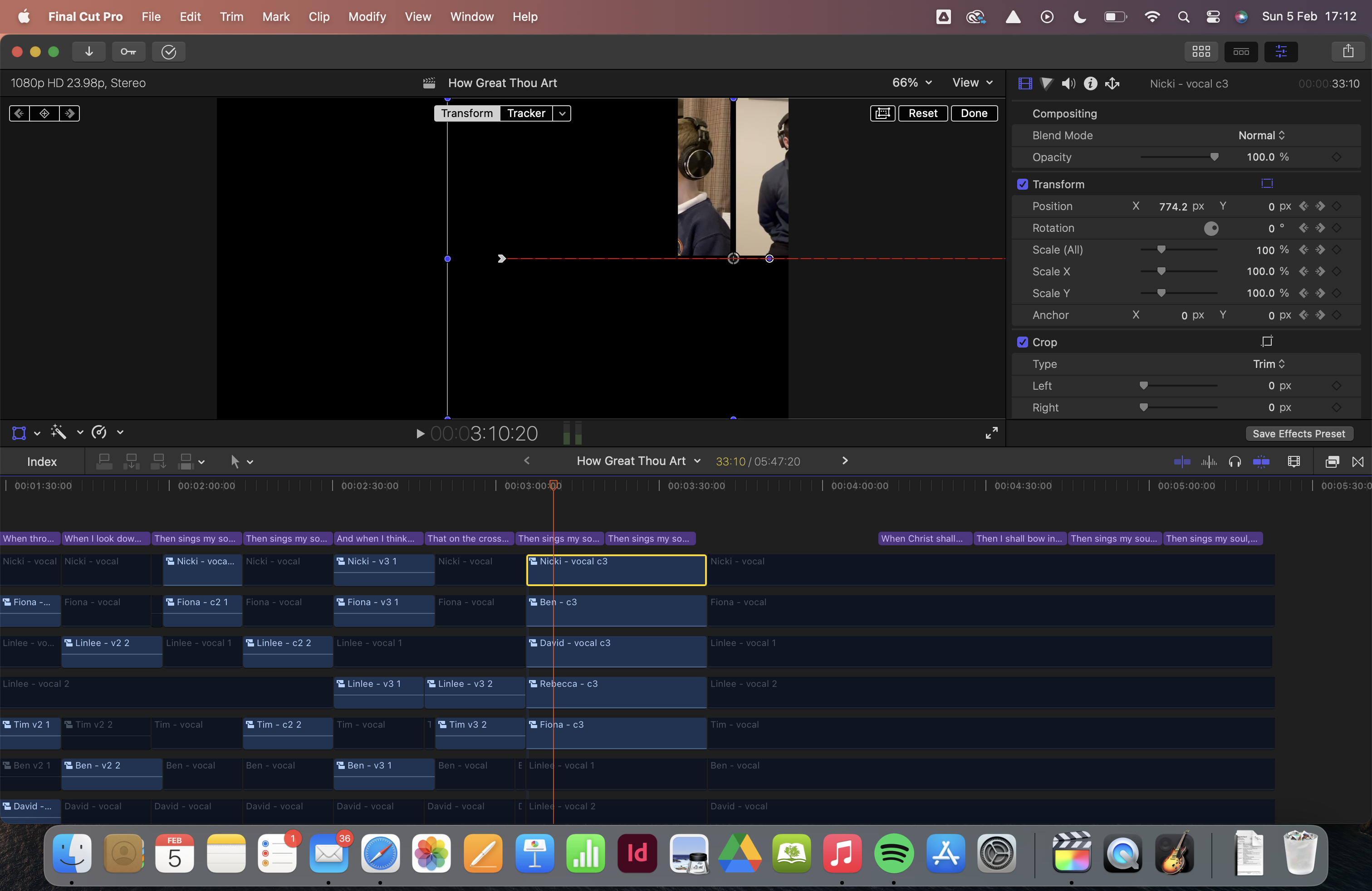
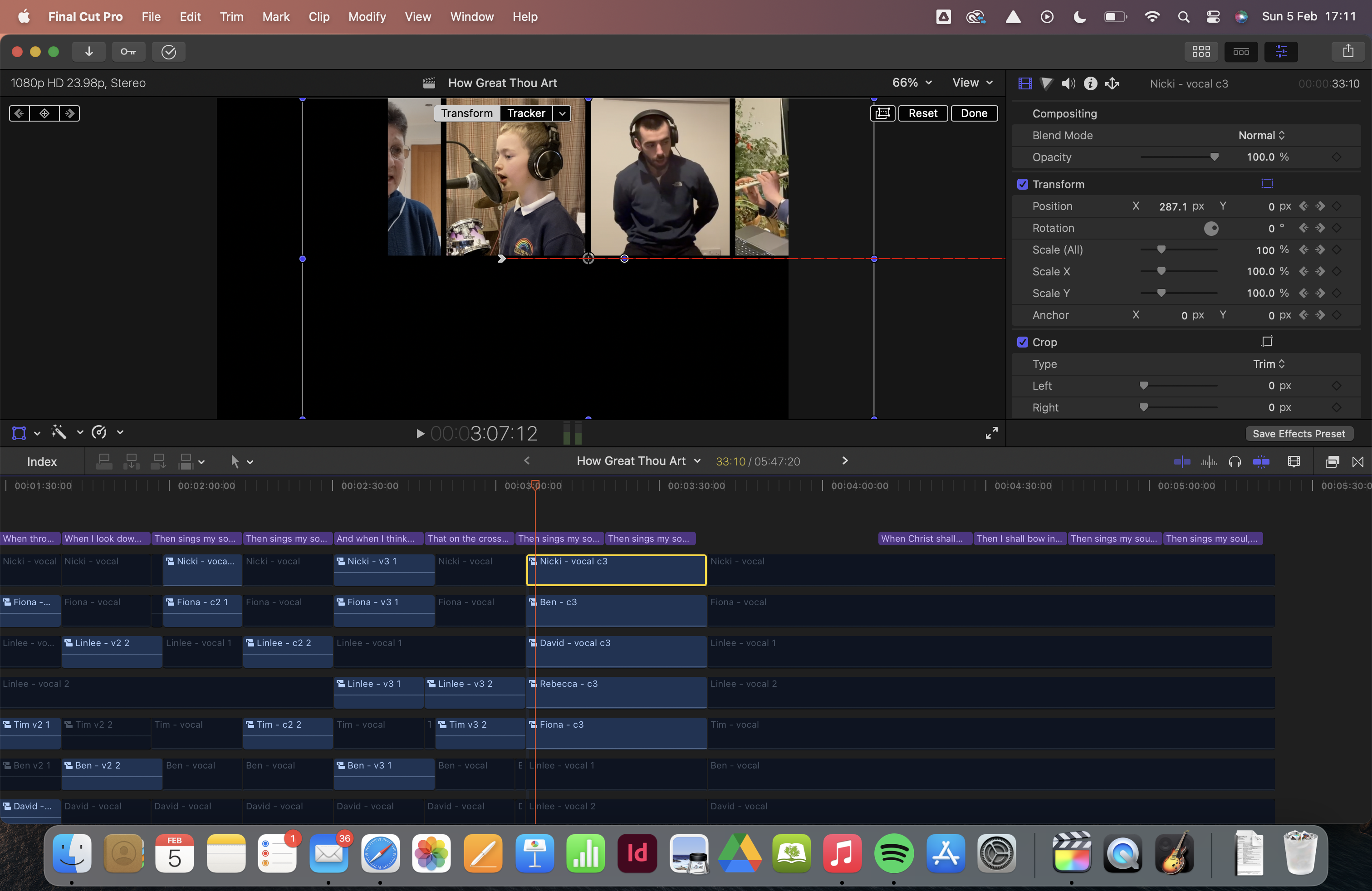
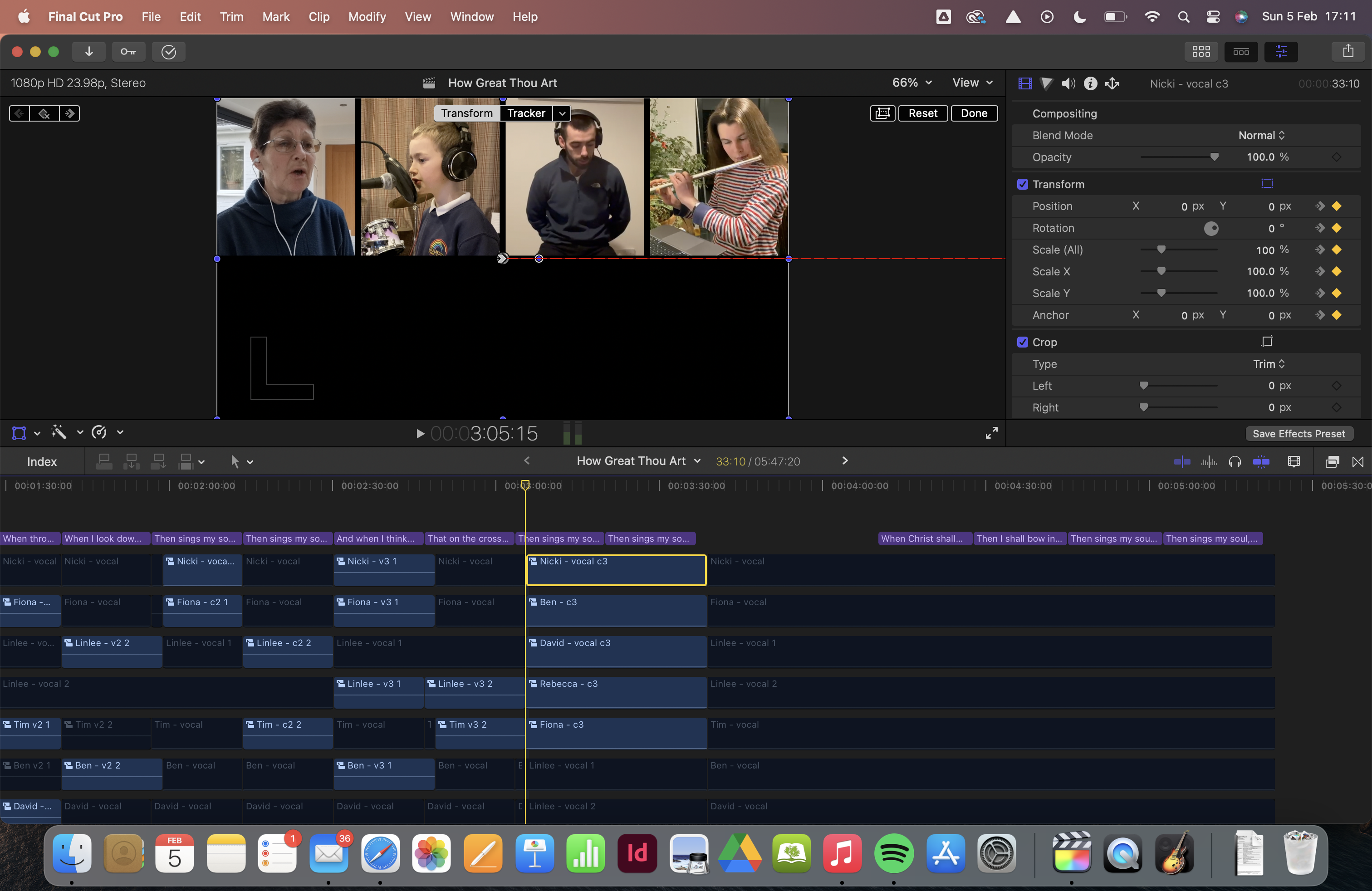
I'm trying to carry out what seems like it should be a simple animation in a multiscreen music video. I've created a keyframe at the start and 30 frames from the end of the clip, and the only thing that changes between the key frames is the x-axis value, to create the effect of the screen scrolling across. But when I play the video, as well as the screen clips scrolling, they appear to get overtaken by black space, moving at a different rate from my scrolling videos. I've included screen shots to try and illustrate what is happening - all four videos should scroll to the right, but the two leftmost gradually get overtaken by the backspace before they even reach the right hand side. Any ideas?
Please Log in to join the conversation.


05 Feb 2023 18:32 #123989
by DaveM
Replied by DaveM on topic PROBLEM: animating frames get 'overtaken' by a black space
As a guess, it seems like some clips (or one clip) isn't moving as you expected. You might try disabling all clips but one and step through frame-by-frame to make sure each clip is moving as expected. If one of the clips isn't moving as expected, the underlying canvas might be what you're seeing ("black space").
Please Log in to join the conversation.
09 Feb 2023 21:00 #124044
by Browncow
Replied by Browncow on topic PROBLEM: animating frames get 'overtaken' by a black space
I tried disabling all the individual clips and both right two clips from the original section end up getting overtaken by this backspace, but are set to move as they should in terms of their start and end point.
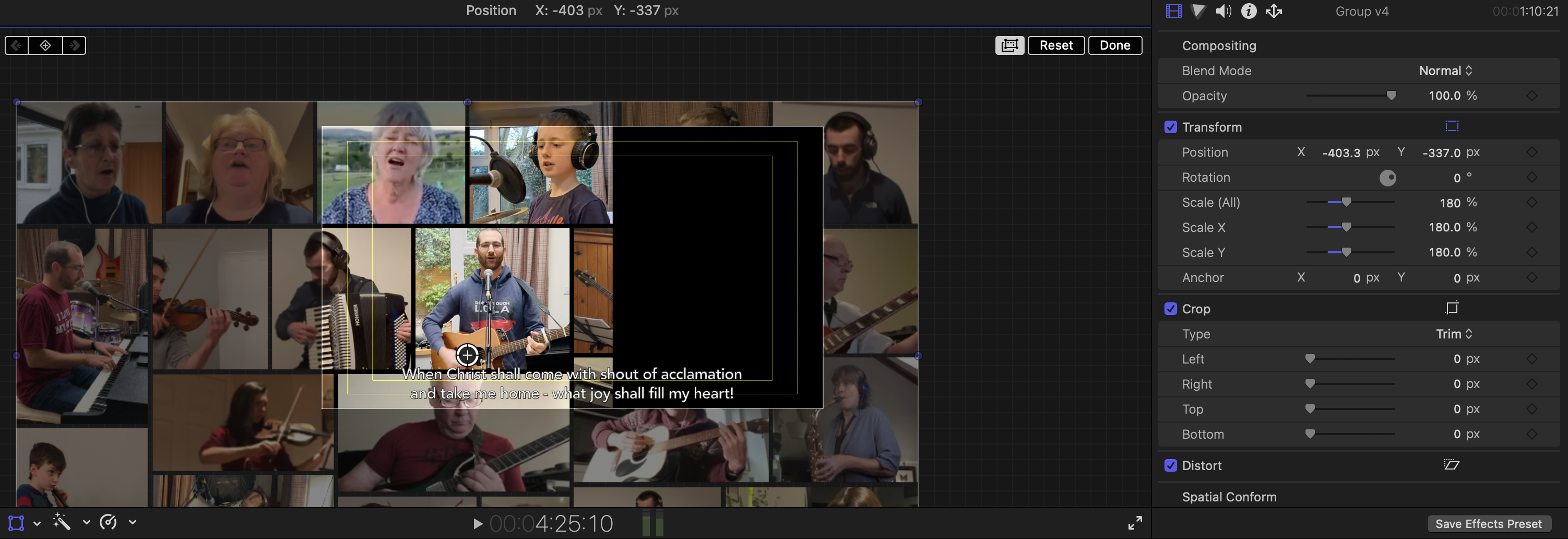
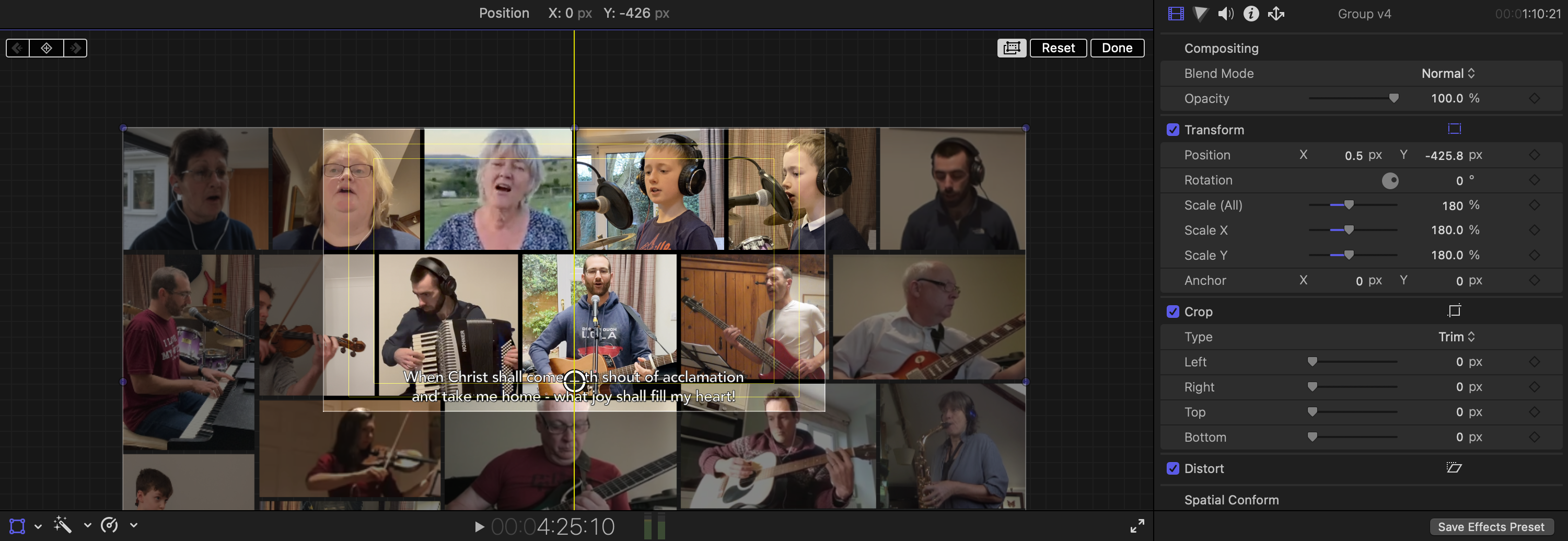
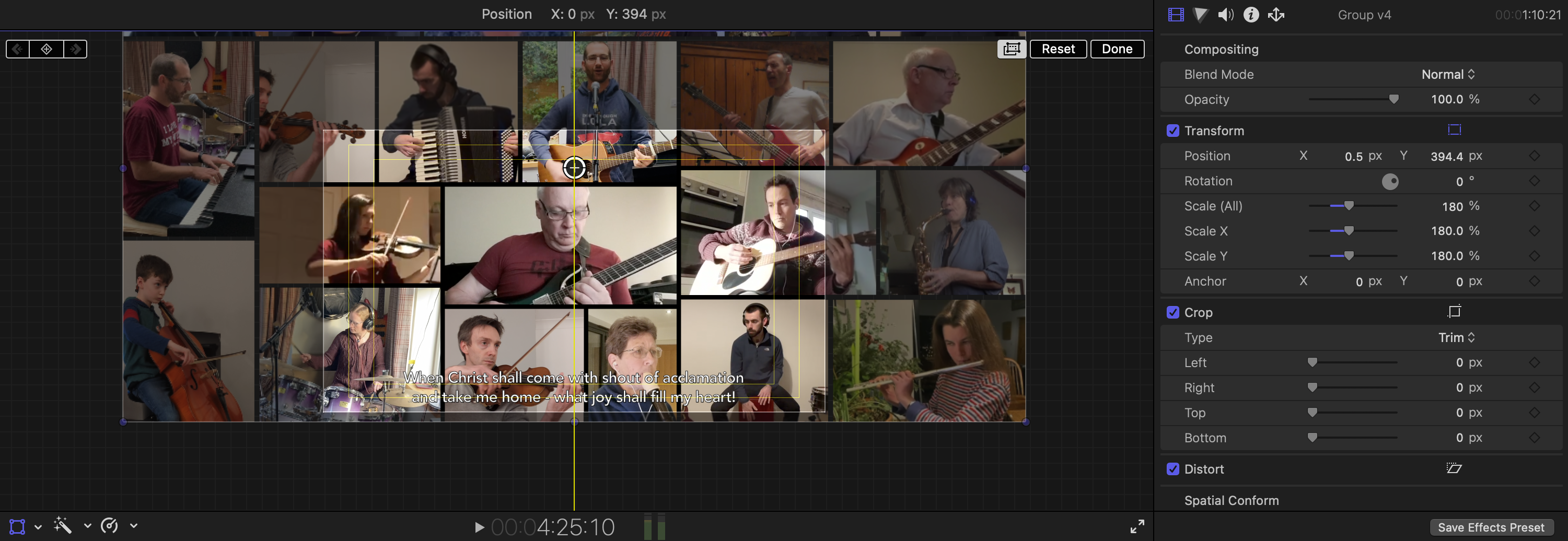
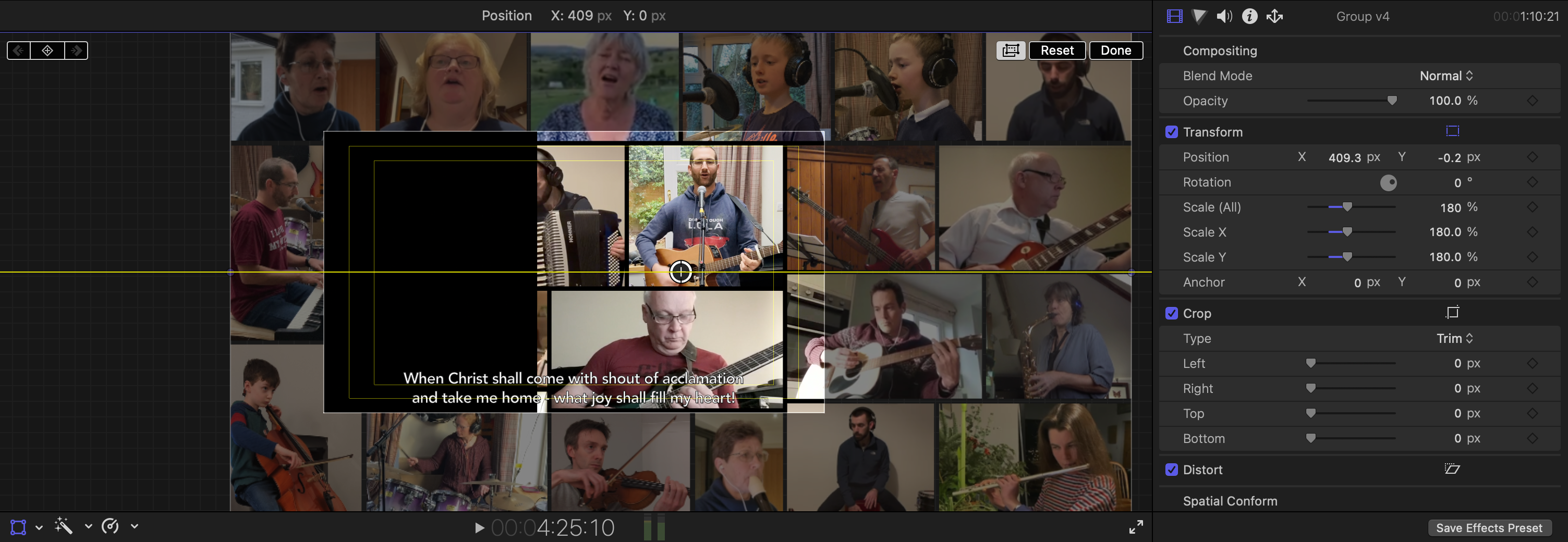
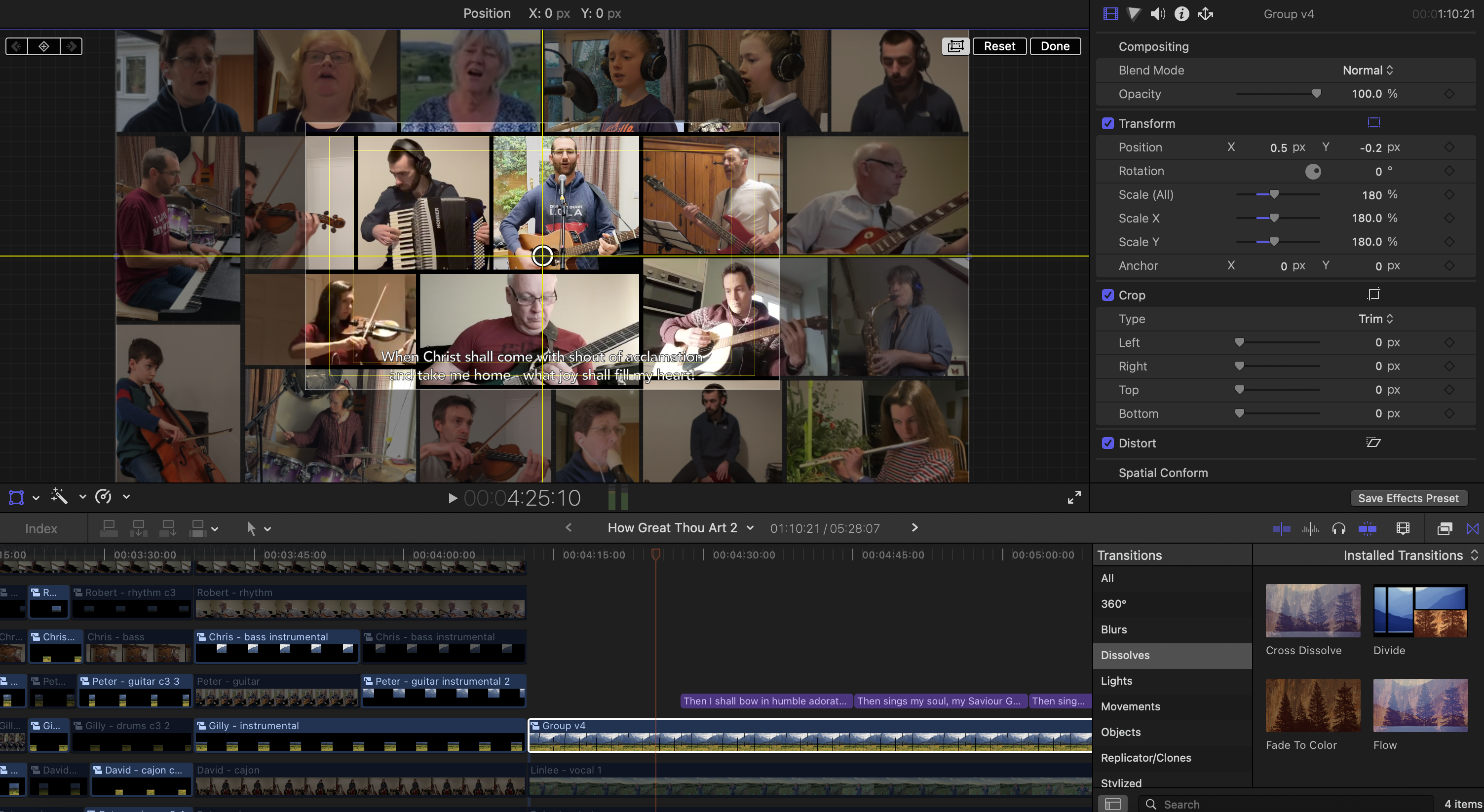
To give another illustration of my problem, the pics below show the multiscreen view of all the musicians/singers for a particular part of the song I'm doing. They are all individual clips framed using adjustment layers, and I have then grouped all of these clips together as one.
You can see the active work space in the middle (image 1). My aim for this verse of the song is to have the screen gradually move around the clips, before zooming out to include the full picture. But as you can see in the following images, when I move the clips on the Y-axis, all is fine (images 2 and 3), but when I move on the x-axis this black space appears (images 4 and 5). This is exactly what was happening (and I still haven't solved) on the previous part of the song when I was trying to get clips to move across the screen in a scrolling effect.
any other ideas?
To give another illustration of my problem, the pics below show the multiscreen view of all the musicians/singers for a particular part of the song I'm doing. They are all individual clips framed using adjustment layers, and I have then grouped all of these clips together as one.
You can see the active work space in the middle (image 1). My aim for this verse of the song is to have the screen gradually move around the clips, before zooming out to include the full picture. But as you can see in the following images, when I move the clips on the Y-axis, all is fine (images 2 and 3), but when I move on the x-axis this black space appears (images 4 and 5). This is exactly what was happening (and I still haven't solved) on the previous part of the song when I was trying to get clips to move across the screen in a scrolling effect.
any other ideas?
Please Log in to join the conversation.
10 Feb 2023 13:06 - 10 Feb 2023 15:19 #124059
by DaveM
Replied by DaveM on topic PROBLEM: animating frames get 'overtaken' by a black space
You didn't say whether or not disabling certain clips helped. The idea being that you should try to simplify things and test things from a simple case to more complex ones.
Other than using a plugin (or Motion) to create a "video wall", my initial guess for doing something like this might be to create the mosaic ("video wall") for a section of the video by stacking clips and transforming them to get the "video wall". I'd then create a compound clip. The compound clip could then be used where you'd pan and zoom on it to get the behavior you've described.
I'm not a VFX/motion graphics expert, so maybe someone else will chime in with a much better solution (very likely).
---
If you are committed to your method, it might be helpful to try to create a simple test case (in a new Project), using say 4 clips only. If you could do so and reproduce the "black space", you could then isolate that part of the timeline and create a test case that you could share (at least the XML of the timeline). Being able to look at the timeline in FCP could prove useful in trying to figure out things.
If you've done something similar before, you might try loading that project into FCP and see if it still works, as expected.
---
Here is some additional info you might find useful (unless I misunderstand something):
fcp.co: Video Wall with Synced Clips (VIrtual Choir)
Create a Performance Video Wall in Final Cut Pro X
A tool (among many available) I've used before (in addition to the compound clip method I described above):
Video Walls
[There are many more plugins/templates to do similar things. Many of these are huge time-savers and you'll easily make up the cost of any of them with the time saved on one or two projects.]
Other than using a plugin (or Motion) to create a "video wall", my initial guess for doing something like this might be to create the mosaic ("video wall") for a section of the video by stacking clips and transforming them to get the "video wall". I'd then create a compound clip. The compound clip could then be used where you'd pan and zoom on it to get the behavior you've described.
I'm not a VFX/motion graphics expert, so maybe someone else will chime in with a much better solution (very likely).
---
If you are committed to your method, it might be helpful to try to create a simple test case (in a new Project), using say 4 clips only. If you could do so and reproduce the "black space", you could then isolate that part of the timeline and create a test case that you could share (at least the XML of the timeline). Being able to look at the timeline in FCP could prove useful in trying to figure out things.
If you've done something similar before, you might try loading that project into FCP and see if it still works, as expected.
---
Here is some additional info you might find useful (unless I misunderstand something):
fcp.co: Video Wall with Synced Clips (VIrtual Choir)
Create a Performance Video Wall in Final Cut Pro X
A tool (among many available) I've used before (in addition to the compound clip method I described above):
Video Walls
[There are many more plugins/templates to do similar things. Many of these are huge time-savers and you'll easily make up the cost of any of them with the time saved on one or two projects.]
Last edit: 10 Feb 2023 15:19 by DaveM. Reason: Added additional info about other resources.
Please Log in to join the conversation.
10 Feb 2023 21:04 #124071
by Browncow
Replied by Browncow on topic PROBLEM: animating frames get 'overtaken' by a black space
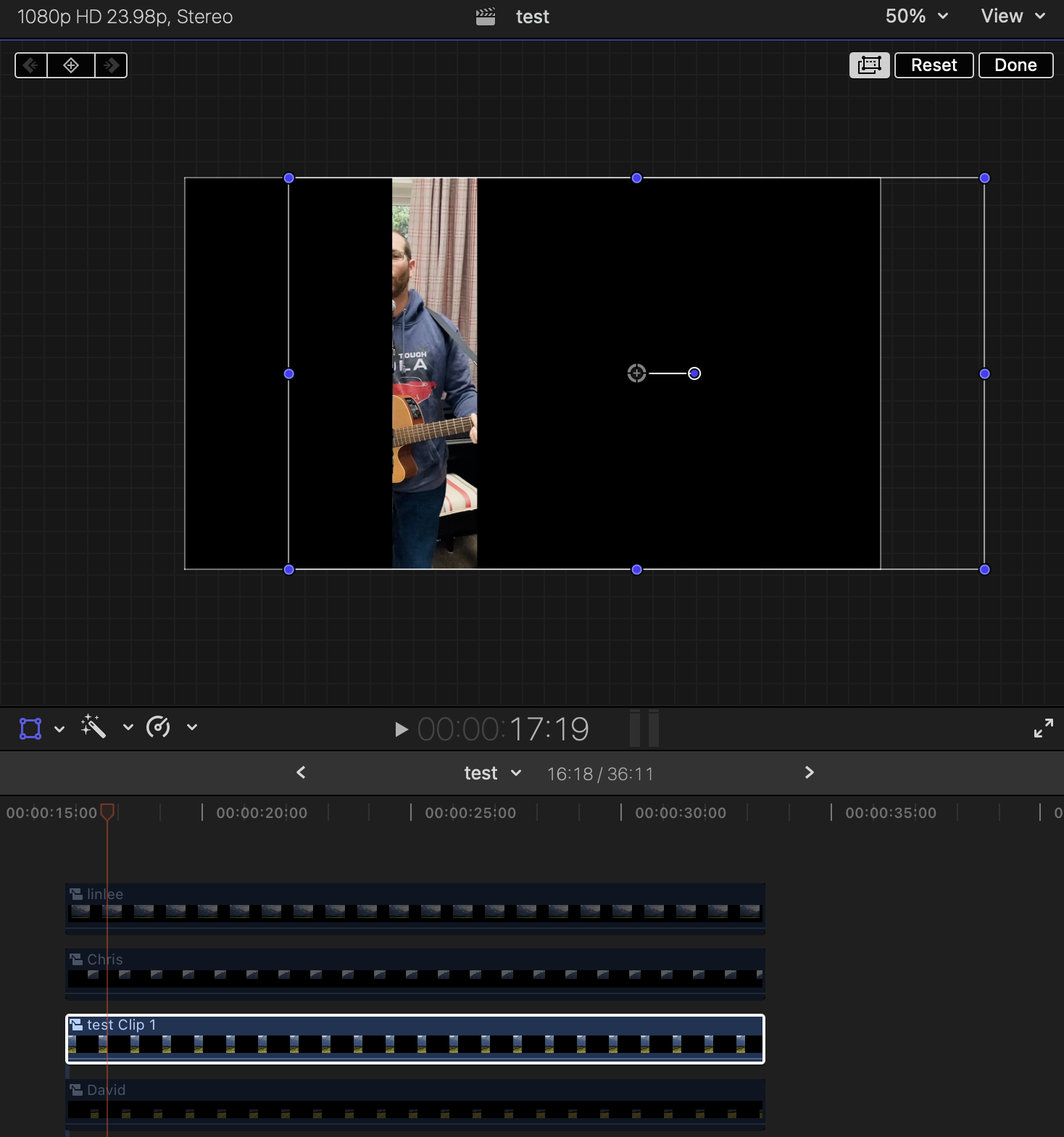
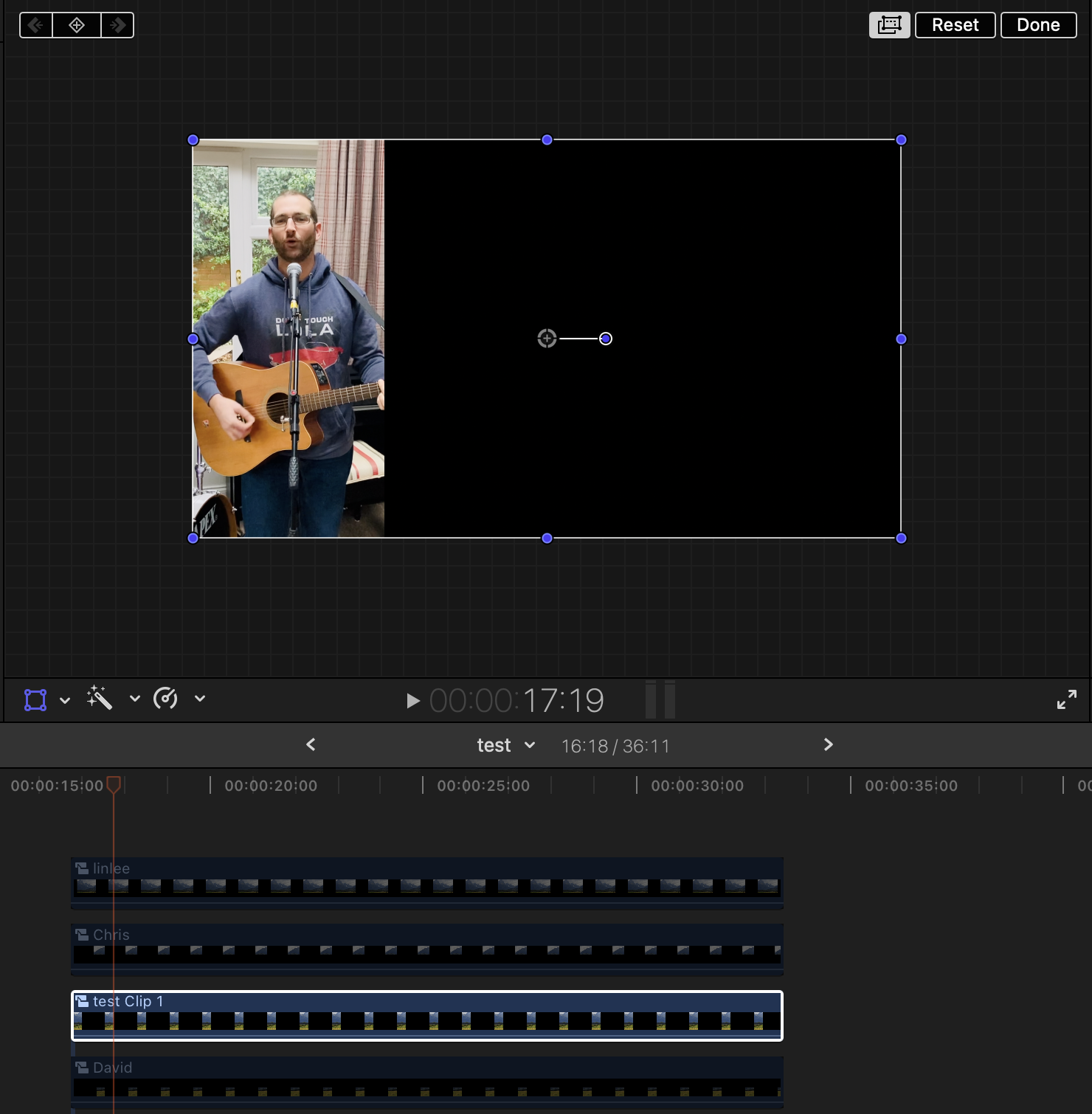
disabling individual clips, even to leaving one by itself, does not solve the problem. Even with a project of a single clip, once I apply an adjustment layer over it to avoid having to crop each individual clip I use, it creates the same problem, but only with changing its position on the x-axis. See images to illustrate, one with the image where I want it to start, the other once I've changed its position on the x-axis.
The frustrating thing is that I used this method exactly the same way a year ago, so I'm wondering whether there is some fcpx update that has impacted the way the adjustment layer plugin works. Though if that were the case, I'm sure other people would have discovered the same problem. I have tried, with this test clip, downloading and using a different adjustment layer plugin, but it's yielding the same results.
I've got a week to try and work out it - will have a look at the video wall options!
thanks so much for your responses.
The frustrating thing is that I used this method exactly the same way a year ago, so I'm wondering whether there is some fcpx update that has impacted the way the adjustment layer plugin works. Though if that were the case, I'm sure other people would have discovered the same problem. I have tried, with this test clip, downloading and using a different adjustment layer plugin, but it's yielding the same results.
I've got a week to try and work out it - will have a look at the video wall options!
thanks so much for your responses.
Please Log in to join the conversation.
10 Feb 2023 21:23 #124072
by Browncow
Replied by Browncow on topic PROBLEM: animating frames get 'overtaken' by a black space
the most frustrating thing is that I've done this before on a previous project, and you can see in the YouTube video (see link below) from 3:17 onwards what I'm trying to do in terms of the video wall and moving around effect. But when I've gone to that Project from last year, it is now creating the same glitches with some of the animations that were previously fine.
Something I have done with both projects is moved all the clips onto an external hard drive, because it was using too much space on my MacBook Pro. Could that create any issues? It is formatted into Mac OS Extended (Journalled), which is what I saw recommended.
Something I have done with both projects is moved all the clips onto an external hard drive, because it was using too much space on my MacBook Pro. Could that create any issues? It is formatted into Mac OS Extended (Journalled), which is what I saw recommended.
Please Log in to join the conversation.
11 Feb 2023 07:02 - 11 Feb 2023 15:49 #124074
by DaveM
Replied by DaveM on topic PROBLEM: animating frames get 'overtaken' by a black space
Sorry you haven't been able to determine what's causing the issue.
For what it's worth, any of the many available video wall plugins (or the compound clip method described in the fcp.co post linked above) should be able to easily do what you want...
For what it's worth, any of the many available video wall plugins (or the compound clip method described in the fcp.co post linked above) should be able to easily do what you want...
Last edit: 11 Feb 2023 15:49 by DaveM.
Please Log in to join the conversation.
11 Feb 2023 15:50 - 11 Feb 2023 15:51 #124082
by DaveM
Replied by DaveM on topic PROBLEM: animating frames get 'overtaken' by a black space
What you're experiencing very well may be a bug.
If you can create a new test project with one clip and make the behavior repeatable, you could export an XML of the timeline and make that available for download (no media would be needed, at least at first — you might be able to zip the XML file and post it here as an attachment).
We could then try to confirm the behavior on our systems.
If you can create a new test project with one clip and make the behavior repeatable, you could export an XML of the timeline and make that available for download (no media would be needed, at least at first — you might be able to zip the XML file and post it here as an attachment).
We could then try to confirm the behavior on our systems.
Last edit: 11 Feb 2023 15:51 by DaveM.
Please Log in to join the conversation.
11 Feb 2023 16:22 #124083
by Browncow
Replied by Browncow on topic PROBLEM: animating frames get 'overtaken' by a black space
I've set up a test project with just one clip and adjustment layer, and created the animation for it to move across the screen. And it is doing the same behaviour with this clip, with black space gradually overtaking the clip itself. I've tried downloading a different adjustment layer but the same thing happens.
I've exported the xml and should be accessible by this link if you can take a look and see what you think!
drive.google.com/open?id=1Q0EElmth4R6Yjk...ail.com&usp=drive_fs
I've exported the xml and should be accessible by this link if you can take a look and see what you think!
drive.google.com/open?id=1Q0EElmth4R6Yjk...ail.com&usp=drive_fs
Please Log in to join the conversation.
11 Feb 2023 17:01 - 11 Feb 2023 17:10 #124084
by DaveM
Replied by DaveM on topic PROBLEM: animating frames get 'overtaken' by a black space
Please make the file publicly accessible. As is, it now requires a Google account and then access still isn't allowed. Or, zip the file and post it here as an attachment.
Last edit: 11 Feb 2023 17:10 by DaveM.
Please Log in to join the conversation.
11 Feb 2023 17:28 #124085
by Browncow
Replied by Browncow on topic PROBLEM: animating frames get 'overtaken' by a black space
sorry - it should be publicly available now if you follow the link. if not let me know and I will zip it on here
Please Log in to join the conversation.
11 Feb 2023 17:45 - 11 Feb 2023 17:51 #124086
by DaveM
Replied by DaveM on topic PROBLEM: animating frames get 'overtaken' by a black space
Okay, I imported the Project and it plays back as it seems it should:
www.dropbox.com/s/60elfql8ammnx5o/black%20space%20test.m4v?dl=0
I can see the two keyframes on the compound clip. However, when I try to open the compound clip, FCP crashes. Strange...
What exactly are you using the adjustment layer for? I'm guessing that it is inside the compound clip (which I can't see due to the crashing)...
---
I'm not sure why FCP is crashing unless it's because the adjustment layer isn't installed on my system (well, that specifically-name one, as I have a few others installed). Perhaps, if you could describe exactly how you are building the compound clip I could try to replicate that. Thanks.
www.dropbox.com/s/60elfql8ammnx5o/black%20space%20test.m4v?dl=0
I can see the two keyframes on the compound clip. However, when I try to open the compound clip, FCP crashes. Strange...
What exactly are you using the adjustment layer for? I'm guessing that it is inside the compound clip (which I can't see due to the crashing)...
---
I'm not sure why FCP is crashing unless it's because the adjustment layer isn't installed on my system (well, that specifically-name one, as I have a few others installed). Perhaps, if you could describe exactly how you are building the compound clip I could try to replicate that. Thanks.
Last edit: 11 Feb 2023 17:51 by DaveM.
Please Log in to join the conversation.
11 Feb 2023 17:48 #124087
by Browncow
Replied by Browncow on topic PROBLEM: animating frames get 'overtaken' by a black space
my FCP is crashing more than it ever has this past couple of days too. I know the project I'm working on has a LOT of clips, so thought it was just that...
Please Log in to join the conversation.
11 Feb 2023 17:52 - 11 Feb 2023 17:54 #124088
by DaveM
Replied by DaveM on topic PROBLEM: animating frames get 'overtaken' by a black space
Just updated my post above. Is my export playing as you expect it to? I don't see any "black space" overtaking the clip that's moving...
What macOS version are you on, which Mac (with specs), and which version of FCP are you using?
What macOS version are you on, which Mac (with specs), and which version of FCP are you using?
Last edit: 11 Feb 2023 17:54 by DaveM.
Please Log in to join the conversation.
11 Feb 2023 18:04 #124089
by Browncow
Replied by Browncow on topic PROBLEM: animating frames get 'overtaken' by a black space
MacBook Pro 14in 2021, Ventura 13.2, FCP version 10.6.5
what you exported just shows a missing file, but no, there is no black space overtaking it, but the frame that is supposed to be moving is only meant to be about a quarter of the entire screen wide.
I use the adjustment layers because it is a lot easier to fix them as set frame sizes for a multi clip video wall and then change the scale of the clip behind it to fit in the frame, rather than cropping and adjusting the clip itself.
what you exported just shows a missing file, but no, there is no black space overtaking it, but the frame that is supposed to be moving is only meant to be about a quarter of the entire screen wide.
I use the adjustment layers because it is a lot easier to fix them as set frame sizes for a multi clip video wall and then change the scale of the clip behind it to fit in the frame, rather than cropping and adjusting the clip itself.
Please Log in to join the conversation.
11 Feb 2023 18:14 - 11 Feb 2023 18:15 #124091
by DaveM
Replied by DaveM on topic PROBLEM: animating frames get 'overtaken' by a black space
If you don't describe step-by-step exactly what your doing to build the compound clip, I can't easily (or exactly) replicate things. As far as I can tell (it probably makes no difference that a "mising file" placeholder clip is being used), things are working properly. I'll try to build a test case from scratch by making some assumptions but it would be easier to know exactly what you did.
Also, macOS 13.2 has a serious bug that affects FCP 10.6.5 (and maybe other versions of FCP). If you have lots of items in an event, or a certain level of complexity in a Project/timeline, FCP will crash. Your crashes could be affecting what you are seeing. There could be bad render files, etc., as well.
You should turn off any auto-updating for App Store applications, macOS itself (Software Update in System Preferences/Settings), as well as 3rd-party applications/tools that you use. After any FCP or macOS update, check sites like this for a couple of weeks afterwards before updating (so you avoid issues like this). If you make money with FCP or your computer, in general, this is key advice to keep things running. FYI, macOS 13.1, and earlier, don't affect FCP this way...
Also, macOS 13.2 has a serious bug that affects FCP 10.6.5 (and maybe other versions of FCP). If you have lots of items in an event, or a certain level of complexity in a Project/timeline, FCP will crash. Your crashes could be affecting what you are seeing. There could be bad render files, etc., as well.
You should turn off any auto-updating for App Store applications, macOS itself (Software Update in System Preferences/Settings), as well as 3rd-party applications/tools that you use. After any FCP or macOS update, check sites like this for a couple of weeks afterwards before updating (so you avoid issues like this). If you make money with FCP or your computer, in general, this is key advice to keep things running. FYI, macOS 13.1, and earlier, don't affect FCP this way...
Last edit: 11 Feb 2023 18:15 by DaveM.
Please Log in to join the conversation.
11 Feb 2023 18:30 #124092
by Browncow
Replied by Browncow on topic PROBLEM: animating frames get 'overtaken' by a black space
ok, so step by step for the test case:
1. insert clip into time line.
2. insert an adjustment layer above the entire clip.
3. set adjustment layer crop setting to R:1440
4. move/rescale the clip so that it fits within the adjustment layer.
5. select both adjustment layer and the clip and create compound clip (option+G)
6. put in two key frames (for test case I didn't care exactly where they were from start or end)
7. at the second key frame point, adjust the position of the compound clip to create the animation (ie. set it to +1440 on the x-axis.
that should pretty well replicate what I am wanting.
It does sound like, together with the crashing issues, that having my computer updated is creating these problems. Particularly since I wasn't having this issue with previous project (a year ago) and now I am. I don't know how easy it is to downgrade to the previous OS? 13.1?
1. insert clip into time line.
2. insert an adjustment layer above the entire clip.
3. set adjustment layer crop setting to R:1440
4. move/rescale the clip so that it fits within the adjustment layer.
5. select both adjustment layer and the clip and create compound clip (option+G)
6. put in two key frames (for test case I didn't care exactly where they were from start or end)
7. at the second key frame point, adjust the position of the compound clip to create the animation (ie. set it to +1440 on the x-axis.
that should pretty well replicate what I am wanting.
It does sound like, together with the crashing issues, that having my computer updated is creating these problems. Particularly since I wasn't having this issue with previous project (a year ago) and now I am. I don't know how easy it is to downgrade to the previous OS? 13.1?
Please Log in to join the conversation.
11 Feb 2023 18:36 #124093
by DaveM
Replied by DaveM on topic PROBLEM: animating frames get 'overtaken' by a black space
Thanks for the info.
Downgrading can be tricky. If your computer didn't come with macOS 13.2 already installed, you can theoretically install the version that did come with your computer, or latter versions...
Downgrading can be tricky. If your computer didn't come with macOS 13.2 already installed, you can theoretically install the version that did come with your computer, or latter versions...
Please Log in to join the conversation.
11 Feb 2023 18:58 #124094
by DaveM
Replied by DaveM on topic PROBLEM: animating frames get 'overtaken' by a black space
Okay, I can now seemingly replicate the behavior you've reported, so it doesn't seem to be a clearcut bug (I'm using FCP 10.6.5, macOS 12.6.2, Intel)...
Please Log in to join the conversation.
11 Feb 2023 19:22 - 11 Feb 2023 19:26 #124095
by DaveM
Replied by DaveM on topic PROBLEM: animating frames get 'overtaken' by a black space
I can see that the adjustment layer essentially is just cropping the clip, with both wrapped up in the compound clip. I can't quite figure out what's happening.
However, one thing you could try is to use effects presets instead of adjustment layers for the cropping, saving the crop as the preset. Then, you could keyframe/animate the clip, as is (without needing the compound clip). Or, you could still use a compound clip after applying the effects preset to it.
However, one thing you could try is to use effects presets instead of adjustment layers for the cropping, saving the crop as the preset. Then, you could keyframe/animate the clip, as is (without needing the compound clip). Or, you could still use a compound clip after applying the effects preset to it.
Last edit: 11 Feb 2023 19:26 by DaveM.
Please Log in to join the conversation.
