


- Posts: 16
- Thank you received: 0
3 Post Moderation Rule for New Boarders (25 Jan 2021)
New boarders will have their posts moderated - Don't worry if you cannot see your post immediately.
How to "leave files in place" from Sony FS5
25 Jan 2016 19:25 #72539
by lizjperl
How to "leave files in place" from Sony FS5 was created by lizjperl
I've seen some older posts about this already, but I have over 1TB of footage from a Sony FS5 that already exists on an external drive. I simply want to import, optimize, "leave in place". What is the easiest way to do this?
Please Log in to join the conversation.
27 Jan 2016 14:37 #72605
by VidGreg
Replied by VidGreg on topic How to "leave files in place" from Sony FS5
Hi Liz, Welcome to the forums.
You do not say what version of FCPX you are using. Different versions have different library structures and info panes, so the proper answer depends on your version.
Assuming you have the latest version of FCPX 10.2.X(1 or 2) then when you click on the import arrow, a Library info pane will pop-up. Within that pane you will find sections to store media in Library or via pop up "Leave in Place".
You can also set the default behavior in FCPX preferences.
This is also assuming you have already downloaded the media files off your camera card and that they are not in a "Camera Archive" or exact camera card file copy/format. FCPX will not let you work off a "Camera Card" even if it is a copy. In that case you cannot "Leave In Place" directly, but must import the files and that import can be placed on the external drive.
Hope this helps, Greg
You do not say what version of FCPX you are using. Different versions have different library structures and info panes, so the proper answer depends on your version.
Assuming you have the latest version of FCPX 10.2.X(1 or 2) then when you click on the import arrow, a Library info pane will pop-up. Within that pane you will find sections to store media in Library or via pop up "Leave in Place".
You can also set the default behavior in FCPX preferences.
This is also assuming you have already downloaded the media files off your camera card and that they are not in a "Camera Archive" or exact camera card file copy/format. FCPX will not let you work off a "Camera Card" even if it is a copy. In that case you cannot "Leave In Place" directly, but must import the files and that import can be placed on the external drive.
Hope this helps, Greg
Please Log in to join the conversation.

27 Jan 2016 17:42 #72618
by BenB
Replied by BenB on topic How to "leave files in place" from Sony FS5
Quick note; if you copy the camera card contents in tact, folder hierarchy and all, FCPX still sees it as a camera card, and Leave In Place will still be enforced.
User manual-
help.apple.com/finalcutpro/mac/10.2/#/verd0e78ca8
User manual-
help.apple.com/finalcutpro/mac/10.2/#/verd0e78ca8
Please Log in to join the conversation.
27 Jan 2016 17:46 #72619
by lizjperl
Replied by lizjperl on topic How to "leave files in place" from Sony FS5
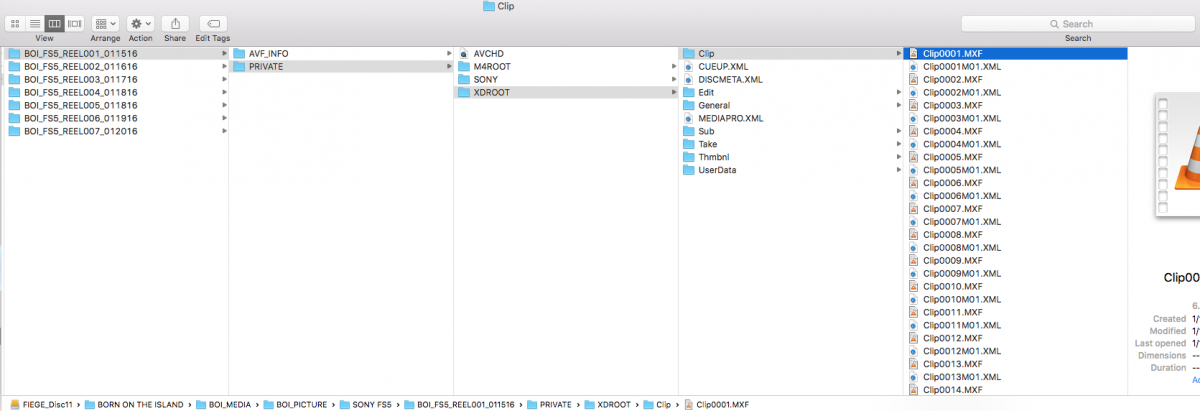
using the latest version, 10.2.2. The files are actually MXF, so I'm assuming i have to use FCP to backup my original card, create copies and optimize in 422. Or use an external program like editready?
Please Log in to join the conversation.
- JarrodMFay
-

- Offline
- Elite Member
-

Less
More
- Posts: 172
- Thank you received: 34
27 Jan 2016 17:52 #72623
by JarrodMFay
Replied by JarrodMFay on topic How to "leave files in place" from Sony FS5
It has been my experience with XAVC files that you never have the option to "leave in place". Your only option will be "copy to library". My understanding is that FCPX has to re-wrap the files to be able to work with them.
---> Jarrod
---> Jarrod
Please Log in to join the conversation.
27 Jan 2016 17:57 #72625
by BenB
Replied by BenB on topic How to "leave files in place" from Sony FS5
Copying into a Library isn't necessarily rewrapping or transcoding, like it was in v.7.
Please Log in to join the conversation.
- JarrodMFay
-
- Offline
- Elite Member
-
Less
More
- Posts: 172
- Thank you received: 34
27 Jan 2016 18:00 #72626
by JarrodMFay
Replied by JarrodMFay on topic How to "leave files in place" from Sony FS5
Well, whatever it's doing it has the "copy to library" button as the only option on import.
---> Jarrod
---> Jarrod
Please Log in to join the conversation.
- Andreas Kiel
-
- Offline
- Platinum Member
-

Less
More
- Posts: 1077
- Thank you received: 189
27 Jan 2016 18:08 #72629
by Andreas Kiel
Replied by Andreas Kiel on topic How to "leave files in place" from Sony FS5
Not always: i.e. P2 cards
- Andreas
- Andreas
Please Log in to join the conversation.
27 Jan 2016 18:08 #72630
by BenB
Replied by BenB on topic How to "leave files in place" from Sony FS5
Yes, from a card, or copied card structure, yes, as it should be.
Please Log in to join the conversation.
- Andreas Kiel
-
- Offline
- Platinum Member
-
Less
More
- Posts: 1077
- Thank you received: 189
27 Jan 2016 18:25 #72632
by Andreas Kiel
My reply was related to this.
- Andreas
Replied by Andreas Kiel on topic How to "leave files in place" from Sony FS5
BenB wrote: Quick note; if you copy the camera card contents in tact, folder hierarchy and all, FCPX still sees it as a camera card, and Leave In Place will still be enforced.
User manual-
help.apple.com/finalcutpro/mac/10.2/#/verd0e78ca8
My reply was related to this.
- Andreas
Please Log in to join the conversation.
27 Jan 2016 18:37 #72636
by VidGreg
Replied by VidGreg on topic How to "leave files in place" from Sony FS5
Hi All
Liz also posted to this thread so I needed extra info… www.fcp.co/forum/4-final-cut-pro-x-fcpx/...d-on-import-fcp-10-1
Here she joined a discussion about a somewhat different issue (maybe). Not sure which version of FCPX.
Be nice if everyone would give all the info they can so answers could be suitable to issue/FCPX and OS versions.
From other thread, looks like a "Camera Archive" or copy of camera card, so of course "Leave in Place" would not be allowed.
Just for the beginners, the reason FCPX will not allow you to "Leave In Place" for a camera card or for an "Camera Archive/exact card copy" is that most people erase the cards to reuse at next photo shoot. FCPX sees Archives/copies as a camera card and doesn't want you to lose your edits by not having the media/clips in permanent storage. You must "Import" the media. Some people get confused because FCPX will allow you to begin editing and skimming before all the clips are indeed imported.
While on the subject, please back-up your media files, preferably to at least 2 different drives.
Happy Editing, Greg
Liz also posted to this thread so I needed extra info… www.fcp.co/forum/4-final-cut-pro-x-fcpx/...d-on-import-fcp-10-1
Here she joined a discussion about a somewhat different issue (maybe). Not sure which version of FCPX.
Be nice if everyone would give all the info they can so answers could be suitable to issue/FCPX and OS versions.
From other thread, looks like a "Camera Archive" or copy of camera card, so of course "Leave in Place" would not be allowed.
Just for the beginners, the reason FCPX will not allow you to "Leave In Place" for a camera card or for an "Camera Archive/exact card copy" is that most people erase the cards to reuse at next photo shoot. FCPX sees Archives/copies as a camera card and doesn't want you to lose your edits by not having the media/clips in permanent storage. You must "Import" the media. Some people get confused because FCPX will allow you to begin editing and skimming before all the clips are indeed imported.
While on the subject, please back-up your media files, preferably to at least 2 different drives.
Happy Editing, Greg
Please Log in to join the conversation.
27 Jan 2016 18:44 #72639
by VidGreg
Replied by VidGreg on topic How to "leave files in place" from Sony FS5
Hi Andreas
Does FCPX/OS see a P2 card not as a "Camera Card"?
Does it see them as drives?
Don't use them, just curious for my own info.
Thanks, Greg
Does FCPX/OS see a P2 card not as a "Camera Card"?
Does it see them as drives?
Don't use them, just curious for my own info.
Thanks, Greg
Please Log in to join the conversation.
- Andreas Kiel
-
- Offline
- Platinum Member
-
Less
More
- Posts: 1077
- Thank you received: 189
27 Jan 2016 19:42 #72642
by Andreas Kiel
Replied by Andreas Kiel on topic How to "leave files in place" from Sony FS5
It is seen as camera card.
But there is a big BUT.
In principle it is a kind of 3 system recording. You have different folders:
1 for for more or less raw video.
1 for metadata (containing also clip relations and also describes span relations)
1 for audio
Also there are more: start pictures (icons) for each clip, possible proxy movies, 1 for "i don't remember" and 1 or more private/non-public use folders.
It needs to contain a txt file named "Last name clip.txt" !!!!!!!!!!!!!!
- not sure about the exact name.
FCPX (same as FCP) glues together some basic stuff - these things Apple thinks it's important. I personally think it's a shame.
FCPX (same as FCP) as said use(d) a needless copy of files and required formerly the HPA component - which now is Apple.
Fun thing was that till DV100 no component was needed. A lot of people though said it is needed and made some good money with that. Easiest thing that time was mail panasonic broadcast an they gave you the trick/instructions for free.
I know quite a lot about this stuff as a Panasonic Premium Development Partner
- Andreas
But there is a big BUT.
In principle it is a kind of 3 system recording. You have different folders:
1 for for more or less raw video.
1 for metadata (containing also clip relations and also describes span relations)
1 for audio
Also there are more: start pictures (icons) for each clip, possible proxy movies, 1 for "i don't remember" and 1 or more private/non-public use folders.
It needs to contain a txt file named "Last name clip.txt" !!!!!!!!!!!!!!
- not sure about the exact name.
FCPX (same as FCP) glues together some basic stuff - these things Apple thinks it's important. I personally think it's a shame.
FCPX (same as FCP) as said use(d) a needless copy of files and required formerly the HPA component - which now is Apple.
Fun thing was that till DV100 no component was needed. A lot of people though said it is needed and made some good money with that. Easiest thing that time was mail panasonic broadcast an they gave you the trick/instructions for free.
I know quite a lot about this stuff as a Panasonic Premium Development Partner
- Andreas
Please Log in to join the conversation.
- Andreas Kiel
-
- Offline
- Platinum Member
-
Less
More
- Posts: 1077
- Thank you received: 189
27 Jan 2016 20:04 #72646
by Andreas Kiel
Replied by Andreas Kiel on topic How to "leave files in place" from Sony FS5
This was some post in my mail I don't see here
"
Posted by : lizjperl
using the latest version, 10.2.2. The files are actually MXF, so I'm assuming i have to use FCP to backup my original card, create copies and optimize in 422. Or use an external program like editready?
"
NEVER EVER DO THAT !!!!!!
Use DiskUtility or my CopyCards at least to clones - NOT Copies - on different disks. 3 clones are better!
FC camera archive is just a poor version of DikUtility with at least one bad "invention".
"
Posted by : lizjperl
using the latest version, 10.2.2. The files are actually MXF, so I'm assuming i have to use FCP to backup my original card, create copies and optimize in 422. Or use an external program like editready?
"
NEVER EVER DO THAT !!!!!!
Use DiskUtility or my CopyCards at least to clones - NOT Copies - on different disks. 3 clones are better!
FC camera archive is just a poor version of DikUtility with at least one bad "invention".
Please Log in to join the conversation.
27 Jan 2016 20:12 #72652
by VidGreg
Replied by VidGreg on topic How to "leave files in place" from Sony FS5
Hi Liz
MXF is a wrapper that can contain different file formats. Historically it has had it share of problems and the at least a couple of different standards used by different camera manufactures. I am far from being that knowledgable about the technical side of it, so will let others comment.
AFAIK your version of FCPX should have no problems importing the files and placing into a library. The screen shot you posted appears to be a exact copy(or maybe the original card, still in camera???) of the card so yes you will need to "Import" the media.
Once imported you can then edit.
You can create back-ups by a number of different methods. You can use Disk Utility to copy the card as an exact copy complete with camera structure, you can use the "Camera Archive" available within FCPX(still keeps camera card structure), or you can go ahead and import the footage and then make back-ups of the drive where you place the media. I do Camera Archive and then Import; then back-up and clone the drives.
Hope this helps, Greg
MXF is a wrapper that can contain different file formats. Historically it has had it share of problems and the at least a couple of different standards used by different camera manufactures. I am far from being that knowledgable about the technical side of it, so will let others comment.
AFAIK your version of FCPX should have no problems importing the files and placing into a library. The screen shot you posted appears to be a exact copy(or maybe the original card, still in camera???) of the card so yes you will need to "Import" the media.
Once imported you can then edit.
You can create back-ups by a number of different methods. You can use Disk Utility to copy the card as an exact copy complete with camera structure, you can use the "Camera Archive" available within FCPX(still keeps camera card structure), or you can go ahead and import the footage and then make back-ups of the drive where you place the media. I do Camera Archive and then Import; then back-up and clone the drives.
Hope this helps, Greg
Please Log in to join the conversation.
27 Jan 2016 20:14 #72654
by VidGreg
Replied by VidGreg on topic How to "leave files in place" from Sony FS5
Hi Andreas
Liz's post appears earlier in the thread, maybe an edit?? Scroll up and you will see her post with a attached screen shot.
Best, Greg
Liz's post appears earlier in the thread, maybe an edit?? Scroll up and you will see her post with a attached screen shot.
Best, Greg
Please Log in to join the conversation.
27 Jan 2016 20:23 #72655
by lizjperl
Replied by lizjperl on topic How to "leave files in place" from Sony FS5
What I've done so far is manually back up the original cards onto an external drive. The screenshot is from the external drive. Then when importing, I chose "copy to library" + "optimize" in FCP. FCP unwraps the mxf files, places them in their own folder as some sort of QT + then transcodes that to 422.
Since FCP unwraps + puts all of my clips into one single folder within the library, as opposed to how I organized the original media into folders by date + reel, there's really no way to smoothly link back to my original media in case everything within my library fails.
I see no point in having 3 backups of my original card media? 3 backups of my library makes more sense at this point.
Since FCP unwraps + puts all of my clips into one single folder within the library, as opposed to how I organized the original media into folders by date + reel, there's really no way to smoothly link back to my original media in case everything within my library fails.
I see no point in having 3 backups of my original card media? 3 backups of my library makes more sense at this point.
Please Log in to join the conversation.
- jeff_kirkland
-
- Offline
- Senior Member
-

27 Jan 2016 21:16 - 27 Jan 2016 21:17 #72661
by jeff_kirkland
Replied by jeff_kirkland on topic How to "leave files in place" from Sony FS5
The bottom line is that FCPX can work with some formats natively, and some like AVCHD, some MXF, etc need to be rewrapped before they can be used. If you don't get the option to "leave in place" then you're dealing with the latter.
If that's the case, I use something like EditReady to do the conversion for me.
So it's Camera Card-->EditReady-->rewrapped/optimised file in folder of my choosing.
That way I get to organise the files the way I want outside of the FCPX library, and I can then just 'leave in place' when I import.
If that's the case, I use something like EditReady to do the conversion for me.
So it's Camera Card-->EditReady-->rewrapped/optimised file in folder of my choosing.
That way I get to organise the files the way I want outside of the FCPX library, and I can then just 'leave in place' when I import.
Last edit: 27 Jan 2016 21:17 by jeff_kirkland. Reason: Clarity
Please Log in to join the conversation.
- haysoos123
-
- Offline
- Platinum Member
-
Less
More
- Posts: 402
- Thank you received: 72
27 Jan 2016 21:46 #72666
by haysoos123
A couple points here: when you import, the "copy to library" function is what you want for this sort of media, and you can set WHERE it will copy the media to. A lot of people don't understand this. It doesn't have to be copying into the library. In your case, if you want the media on the external drive, you should set your library to copy to the external drive. Click on the library, and then go into the inspector window and choose your media and cache locations to be a folder on the external drive. All imported media will be copied to that location on your external drive. In this case, you will end up with TWO copies of your media: the rewrapped media, and the original raw media. This is by design, since your original raw media should be a mirror of your cards.
One of the big reasons for this is that many MXF formats have their own way of spanning media, i.e., a long clip will be broken into multiple MXF files on the card. This import process will rewrap these MXF files into a properly spanned clip and apply the proper metadata to that clip.
Another thing you have to ask yourself is: does it REALLY matter to you that your clips are organized into date/reel subfolders? What is the point of this? FCPX will put your media where you point it, and put your clips into subfolders in that folder broken down by date. You're really supposed to do scene/take/date/reel organization within the library.
Replied by haysoos123 on topic How to "leave files in place" from Sony FS5
lizjperl wrote: What I've done so far is manually back up the original cards onto an external drive. The screenshot is from the external drive. Then when importing, I chose "copy to library" + "optimize" in FCP. FCP unwraps the mxf files, places them in their own folder as some sort of QT + then transcodes that to 422.
Since FCP unwraps + puts all of my clips into one single folder within the library, as opposed to how I organized the original media into folders by date + reel, there's really no way to smoothly link back to my original media in case everything within my library fails.
I see no point in having 3 backups of my original card media? 3 backups of my library makes more sense at this point.
A couple points here: when you import, the "copy to library" function is what you want for this sort of media, and you can set WHERE it will copy the media to. A lot of people don't understand this. It doesn't have to be copying into the library. In your case, if you want the media on the external drive, you should set your library to copy to the external drive. Click on the library, and then go into the inspector window and choose your media and cache locations to be a folder on the external drive. All imported media will be copied to that location on your external drive. In this case, you will end up with TWO copies of your media: the rewrapped media, and the original raw media. This is by design, since your original raw media should be a mirror of your cards.
One of the big reasons for this is that many MXF formats have their own way of spanning media, i.e., a long clip will be broken into multiple MXF files on the card. This import process will rewrap these MXF files into a properly spanned clip and apply the proper metadata to that clip.
Another thing you have to ask yourself is: does it REALLY matter to you that your clips are organized into date/reel subfolders? What is the point of this? FCPX will put your media where you point it, and put your clips into subfolders in that folder broken down by date. You're really supposed to do scene/take/date/reel organization within the library.
Please Log in to join the conversation.
27 Jan 2016 22:42 #72669
by lizjperl
Replied by lizjperl on topic How to "leave files in place" from Sony FS5
Yes, I told FCP to direct the transcoded files to another folder on my drive. it's still one big folder...not an issue for me, but maybe for others who prefer to organize manually. I realize I will have two copies, was just seeing if there was a way to avoid having two. Since I already baked up everything before opening FCP, I now have 3 copies.
Please Log in to join the conversation.
