


- Posts: 15
- Thank you received: 0
3 Post Moderation Rule for New Boarders (25 Jan 2021)
New boarders will have their posts moderated - Don't worry if you cannot see your post immediately.
FCPX 10.1.3 crashing on export
- Will_Granzier
-
 Topic Author
- Offline
- New Member
-

Less
More
03 Nov 2014 14:01 #55412
by Will_Granzier
FCPX 10.1.3 crashing on export was created by Will_Granzier
Hi All
I have been having issues with FCPx on export. I have a project that was shot on AVCHD and edited in FCPX10.1.3
When I try and export it would render to 79% and then hit beach ball mode.
I have made a duplicate project, tried that and it worked, then when trying to access the project i just get hit with beach balls all the time ?!
Never had this issue..
Im on an Imac2.5 I5 with 16 gig ram running 10.9.3 woking on a thunderbolt LACIE
Any suggestions are welcome here thnx
I have been having issues with FCPx on export. I have a project that was shot on AVCHD and edited in FCPX10.1.3
When I try and export it would render to 79% and then hit beach ball mode.
I have made a duplicate project, tried that and it worked, then when trying to access the project i just get hit with beach balls all the time ?!
Never had this issue..
Im on an Imac2.5 I5 with 16 gig ram running 10.9.3 woking on a thunderbolt LACIE
Any suggestions are welcome here thnx
Please Log in to join the conversation.
- ronny courtens
-

- Offline
- Moderator
-

Less
More
- Posts: 4455
- Thank you received: 962
03 Nov 2014 16:12 #55419
by ronny courtens
Replied by ronny courtens on topic FCPX 10.1.3 crashing on export
Hi Will, welcome to the forum.
How long is this project?
To which format are you exporting?
How much space do you have left on your system drive?
- Ronny
How long is this project?
To which format are you exporting?
How much space do you have left on your system drive?
- Ronny
Please Log in to join the conversation.
- Will_Granzier
-
Topic Author
- Offline
- New Member
-
Less
More
- Posts: 15
- Thank you received: 0
03 Nov 2014 16:18 - 03 Nov 2014 16:24 #55420
by Will_Granzier
Replied by Will_Granzier on topic FCPX 10.1.3 crashing on export
Hi Ronnie
thnx so much ... Well the project is around 24 min... And Im just trying to export it in native Prorez422
I will then use Streamclip to do the magic.
Will
thnx so much ... Well the project is around 24 min... And Im just trying to export it in native Prorez422
I will then use Streamclip to do the magic.
Will
Last edit: 03 Nov 2014 16:24 by Will_Granzier.
Please Log in to join the conversation.
- ronny courtens
-
- Offline
- Moderator
-
Less
More
- Posts: 4455
- Thank you received: 962
03 Nov 2014 16:20 #55422
by ronny courtens
Replied by ronny courtens on topic FCPX 10.1.3 crashing on export
And how much space do you have left on your system drive?
- Ronny
- Ronny
Please Log in to join the conversation.
- Will_Granzier
-
Topic Author
- Offline
- New Member
-
Less
More
- Posts: 15
- Thank you received: 0
03 Nov 2014 16:27 - 03 Nov 2014 16:28 #55423
by Will_Granzier
Replied by Will_Granzier on topic FCPX 10.1.3 crashing on export
Oh Sorry... I have about 90 gig left on system drive. It estimates that it would only need 18gig though. I am exporting to a Drobo for backup
Last edit: 03 Nov 2014 16:28 by Will_Granzier.
Please Log in to join the conversation.
- ronny courtens
-
- Offline
- Moderator
-
Less
More
- Posts: 4455
- Thank you received: 962
03 Nov 2014 16:42 #55425
by ronny courtens
Replied by ronny courtens on topic FCPX 10.1.3 crashing on export
Okay, so it's not your system setup.
We will do different tests to see if this is caused by corrupt preferences, by corrupt render files or by a corrupt clip on your timeline.
1. Shut down your computer to clear your RAM cache, then start it again and launch FCP X while holding the ALT+CMD keys pressed down. You will get a message asking if you want to delete your preferences, confirm and let FCP X launch. You will have to manually open your Library. In your Library select your Project and try exporting again.
If this does not work:
2. Select the Project in the clip browser and choose File > Delete Generated Project Files. In the window that opens, just select Delete Render Files > All. Then click OK. When this is done try exporting the edit again.
If this does not work:
3. Create a new Project, then copy the content of the original Project (CMD+A, CMD+C) and paste the content onto the timeline of the new Project (CMD+V). Then try exporting again.
If this does not work: post back here.
- Ronny
We will do different tests to see if this is caused by corrupt preferences, by corrupt render files or by a corrupt clip on your timeline.
1. Shut down your computer to clear your RAM cache, then start it again and launch FCP X while holding the ALT+CMD keys pressed down. You will get a message asking if you want to delete your preferences, confirm and let FCP X launch. You will have to manually open your Library. In your Library select your Project and try exporting again.
If this does not work:
2. Select the Project in the clip browser and choose File > Delete Generated Project Files. In the window that opens, just select Delete Render Files > All. Then click OK. When this is done try exporting the edit again.
If this does not work:
3. Create a new Project, then copy the content of the original Project (CMD+A, CMD+C) and paste the content onto the timeline of the new Project (CMD+V). Then try exporting again.
If this does not work: post back here.
- Ronny
Please Log in to join the conversation.
- Will_Granzier
-
Topic Author
- Offline
- New Member
-
Less
More
- Posts: 15
- Thank you received: 0
03 Nov 2014 16:47 #55426
by Will_Granzier
Replied by Will_Granzier on topic FCPX 10.1.3 crashing on export
Hi
Ok thanks for that advice - Im going to get onto it right now... Will give you some feedback when done
Thnx a stack
Ok thanks for that advice - Im going to get onto it right now... Will give you some feedback when done
Thnx a stack
Please Log in to join the conversation.
- Will_Granzier
-
Topic Author
- Offline
- New Member
-
Less
More
- Posts: 15
- Thank you received: 0
03 Nov 2014 16:49 #55427
by Will_Granzier
Replied by Will_Granzier on topic FCPX 10.1.3 crashing on export
Just a quicky - Will deleting the generated library files not delete my project media... As its all in the library folder ?!
:ohmy:
:ohmy:
Please Log in to join the conversation.
- Will_Granzier
-
Topic Author
- Offline
- New Member
-
Less
More
- Posts: 15
- Thank you received: 0
03 Nov 2014 16:52 #55429
by Will_Granzier
Replied by Will_Granzier on topic FCPX 10.1.3 crashing on export
I got .... Im blond sorry 
Please Log in to join the conversation.
- ronny courtens
-
- Offline
- Moderator
-
Less
More
- Posts: 4455
- Thank you received: 962
03 Nov 2014 16:54 #55430
by ronny courtens
Replied by ronny courtens on topic FCPX 10.1.3 crashing on export
You don't need to delete the generated Library files, just the generated Project files. You select your Project in the browser (it will get a yellow square around it when selected) and you choose File > Delete Generated Project Files.
File > Delete Generated Project Files never deletes any original media.
If you select Render Files in the options window you will delete all the render files and nothing else.
If you also select Optimized and Proxy in the options window (which you should not do here) you will delete any generated optimized or proxy media, but never the original video files.
- Ronny
File > Delete Generated Project Files never deletes any original media.
If you select Render Files in the options window you will delete all the render files and nothing else.
If you also select Optimized and Proxy in the options window (which you should not do here) you will delete any generated optimized or proxy media, but never the original video files.
- Ronny
Please Log in to join the conversation.
- Will_Granzier
-
Topic Author
- Offline
- New Member
-
Less
More
- Posts: 15
- Thank you received: 0
03 Nov 2014 18:37 #55437
by Will_Granzier
Replied by Will_Granzier on topic FCPX 10.1.3 crashing on export
Hi
Ronny
Well I have done all you suggested... No Go - Gets to 76% and hangs meh !!!
This really has me puzzled
Ronny
Well I have done all you suggested... No Go - Gets to 76% and hangs
meh !!!This really has me puzzled
Please Log in to join the conversation.
- Will_Granzier
-
Topic Author
- Offline
- New Member
-
Less
More
- Posts: 15
- Thank you received: 0
03 Nov 2014 18:41 #55438
by Will_Granzier
Replied by Will_Granzier on topic FCPX 10.1.3 crashing on export
Gonna give it one more go.... Never know
Please Log in to join the conversation.
- ronny courtens
-
- Offline
- Moderator
-
Less
More
- Posts: 4455
- Thank you received: 962
03 Nov 2014 18:45 #55439
by ronny courtens
Replied by ronny courtens on topic FCPX 10.1.3 crashing on export
Okay, let's continue.
Set an In point at the start of your primary storyline and an Out point somewhere half away on the timeline, just before a cut. Make a note of the Out time code. Then export the first half of the timeline.
When the export is finished set a new In point at the spot where the Out point is and set a new Out point at the en of the timeline. Then export the selection and report back if this ha worked.
- Ronny
Set an In point at the start of your primary storyline and an Out point somewhere half away on the timeline, just before a cut. Make a note of the Out time code. Then export the first half of the timeline.
When the export is finished set a new In point at the spot where the Out point is and set a new Out point at the en of the timeline. Then export the selection and report back if this ha worked.
- Ronny
Please Log in to join the conversation.
- Will_Granzier
-
Topic Author
- Offline
- New Member
-
Less
More
- Posts: 15
- Thank you received: 0
03 Nov 2014 19:22 #55442
by Will_Granzier
Replied by Will_Granzier on topic FCPX 10.1.3 crashing on export
Ok so almost like a from start to 60 % in..... and then the other 40 % to end
Please Log in to join the conversation.
- Will_Granzier
-
Topic Author
- Offline
- New Member
-
Less
More
- Posts: 15
- Thank you received: 0
03 Nov 2014 19:29 #55443
by Will_Granzier
Replied by Will_Granzier on topic FCPX 10.1.3 crashing on export
One thing I have noticed is that the exported file size seems to get stuck on 12,59 GB
Now it got to 77% and it bombed ... Ok lemme try that
Now it got to 77% and it bombed ... Ok lemme try that
Please Log in to join the conversation.
- Will_Granzier
-
Topic Author
- Offline
- New Member
-
Less
More
- Posts: 15
- Thank you received: 0
03 Nov 2014 19:58 #55445
by Will_Granzier
Replied by Will_Granzier on topic FCPX 10.1.3 crashing on export
Ok... This might sound dumb..... But I cannot add "i" or "o" points in my timeline.... Wont allow me to....
Please Log in to join the conversation.
- Will_Granzier
-
Topic Author
- Offline
- New Member
-
Less
More
- Posts: 15
- Thank you received: 0
03 Nov 2014 20:06 #55446
by Will_Granzier
Replied by Will_Granzier on topic FCPX 10.1.3 crashing on export
just a thought ?!?! what if I selected the entire timeline and made a compound clip ?! Then pull that into a new project and try ?!
Please Log in to join the conversation.
- ronny courtens
-
- Offline
- Moderator
-
Less
More
- Posts: 4455
- Thank you received: 962
03 Nov 2014 20:08 #55447
by ronny courtens
Replied by ronny courtens on topic FCPX 10.1.3 crashing on export
Go to the start of your timeline and press "i". Then put your playhead where you want the export to end and press "o". Now you should see a yellow box indicating the range you have set. Export that range.
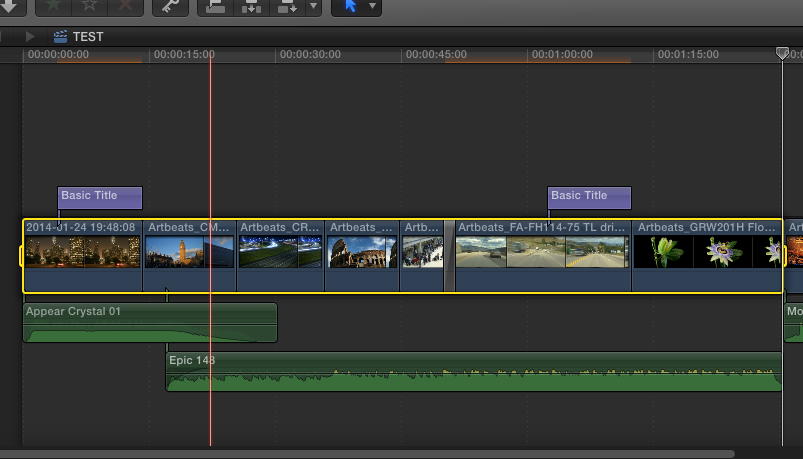
Then set a new In point where the out point was, set an out point at the end of the timeline and export that section as well. Report back when this is done.
- Ronny
Then set a new In point where the out point was, set an out point at the end of the timeline and export that section as well. Report back when this is done.
- Ronny
Please Log in to join the conversation.
- Will_Granzier
-
Topic Author
- Offline
- New Member
-
Less
More
- Posts: 15
- Thank you received: 0
03 Nov 2014 20:52 #55454
by Will_Granzier
Replied by Will_Granzier on topic FCPX 10.1.3 crashing on export
Ok bit of feed back - Up to 20min exported fine...... Now the last 6 min So I assume there is an effect or a clip thats causing the chaos right !?
Please Log in to join the conversation.
- ronny courtens
-
- Offline
- Moderator
-
Less
More
- Posts: 4455
- Thank you received: 962
03 Nov 2014 21:02 #55455
by ronny courtens
Replied by ronny courtens on topic FCPX 10.1.3 crashing on export
Yes, that's what this test was for.
You will have to check for a clip or an effect that is corrupt. One thing that might work is that you render your entire timeline. Corrupt clips or effects that prevent your project from exporting often cannot be rendered either. If you render your entire timeline and you see a spot that isn't rendered, that's where you might find the problem.
- Ronny
You will have to check for a clip or an effect that is corrupt. One thing that might work is that you render your entire timeline. Corrupt clips or effects that prevent your project from exporting often cannot be rendered either. If you render your entire timeline and you see a spot that isn't rendered, that's where you might find the problem.
- Ronny
Please Log in to join the conversation.
